
Add a server
Connect a trading server you own: PerkBridge checks it, installs Docker and the Fleet Agent over SSH, and enrols the agent in one run.
1. Before you start
Have these ready. Prepare your servers explains each one.
- A server with Ubuntu 24.04 LTS on a 64-bit x86 processor.
- SSH access as root, or as a user that can use sudo without a password.
- The private key for that user. Its public key must be in the user’s ~/.ssh/authorized_keys.
- Your provider’s console, to compare the server’s host key fingerprint.
You also need permission to add and set up servers. The OPERATOR permission bundle includes it, but older grants may not; if the page says “Not allowed”, ask an administrator for a new grant.
2. Enter the server details
Open Servers and choose Add server.
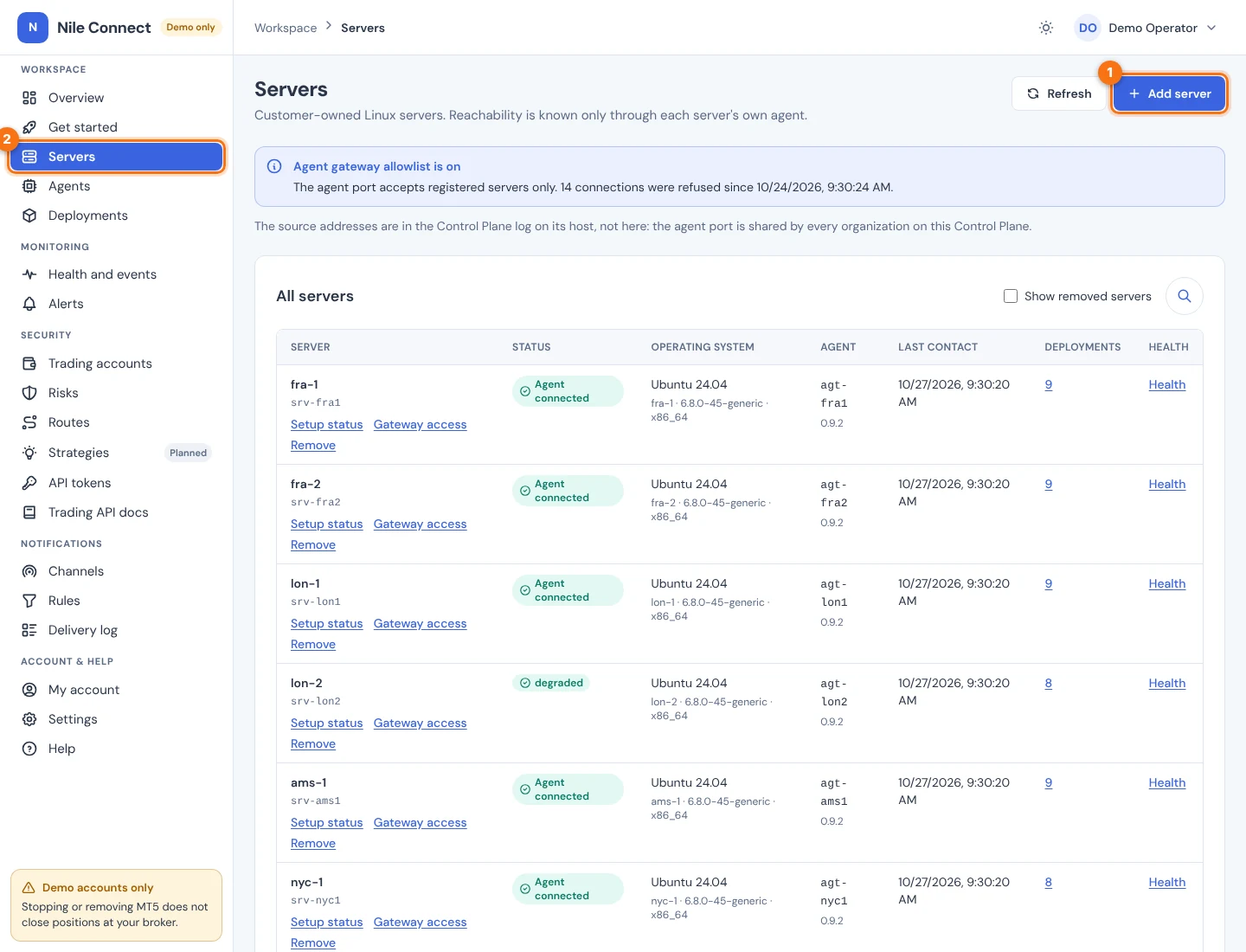
The Add a server page opens. Fill in:
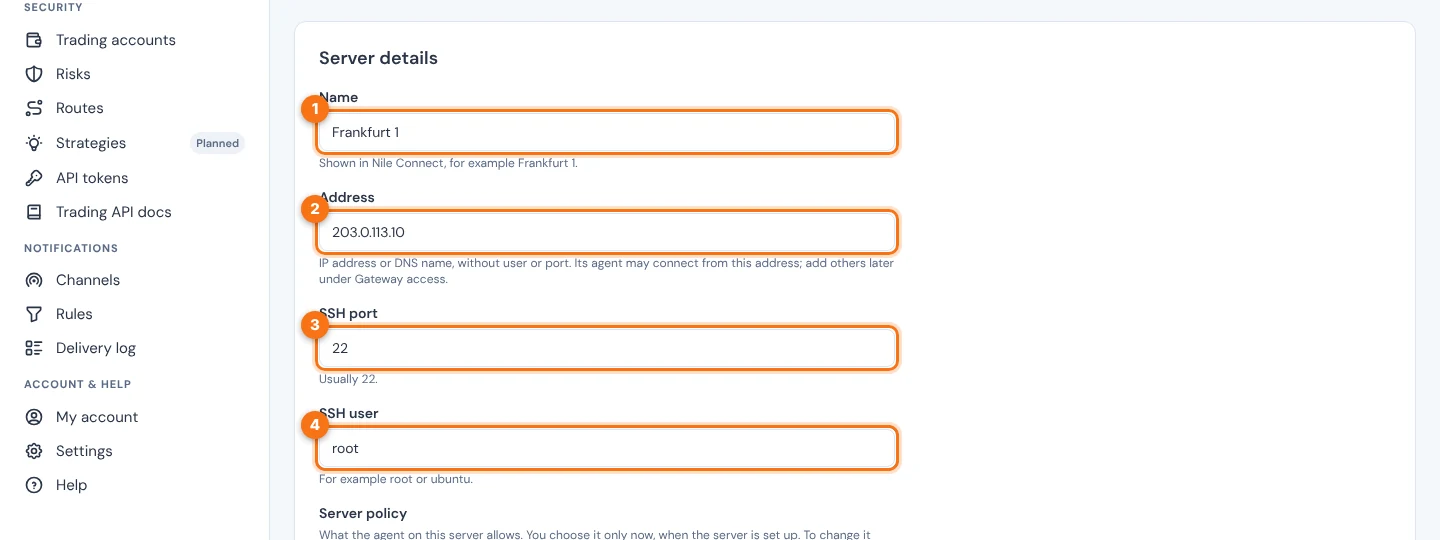
| FIELD | WHAT TO ENTER |
|---|---|
| Name | A name shown in the dashboard, for example Frankfurt 1. |
| Address | The IP address or DNS name, without user or port. The agent may connect from this address. |
| SSH port | Usually 22. |
| SSH user | For example root or ubuntu. |
Then set the Server policy: what the agent on this server allows. You choose it only now. To change it later, remove the server and add it again.
| OPTION | WHAT IT DOES |
|---|---|
| Allow trading | Turns on the server’s trading switch for MT5 demo accounts, so orders from the Trading API and the emergency stop work there. Off by default. A standby server for a trading deployment needs it too. |
| Allow risk mode | Lets trading deployments run with risk rules enforced on the server. Needs Allow trading. Off by default. |
| Allow encrypted credential delivery | Lets operators send a broker password to MT5 on this server. On by default unless your administrator changed it. |
| Remember credentials on the server | Installs nile-vault, so a terminal there can start again with a password an owner chose to remember. Needs credential delivery, and is offered only when the control plane has its vault key. Off by default. |
| Maximum deployments | How many MT5 deployments the server accepts, from 1 to 50. The default is 4. |
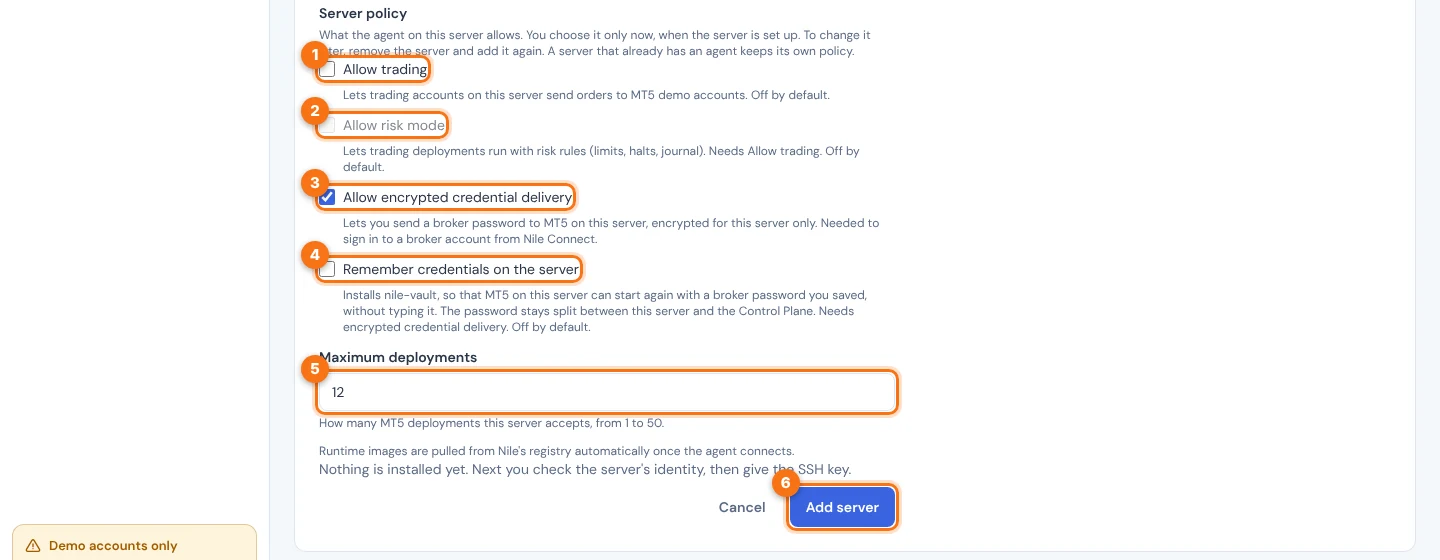
The policy also lets the server download runtime images from the trusted registry. Nothing is downloaded on its own: a download starts when you create a deployment with Install and create, or when you choose Download under the server’s Runtime images.
Choose Add server. Nothing is installed yet. The server’s setup page opens with three steps.
3. Check the server’s identity
In 1. Check the server’s identity, the control plane reads the host key the server presents, without signing in. It does this when the page opens after Add server. If no key is shown, choose Check host key.
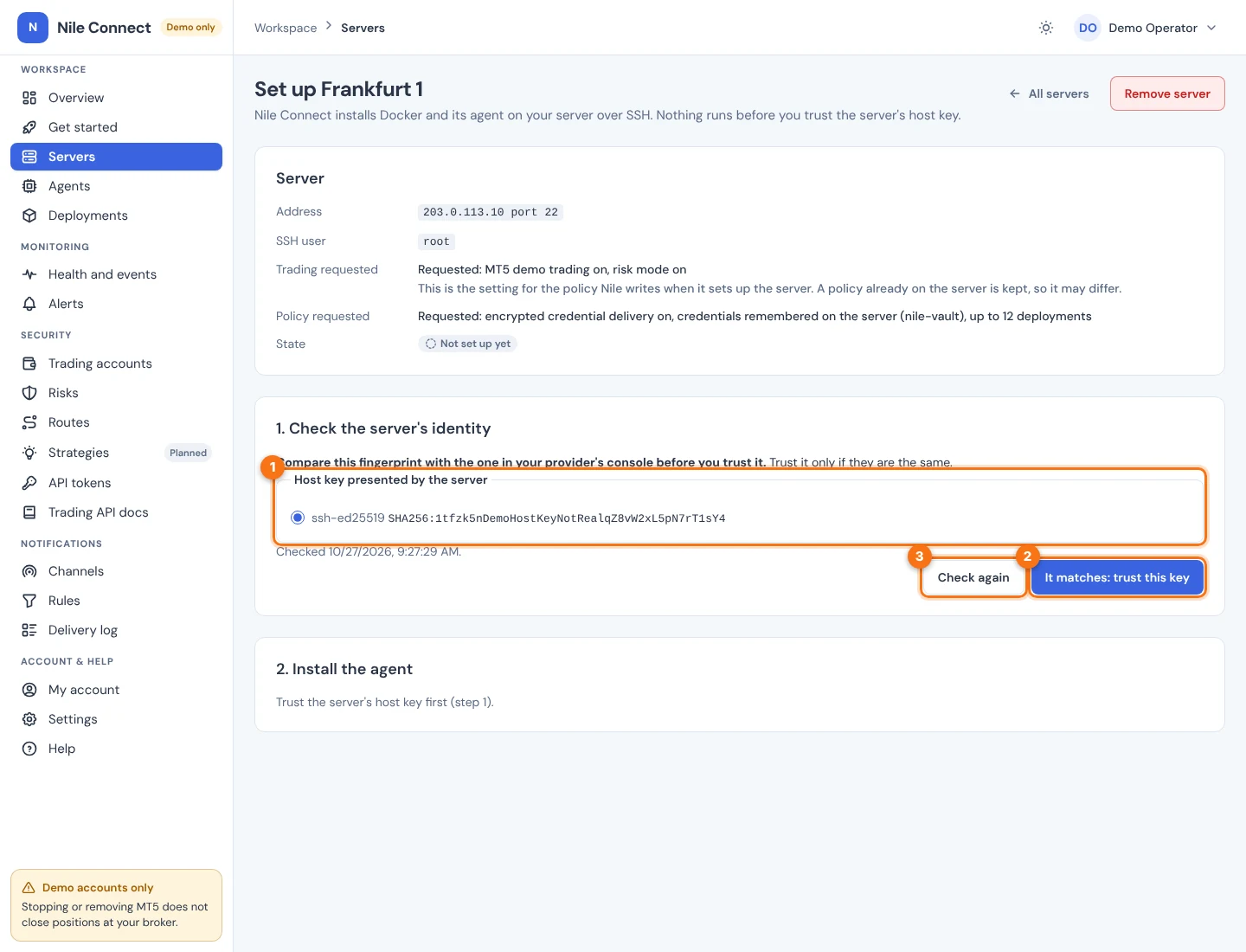
Compare the fingerprint with the one in your provider’s console, or with the output of ssh-keygen -lf /etc/ssh/ssh_host_ed25519_key.pub on the server’s own console. If they are the same, choose It matches: trust this key.
A host key check is valid for 30 minutes. If it expires, choose Check again.
4. Install the agent
In 2. Install the agent, give the SSH key and start setup.
- If you signed in more than 15 minutes ago (the default), confirm your sign-in first. Setting up a server is a sensitive action.
- Under SSH private key, choose the key file, or use Or paste the key.
- If you prefer a password, select SSH password under How to sign in to the server and type it instead. A password is weaker than a key and works only if the server allows SSH password login.
- If the key has a passphrase, enter it in Passphrase (if the key has one).
- Optionally tick Remove this key from the server’s authorized_keys after the agent connects.
- Choose Start setup.
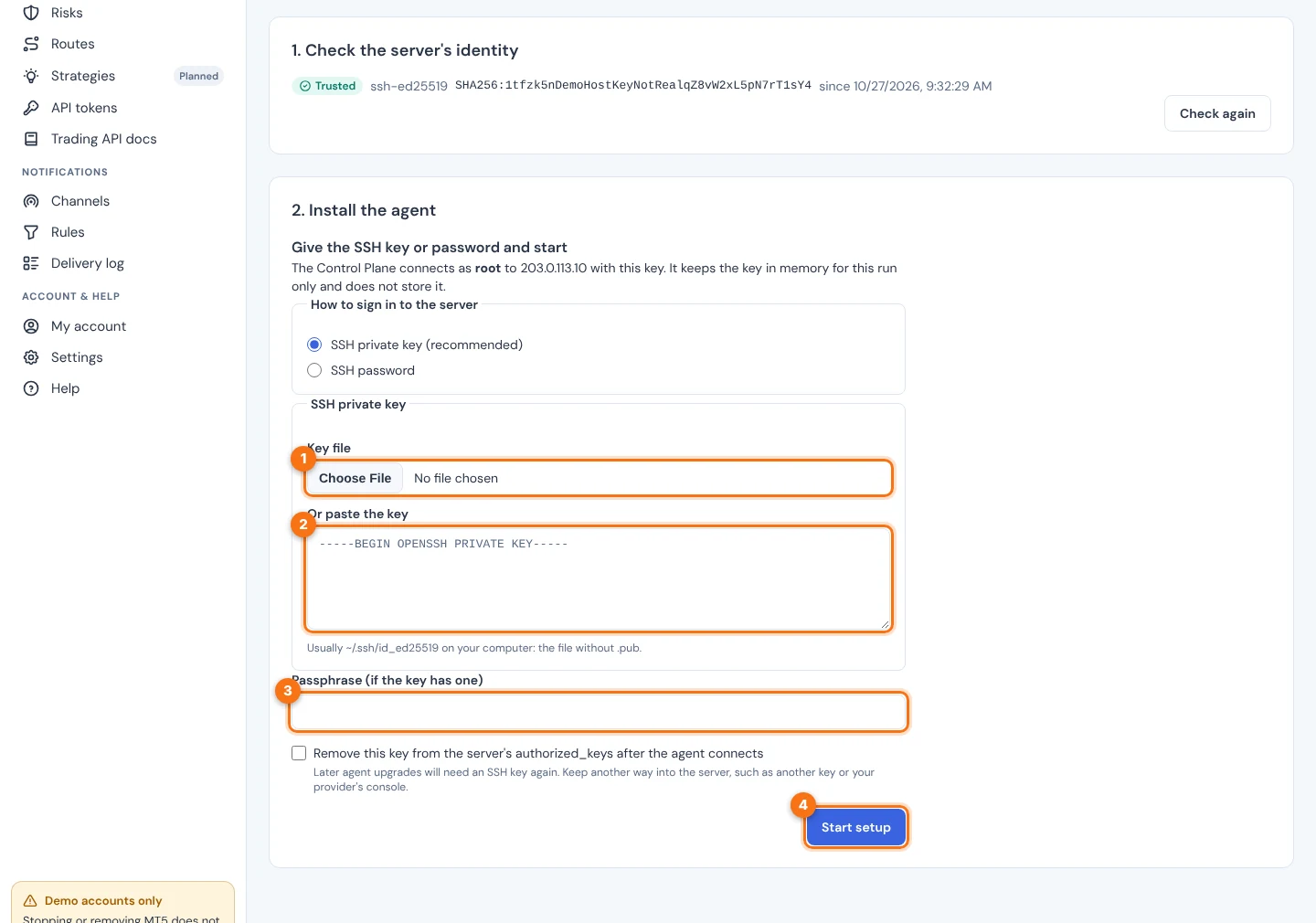
The key is held in memory for this one run and then wiped. It is never stored, logged or shown again. Only its fingerprint is kept, so you can see which key was used.
The page lists each step of the run as it finishes. Setup:
- checks your privileges and runs the read-only preflight checks;
- installs Docker from Docker’s signed repository if the server has none, and holds the packages;
- installs the Fleet Agent binary after checking it against the release, and its systemd service;
- writes the agent’s policy from your options, its settings and the control plane’s certificate, only where the server has none;
- installs and starts nile-vault, if you chose Remember credentials on the server;
- writes a single-use enrolment token, which nobody ever sees;
- starts the agent and waits up to 3 minutes for it to connect.
Setup never stops or removes containers, and never replaces configuration it finds on the server. If a different agent configuration or identity is already there, it changes nothing and fails with CONFIGURATION_CONFLICT.
5. How the agent connects
On first start, the agent creates its own key, sends the enrolment token, and receives its certificate and an agent ID that starts with agt-. It then deletes the token and keeps one outbound connection to https://<your dashboard host>:8443, authenticated on both sides with TLS certificates. The server never opens an inbound port for PerkBridge.
- The certificate renews itself before it expires. Nothing restarts.
- If the connection drops, the agent reconnects with backoff, for as long as it takes.
- While the control plane is unreachable, terminals on the server keep running.
The control plane admits the agent only from the server’s address. If the agent connects from another address, setup ends with AGENT_NOT_CONNECTED. Open the server’s Gateway access page, check “Where the agent connects from”, and choose Allow to add that address. Then run setup again.
6. Finish and remove the setup key
When the agent is connected, the server is ready. In 3. Provisioning key (optional) you can remove the setup key from the server’s authorized_keys if you did not tick the box earlier. You give the key once more. It is removed only while the agent is connected, and only lines with exactly that key are removed. SSH access with that key then ends.
Continue with deploying a trading account. A new server holds no platform yet; Install and create downloads it for your first deployment.
7. If setup fails
The page shows “Setup failed.” with the reason and the steps that finished. Every step checks the server first and changes only what is missing, so it is safe to choose Retry once you have fixed the cause. You give the SSH key again. Setup does not roll back what it installed.
| CODE | WHAT TO DO |
|---|---|
| SSH_AUTH_FAILED | Check the SSH user and that the public key is in its authorized_keys. |
| SSH_UNAVAILABLE | Check the address, the SSH port and that the control plane can reach it. |
| INSUFFICIENT_PRIVILEGES | Use root, or give the user passwordless sudo. |
| UNSUPPORTED_OS, INSUFFICIENT_MEMORY and other preflight codes | See the requirements in Prepare your servers. |
| CONFIGURATION_CONFLICT | The server already has a different agent setup. Nothing was changed. Check whether it belongs to another installation. |
| AGENT_NOT_CONNECTED | Check that the server reaches port 8443 and that its address is on Gateway access, then retry. |
| VAULT_INSTALL_FAILED, VAULT_NOT_STARTED | nile-vault could not be installed or started. Check journalctl -u nile-vault on the server, then retry. Retrying is safe. |
For more, see Troubleshooting. To take a server out again, see Removing servers and deployments; removing never closes your broker positions.