
Stopping safely
This guide shows you how to stop trading and shut down a terminal without leaving anything open at your broker by mistake.
1. What stopping does
When you stop a deployment, PerkBridge shuts down the MT5 terminal, removes its container and temporary session files, and checks that they are gone. The deployment’s actual state becomes STOPPED.
Stopping does not:
- close open positions;
- cancel pending orders at the broker;
- log out of the broker account.
Anything open stays open at the broker. Sessions are single-use: a stopped deployment cannot be started again. Create a new deployment when you need a terminal again.
2. Before you stop: stop new orders
First make sure no program can open new positions while you tidy up.
- Open Trading accounts and choose the account.
- On its Overview, choose Turn trading off and confirm. New orders are refused, and queued orders expire. Open positions stay open and can still be closed.
- To stop one program only, turn off its route on the Routes tab instead.
Turning trading off needs the trading:halt or trading:configure permission. Nothing at the broker changes.
3. Close positions first
If you want nothing left open, close positions before you stop the terminal. Once the terminal is gone, PerkBridge can no longer send orders for that account.
- Through the Trading API: POST /api/v1/trading/accounts/{account_id}/positions/{position_id}/close places a market order that closes the whole position. It needs the positions:close permission. It works even when trading is turned off, during an emergency halt, and after a risk rule has tripped.
- At your broker, with the broker’s own tools.
A close is queued first, so follow its status until it is filled.
Pending orders (limit, stop and stop limit) keep resting at the broker and can still fill after the terminal is gone. Cancel the ones PerkBridge placed with POST /api/v1/trading/accounts/{account_id}/orders/{order_id}/cancel, or with the emergency stop’s cancel option (section 5). Like a close, a cancel works while trading is off and during a halt. Orders placed outside PerkBridge must be cancelled at the broker. See the Trading API reference.
4. Stop the deployment
You need the permission to stop deployments. Do sections 2 and 3 first if positions or orders are open.
- Open Deployments and choose the deployment. On its Overview tab, find the Actions card. It says “MT5 session is running”. Choose Stop (1).
- A question appears: “Stop this deployment?” It repeats that the terminal shuts down, open broker positions are not closed, and a stopped session cannot be started again. Choose Stop deployment (1 in the second picture), or Cancel (2) to leave it running.
- Open the Operations tab (1). The newest row is the stop. Its state (2) starts as DISPATCHED: “Accepted” does not mean “done”, because the server’s agent carries out the stop.
- Wait until the state reads SUCCEEDED and the deployment’s actual state is STOPPED. Use Refresh if the page has not moved.
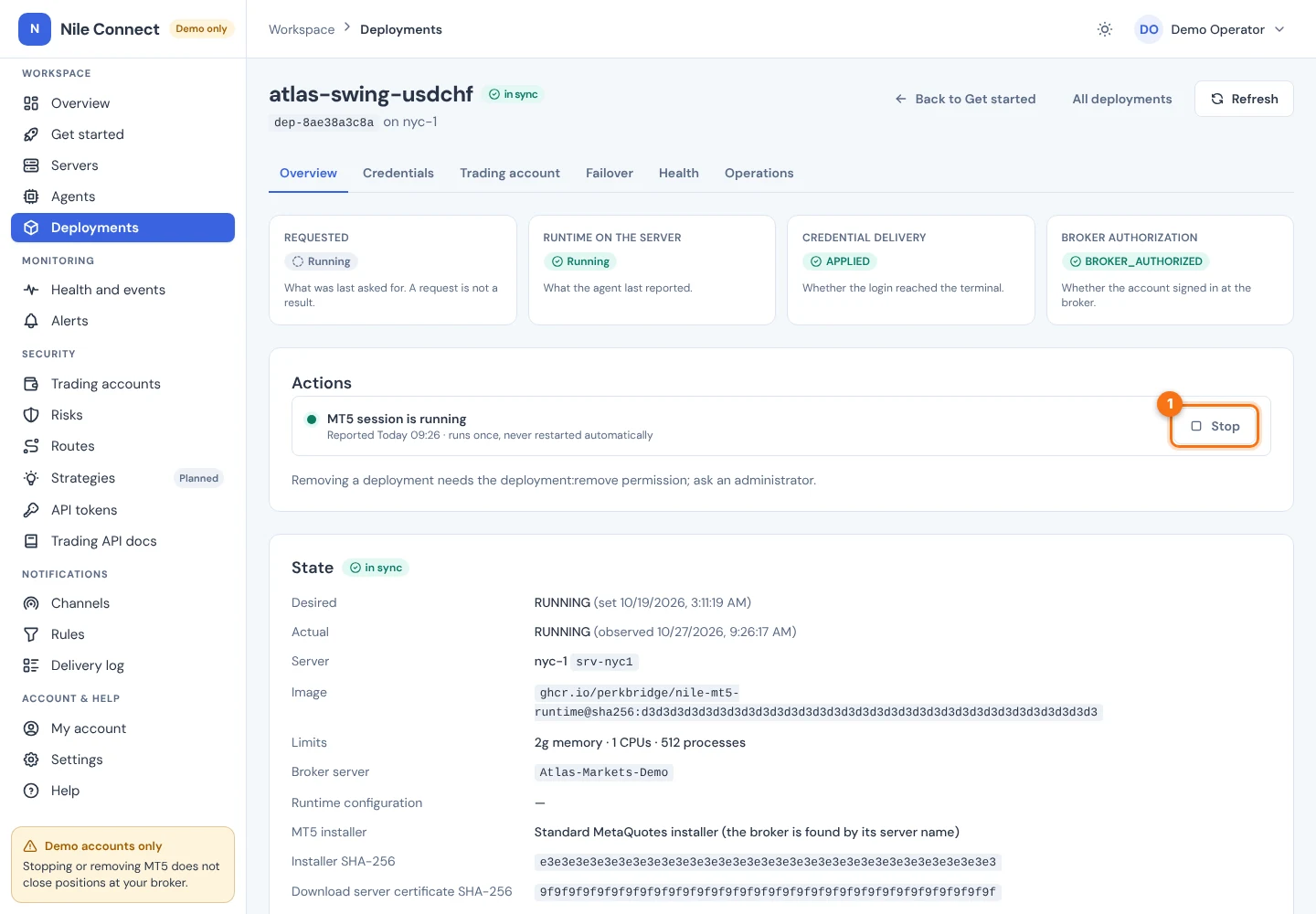
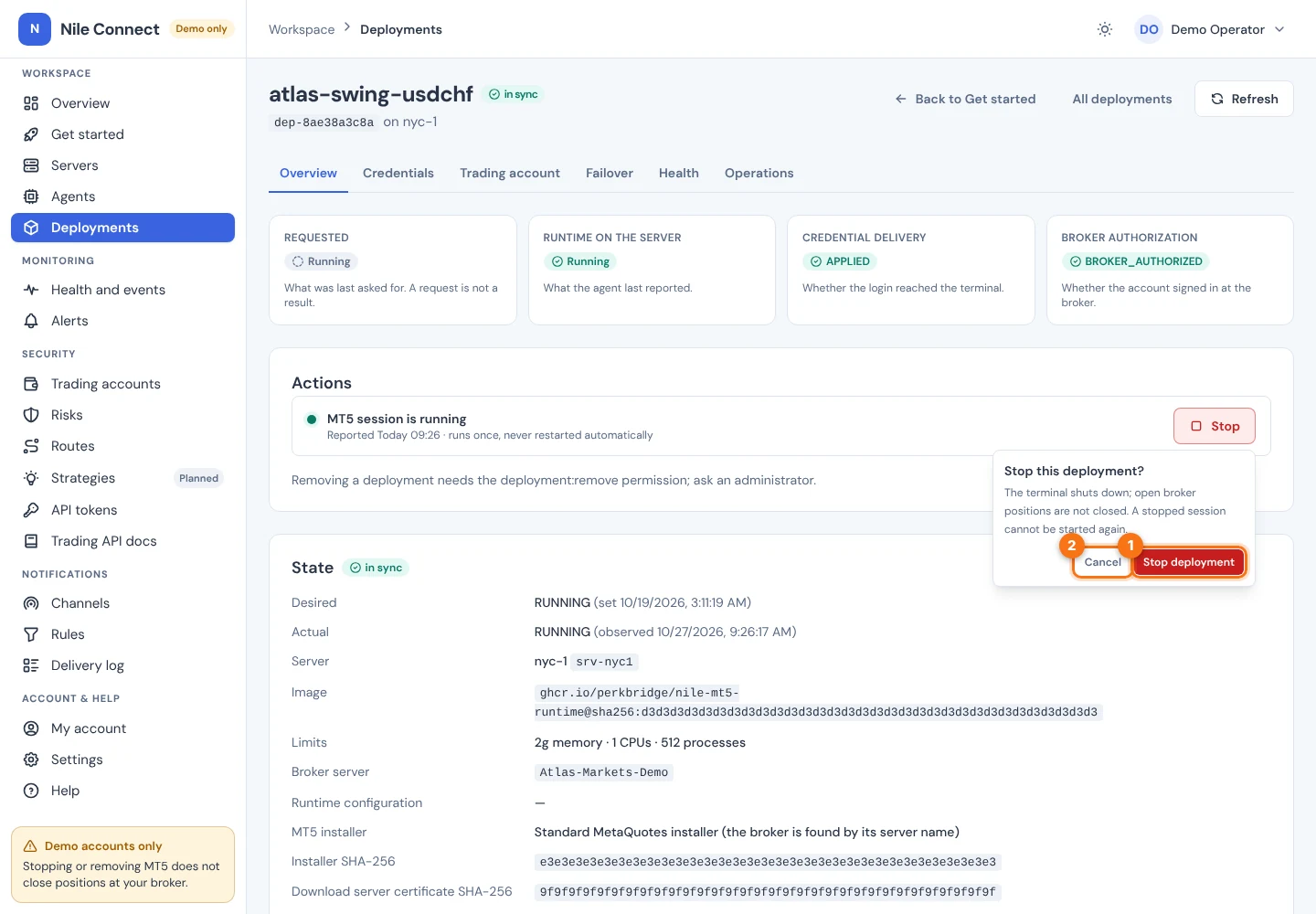
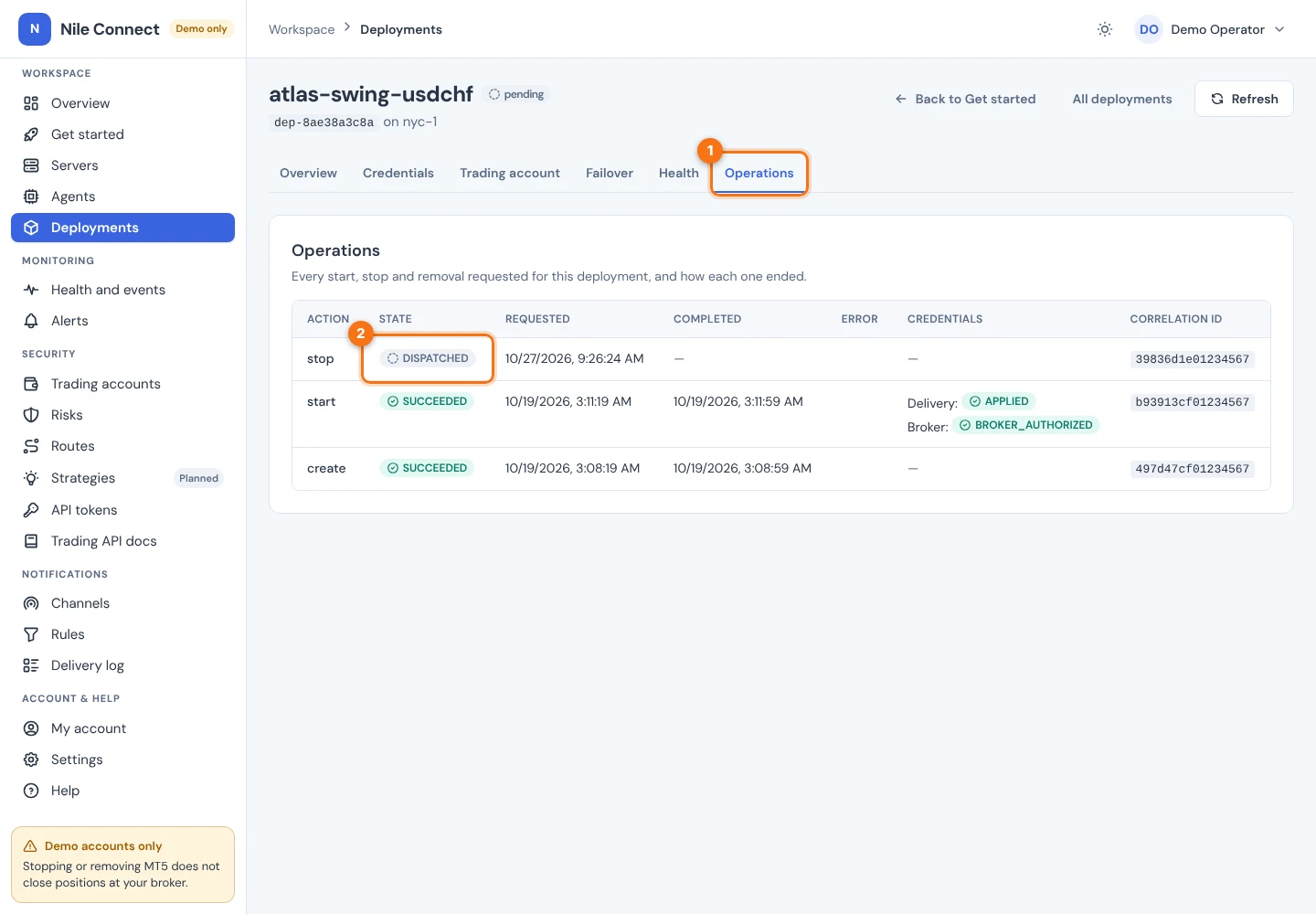
What you should see. The Overview shows the runtime as stopping and then STOPPED. The account’s open positions and orders are unchanged at the broker.
A stop has a deadline of 20 minutes. If its outcome cannot be confirmed, the operation shows UNKNOWN or RECONCILING. Do not repeat it. PerkBridge settles it from the agent’s records and never sends it again on its own.
If the server’s agent is offline, nothing can be sent and the dashboard says so. Nothing is queued for later.
5. Emergency halt
An emergency halt blocks every new opening order on every trading account of your organization at once. Use it when something is going wrong across several accounts. It needs the trading:halt permission.
- Open Trading accounts and choose the Emergency stop tab (1).
- Type a Reason (2), for example “broker incident”. It is recorded in the audit log.
- Optionally tick Also cancel Nile’s pending orders resting at the broker (3). Without it, pending orders keep resting and can still fill.
- Choose Place the emergency stop (4). To lift it later, return to this tab and choose Release the emergency stop.
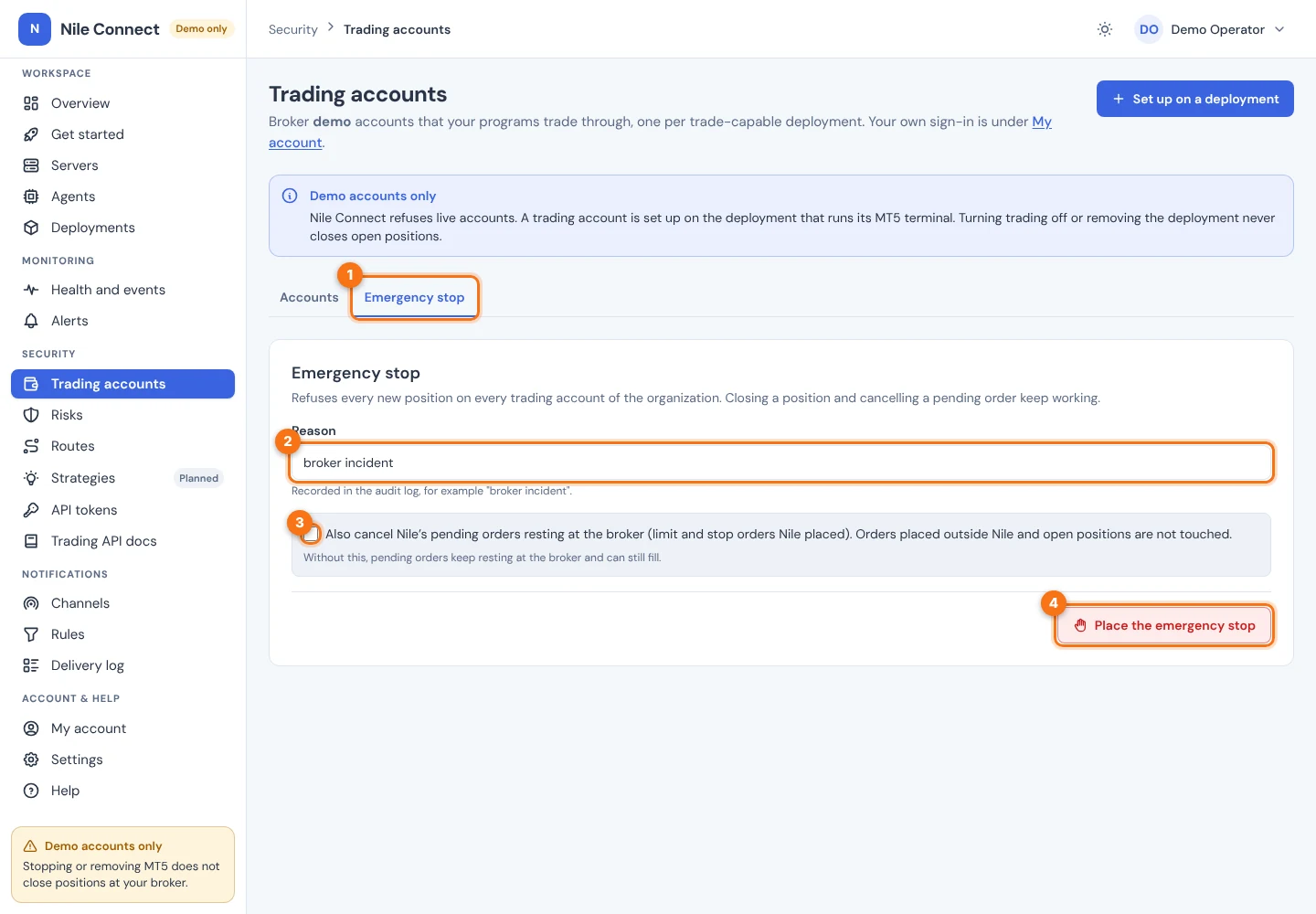
The same is available through the API: POST /api/v1/trading/halt-all with a reason (and “cancel_pending_orders”: true to cancel), POST /api/v1/trading/resume-all and GET /api/v1/trading/halt. Both need a dashboard sign-in and the trading:halt permission. While the halt is on, each account’s Overview says so. Closing a position and cancelling a pending order still work.
A halt does not close positions, stop terminals or log out accounts. The only thing it can send to the broker is the cancel of PerkBridge’s own pending orders, when you ask for it. Orders placed outside PerkBridge are not touched. Orders already sent to the broker carry on to their outcome.
A server administrator also has a local switch: “trading”: {“enabled”: false} in the agent’s host policy, /etc/nile/fleet-agent/policy.json. It halts all trading on that server without the control plane.
6. What cleanup removes
Each MT5 session is ephemeral. When it ends, the agent removes:
- the deployment’s container;
- temporary session files, including the delivered credential files and terminal configuration;
- the session’s in-memory folders.
The shared MT5 installation for the broker stays. PerkBridge reports what it removed. It does not claim secure deletion: disks, copy-on-write layers, swap and host backups can keep data.
If cleanup cannot be verified, the session enters CLEANUP_FAILED and the dashboard raises a session cleanup failed alert (SESSION_CLEANUP_FAILED). Cleanup can be retried. Contact your administrator.
7. Stopping the control plane
To stop the management services, run this on the control plane host:
Stopping the management stack never stops trading environments on your servers and never closes broker positions. They keep running under their agent. See Outages and reboots.
To take a deployment off its server for good after stopping it, see Removing servers and deployments.