
Your first server and account
Follow the Get started guide in the dashboard from an empty workspace to a running MT5 demo terminal, one step at a time.
1. What Get started does
Get started is a page in the dashboard that walks you from a new server to a running MT5 demo terminal. It calls each piece of work a journey. A journey asks for one thing at a time, does the waiting for you, and keeps its place when you close the page.
You will:
- start a journey and choose which of the two kinds you need;
- work through its steps, from the server to a broker login and the first start;
- read the Status panel to see what is happening and who the journey is waiting for;
- know when it is Done, and what to do when it says Needs attention.
You need permission to add servers and manage deployments (the OPERATOR permission bundle has both). For a new server you also need the things listed in Prepare your servers: Ubuntu 24.04 on a 64-bit x86 processor, SSH access as root or a user with sudo, and your SSH password or private key. For the broker login you need a demo account.
2. The list of journeys
Open Get started in the left menu. The page lists every journey you started, with its kind, its progress, a status, when it started and when it last changed.
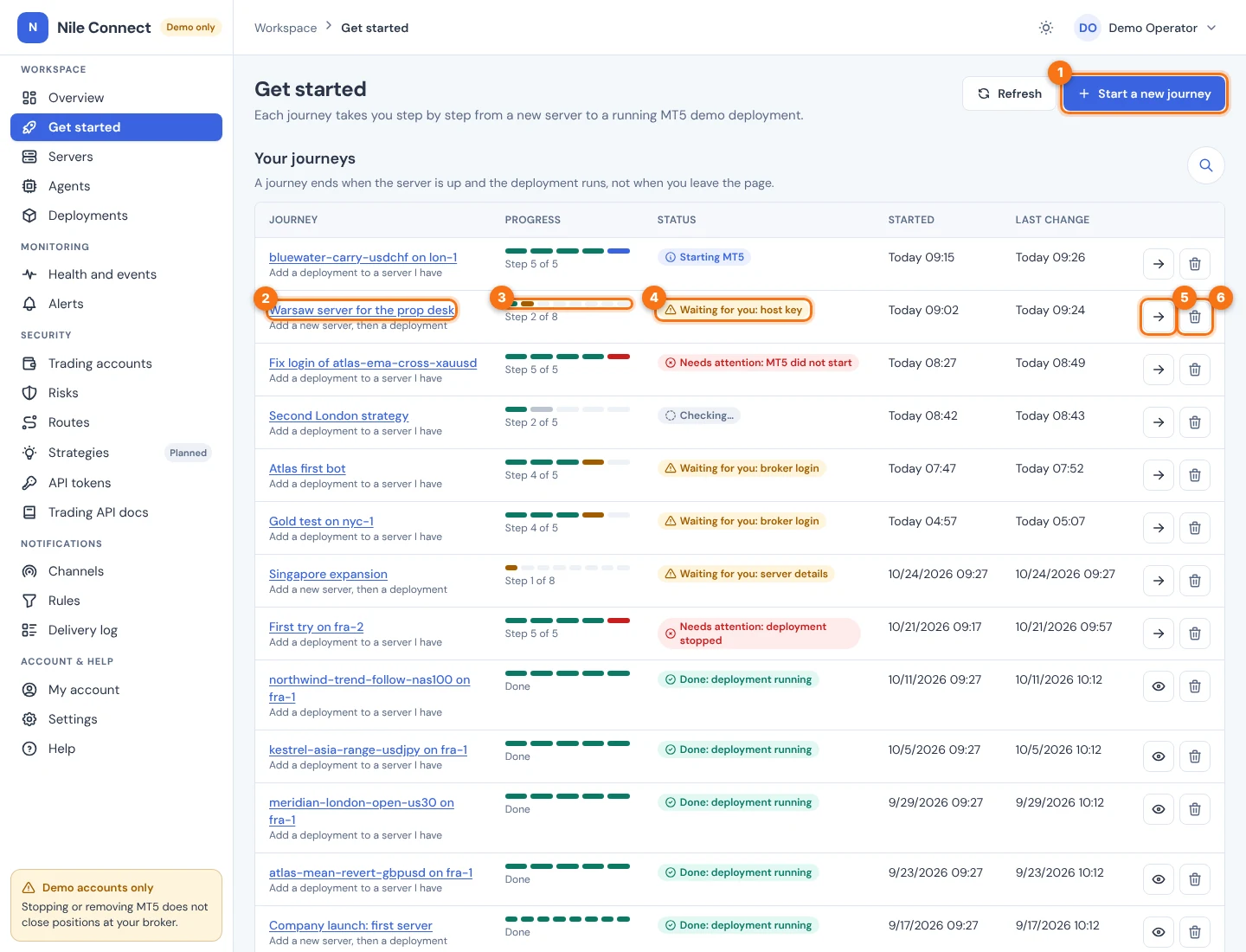
With no journeys yet, the page says “No journeys yet” and links to Start your first journey. Use the search button to filter the list by name, kind or status. Refresh reads the latest state.
The status in the list is one of:
| STATUS | WHAT IT MEANS |
|---|---|
| Waiting for you: … | The journey needs something from you, for example the host key, the SSH password or key, the platform or the broker login. The text after the colon names it. |
| Nile is working, for example “Installing the agent” or “Starting MT5” | Nothing is needed from you. You can leave the page. |
| Needs attention: … | Something failed or changed. The journey stays open. See section 8. |
| Checking… | The dashboard is reading the latest state. Choose Refresh if it stays. |
| Done: deployment running | The server is up and MT5 runs and is connected. See section 7. |
The trash button removes a journey from your list only after you confirm “Delete this journey from your list? The server and the deployment are not touched.” with Delete journey. It never removes a server or a deployment.
3. Start a new journey
- Choose Start a new journey (1 in the figure above). The page Start a new journey opens.
- Under What do you want to set up?, pick one card. Each card lists its steps.
- Optionally change the Journey name. It is shown in your list, up to 64 characters.
- Choose Start. The journey opens at its first step.
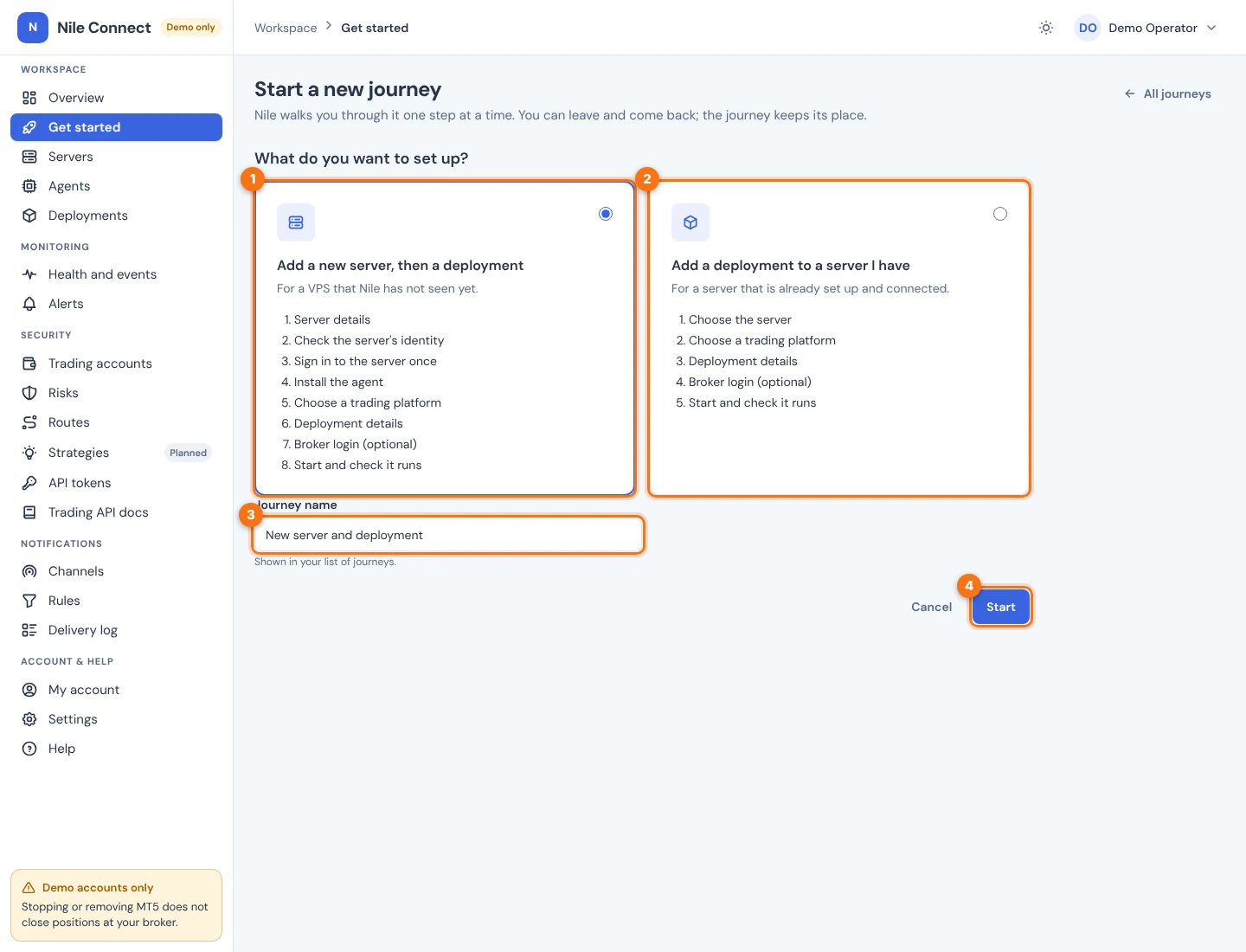
The two kinds:
| KIND | STEPS |
|---|---|
| Add a new server, then a deployment (8 steps) | 1 Server details. 2 Check the server’s identity. 3 Sign in to the server once. 4 Install the agent. 5 Choose a trading platform. 6 Deployment details. 7 Broker login (optional). 8 Start and check it runs. |
| Add a deployment to a server I have (5 steps) | 1 Choose the server. 2 Choose a trading platform. 3 Deployment details. 4 Broker login (optional). 5 Start and check it runs. |
Steps are shown in two groups, Server and Deployment. A finished step folds into one line with a green check and a short summary. The step you are on is open and outlined: amber while it waits for you, blue while Nile works, red when it needs attention. Later steps are greyed out with a note about what they wait for. Once the server group is finished, it folds into one line such as “fra-1 is up”, and Show steps opens it again.
A step the journey does not need is marked “Not needed”. For example, if you choose not to deliver a broker login, step “Broker login (optional)” shows “Not used: you sign in inside MT5 yourself”.
4. Steps for a new server
These are steps 1 to 4 of the first kind. If your server is already connected, skip to section 5.
Step 1. Server details
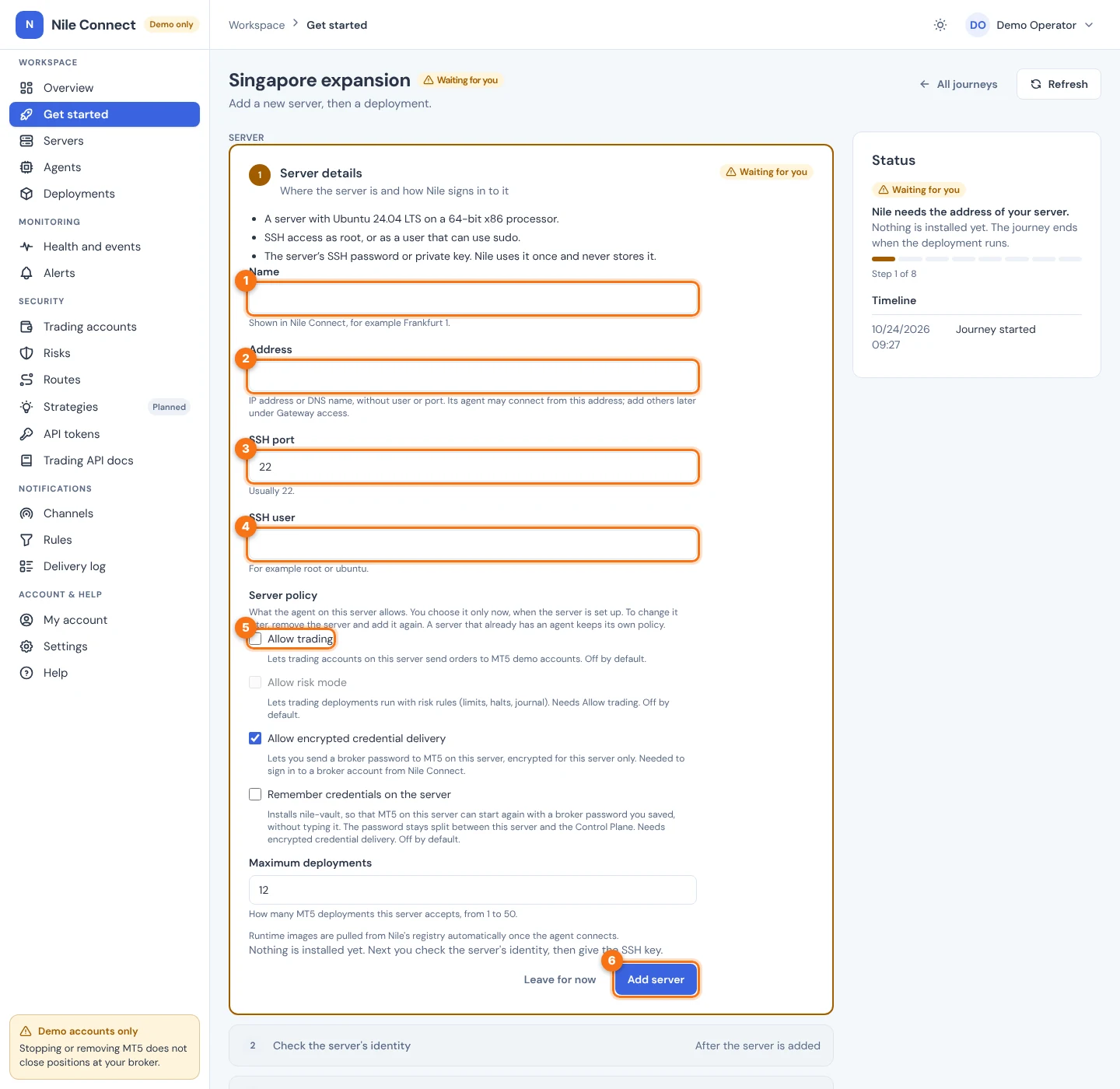
Fill in the four fields, choose the Server policy options and choose Add server. Nothing is installed yet. The policy options (Allow trading, Allow risk mode, Allow encrypted credential delivery, Remember credentials on the server, Maximum deployments) are explained in Add a server. You choose them only now; to change them later you remove the server and add it again.
If you see “Not allowed”, you do not have permission to add servers: ask an administrator, or start a journey for a server you already have. If you see a notice that adding servers is off, see the early access note in Add a server.
Step 2. Check the server’s identity
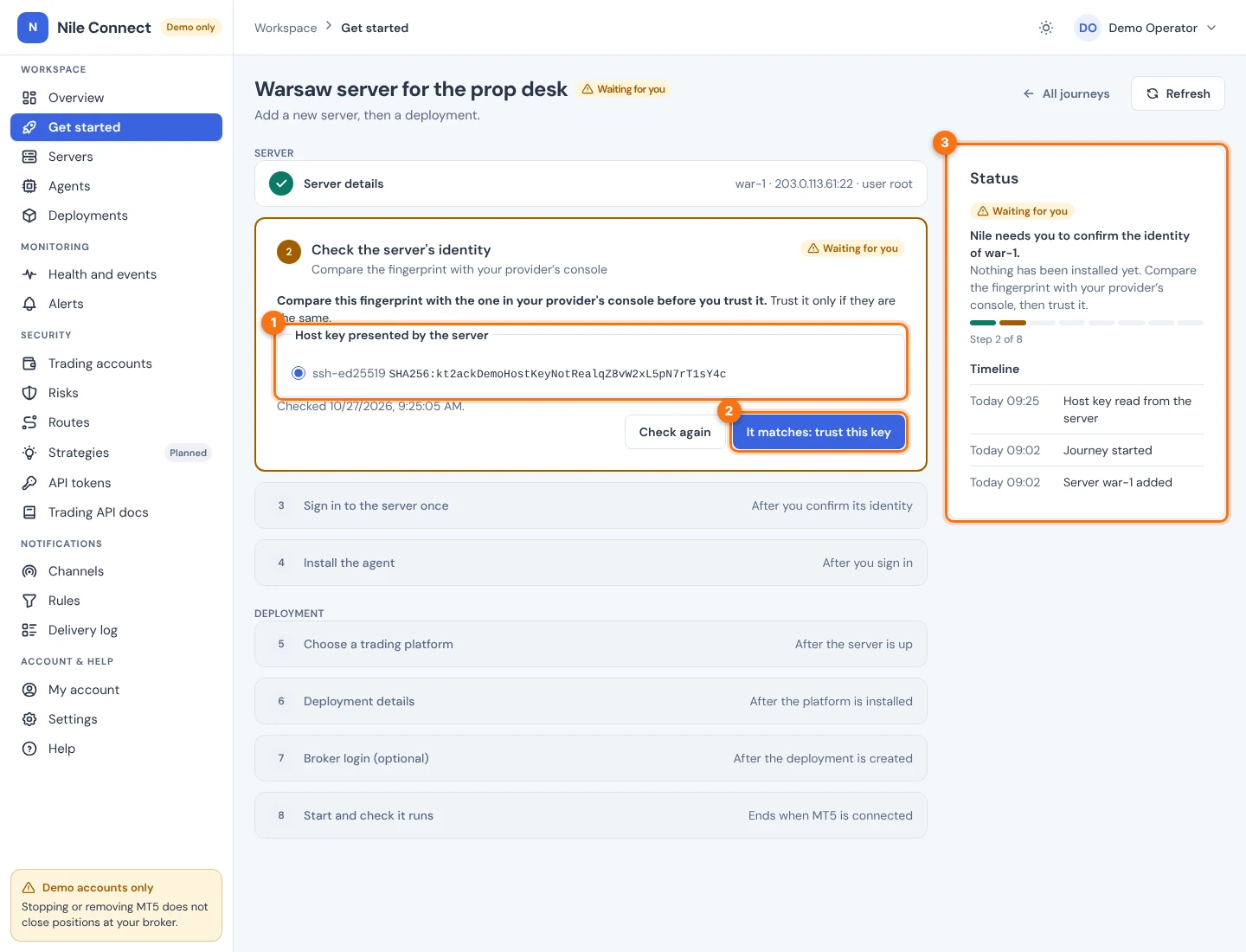
Nile reads the server’s host key when this step opens. Compare the fingerprint with the one in your provider’s console (or with ssh-keygen -lf /etc/ssh/ssh_host_ed25519_key.pub on the server). If they are the same, choose It matches: trust this key. If they differ, do not trust it. Use Check again to read the key once more.
If the server later presents a different key, the step turns red with “The server’s identity changed” and nothing is installed. Only replace the key if you reinstalled the server or your provider confirms the change.
Step 3. Sign in to the server once
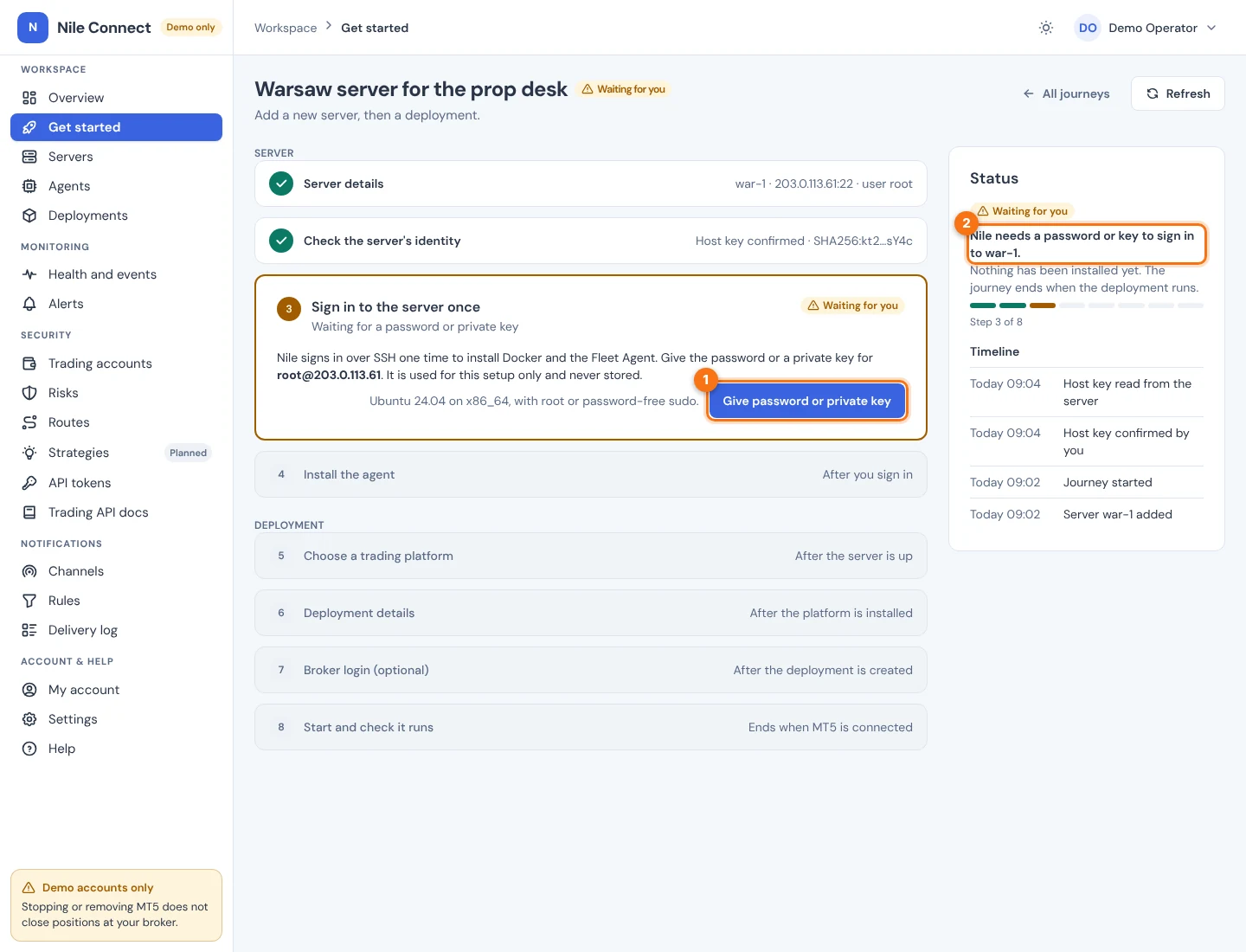
Nile signs in over SSH one time to install Docker and the Fleet Agent. Choose Give password or private key. A dialog opens named “Sign in to server once”. It says “Used for this setup only and never stored.”
If you signed in to the dashboard more than 15 minutes ago (the default), the dialog first asks you to confirm it is you, with your dashboard password or single sign-on. You then give the SSH secret.
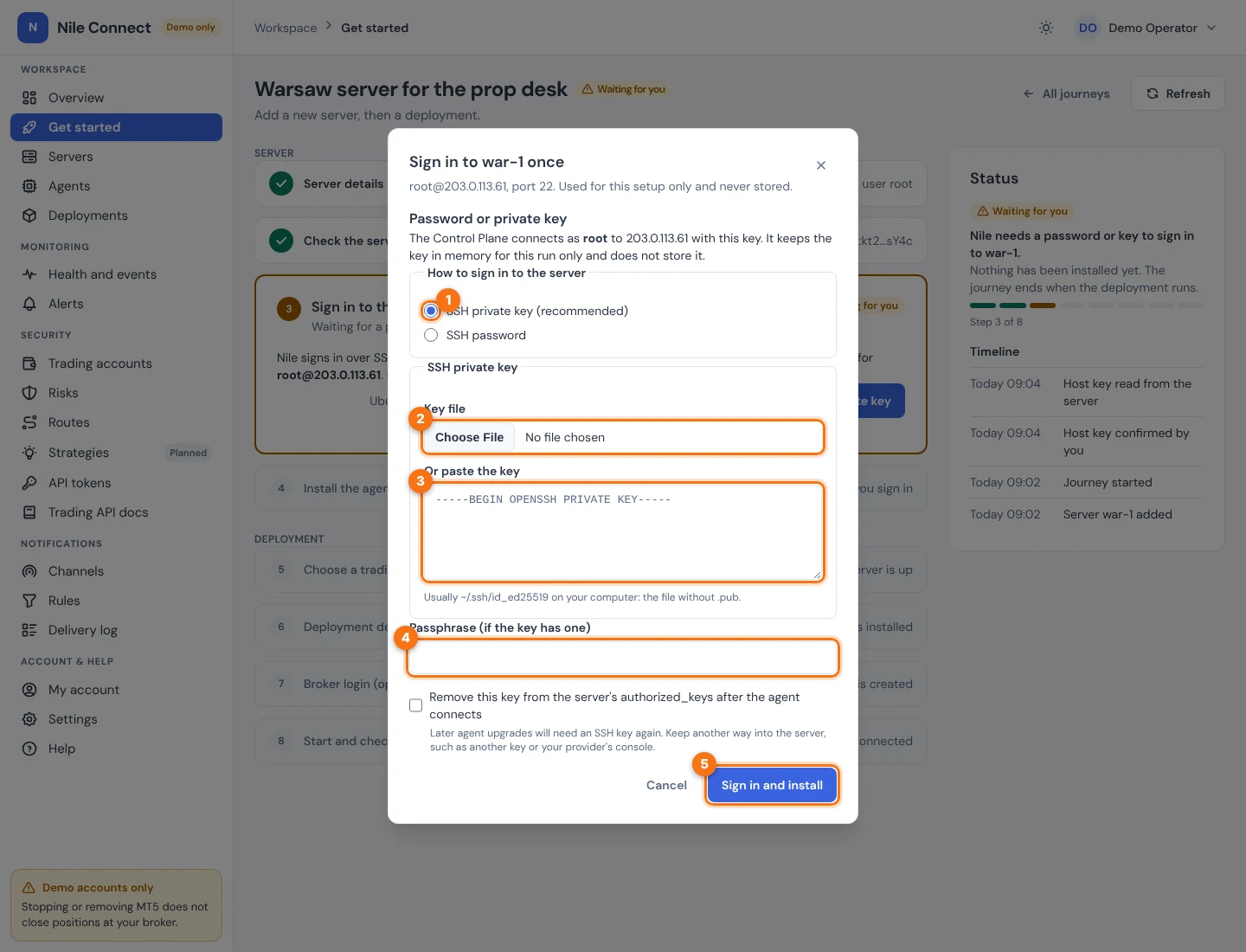
Using a key:
- Keep SSH private key (recommended) selected.
- Choose the key file under Key file, or paste it under Or paste the key.
- If the key has a passphrase, type it under Passphrase (if the key has one).
- Optionally tick Remove this key from the server’s authorized_keys after the agent connects. Later agent upgrades will then need an SSH key again, so keep another way into the server.
- Choose Sign in and install.
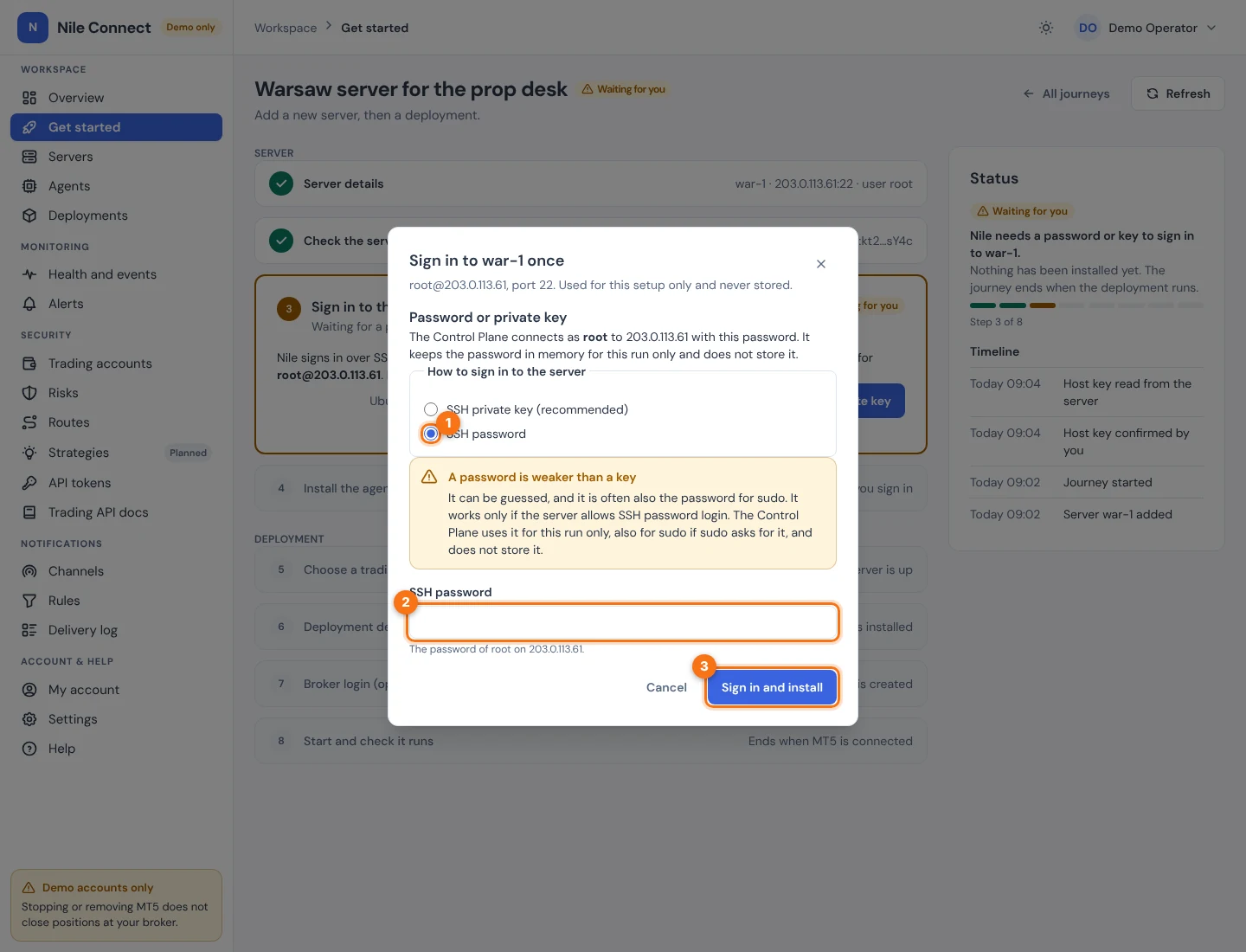
Using a password: select SSH password, type it, and choose Sign in and install. A password is weaker than a key. It works only if the server allows SSH password login. Nile also uses it for sudo if sudo asks for it.
Step 4. Install the agent
After you sign in, Nile installs Docker and the Fleet Agent. The step shows a checklist of what is done and what is under way, and says it usually takes a few minutes. You can leave the page: the journey keeps going. When the agent has connected, the step shows “Fleet Agent connected on server” and the server group folds to “server is up”. If the agent is installed but has not connected yet, the status is “Waiting for the agent to connect”; check that the server can reach your dashboard on port 8443. If installation fails, the step shows what failed and Try again, which asks for the password or key again. What each failure means is in Add a server.
5. Choosing the server (existing server)
In the second kind, step 1 is Choose the server. Pick a server in the Server list and choose Use this server. Only a server whose agent is connected can take a deployment; others show “(agent offline)”. A server that is being removed, or one that is not connected, turns the step red: “Check that the server is running and can reach the Nile Control Plane.”
6. Steps for the deployment
Choose a trading platform
This step shows the platforms in PerkBridge’s signed catalog. Today that is MT5 runtime. The card shows the latest version, when it was published, and what it was tested with. The state of the platform on your server decides the main button:
| PLATFORM ON THE SERVER | BUTTON |
|---|---|
| Latest version is already installed | Continue. If it is the only platform, the step is already done and shows a check. |
| Not on the server yet | Install and continue. Nile downloads the latest version, about 3.8 GB for MT5, and the step shows progress. You can leave the page; the download goes on. |
| An older version is on the server | Update and continue. |
| Installed but not yet approved for your organization | Approve and continue. |
If the download fails, the step says “was not installed” with the reason, and the button becomes Try again. Installing needs permission to download images on that server. Without it, the status is “Waiting for an administrator: install the platform”. The step never starts MT5 and never touches credentials.
The demo dashboard used for the screenshots already has the platform on every server, so the step is skipped there and this guide cannot show the install button. You will see it on a server that does not yet hold the platform. Once a platform is chosen you can still switch it from the Deployment details step with Change platform:
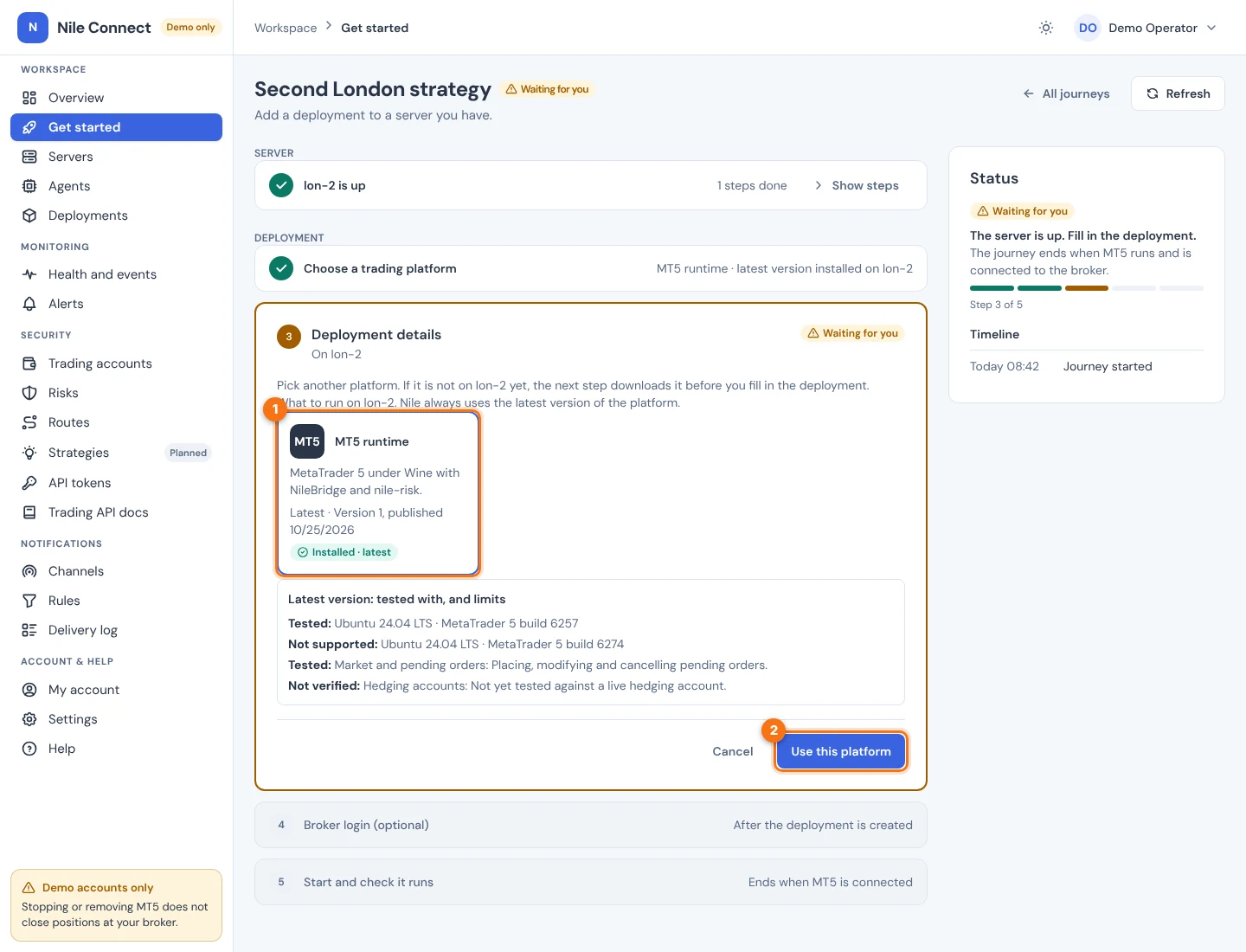
Deployment details
Fill in the deployment form: Name, Broker server (exactly as your broker or MT5 shows it, for example FTMO-Demo), the MT5 installation, the MetaQuotes licence tick box, the broker credentials choice and the resource limits. Every field is explained in Deploy a trading account. Choose Create deployment. Nile asks the server to create it and the step says “Waiting for the server to create it”. Choose Open the deployment to look at it. A deployment is created stopped.
Choose Deliver once at start under Broker credentials if you want Nile to sign in to your broker demo account. Choose No credentials if you will sign in inside MT5 yourself.
Broker login (optional)
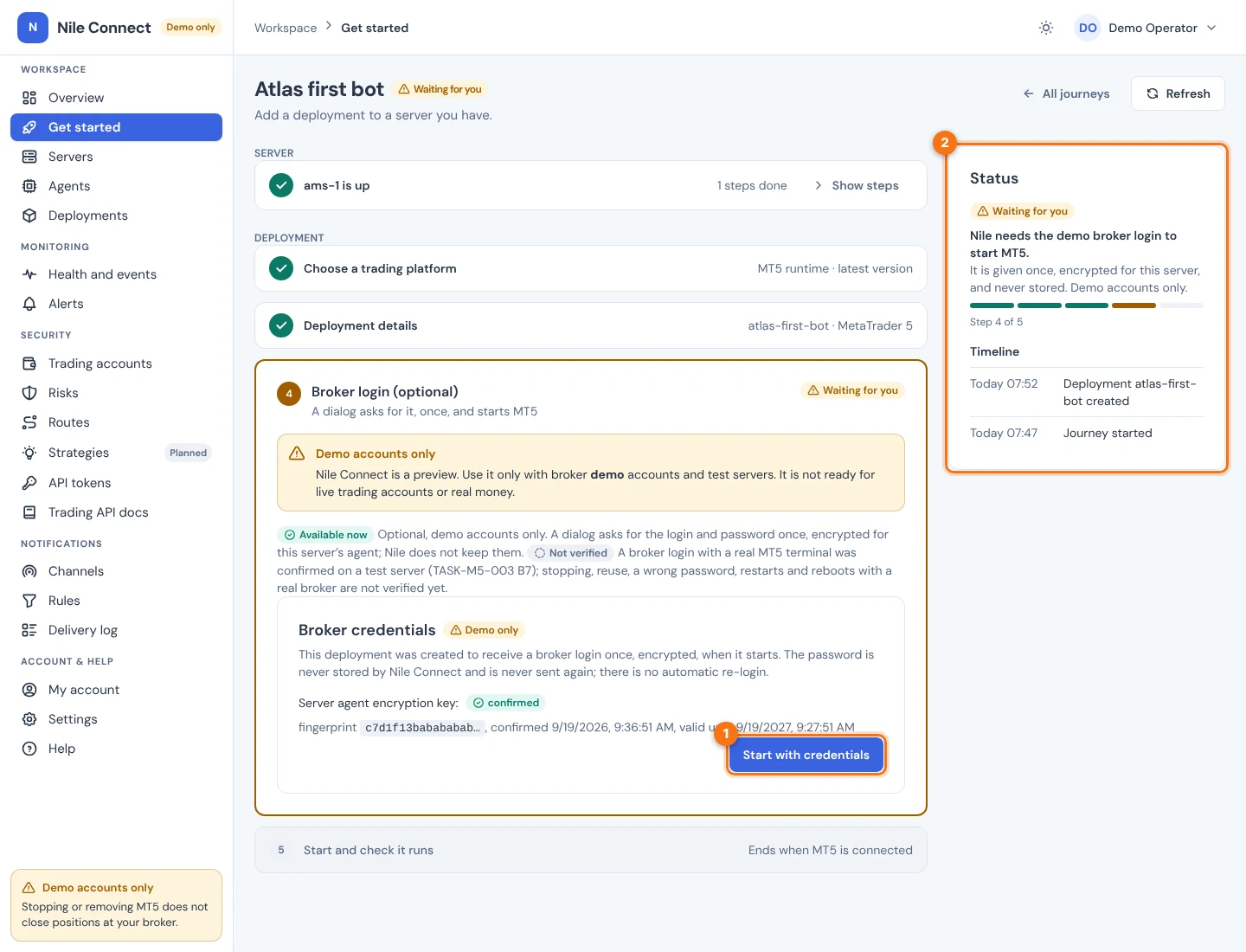
This step shows only when you chose Deliver once at start. Choose Start with credentials. If your dashboard sign-in is older than about 15 minutes, you confirm your identity first. Then:
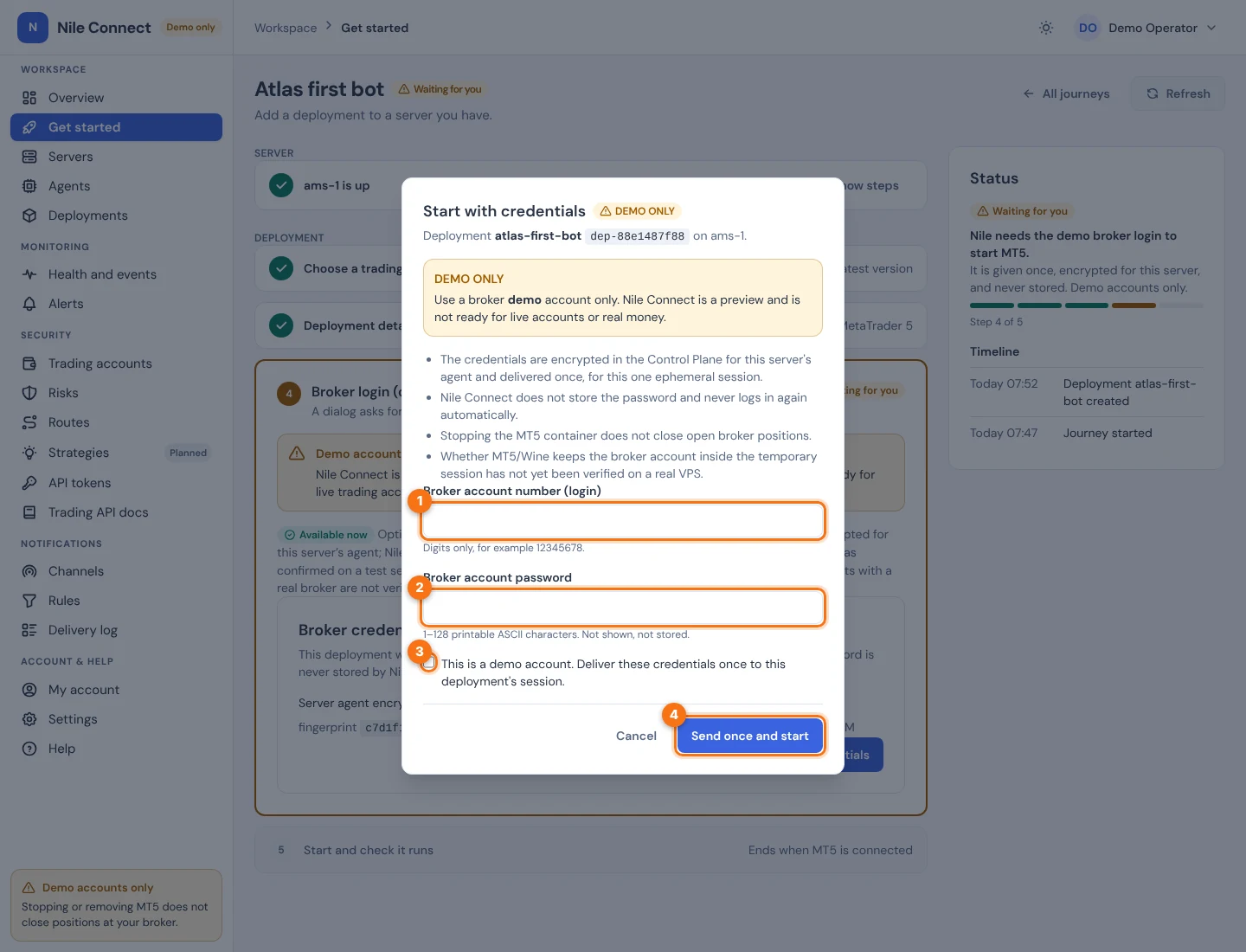
- Type the Broker account number (login).
- Type the Broker account password. It is not shown and not stored.
- Tick This is a demo account. Deliver these credentials once to this deployment’s session.
- Choose Send once and start.
This sends the login encrypted to the server’s agent and starts MT5 in one move. It is given once and never sent again. How delivery works is in Deliver broker credentials. Real-money accounts are refused.
Start and check it runs
With a delivered login, the start already happened in the last step, and this step waits and checks. Without credentials, choose Start MT5 here. A session starts once and is never restarted for you. The step then follows MT5 through “Starting MT5” and “Connecting to the broker”. If MT5 runs but is not connected to a broker, and you gave no login, the status is “Waiting for you: sign in inside MT5”. Sign in to your demo account inside MT5. The step finishes when MT5 reports the broker connection.
7. The Status panel and what Done means
On the right of every journey, the Status panel shows a badge (Waiting for you, Nile is working, Needs attention or Done), one sentence saying what is going on, a line of detail, the progress bar with “Step 3 of 8”, and a Timeline of what happened, newest first, such as “Host key confirmed by you”, “Deployment name created” and “MT5 started”.
The panel reads live data from your server and deployment. It does not guess: where it cannot see something, it says “Checking…”.
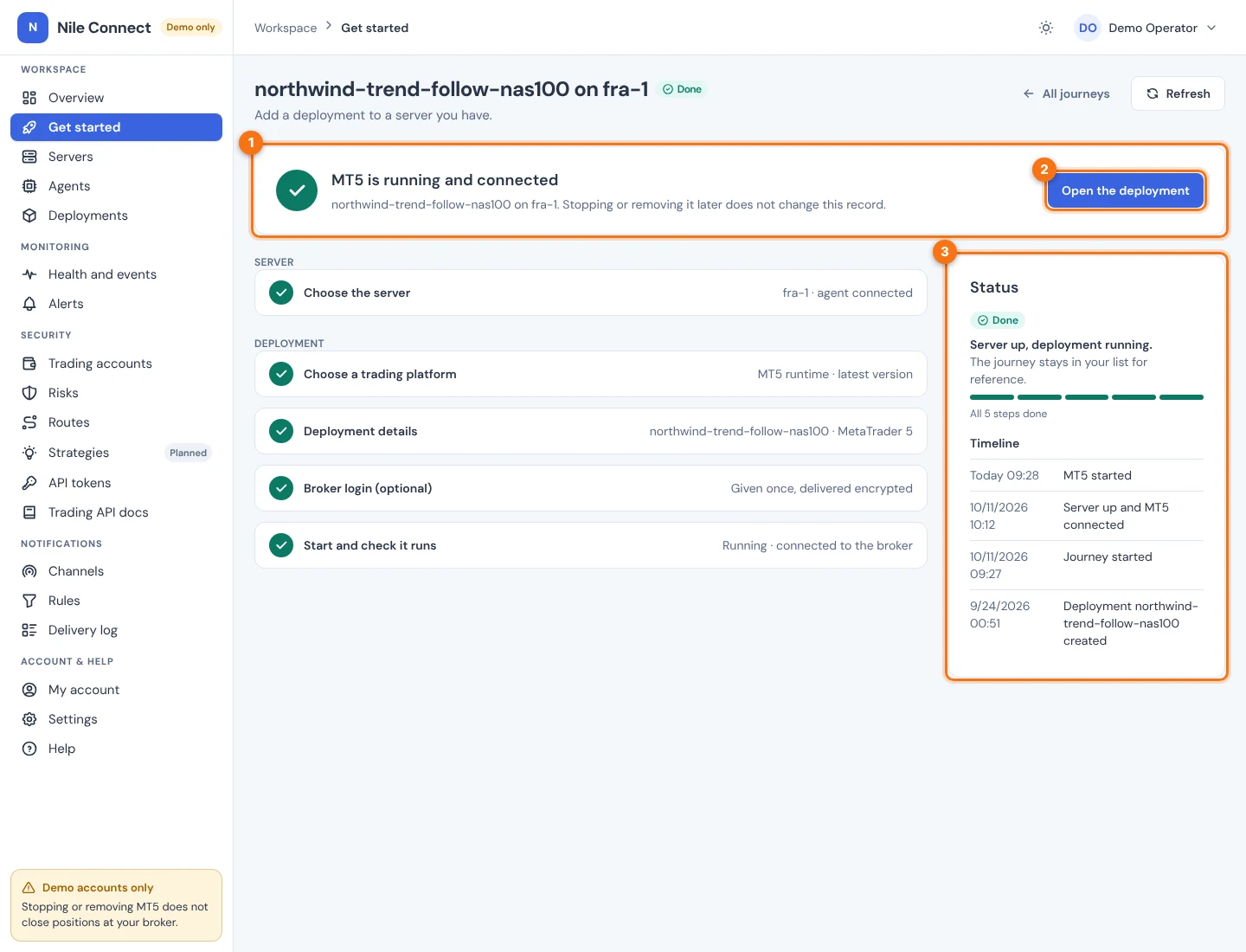
A journey is Done only when the server is up and the deployment’s own record shows MT5 running and connected to the broker. A running container is not enough. For a delivered login, the broker must also have accepted it. Once Done, the journey stays Done and stays in your list for reference. Stopping or removing the deployment later does not change that record.
8. If a step says Needs attention
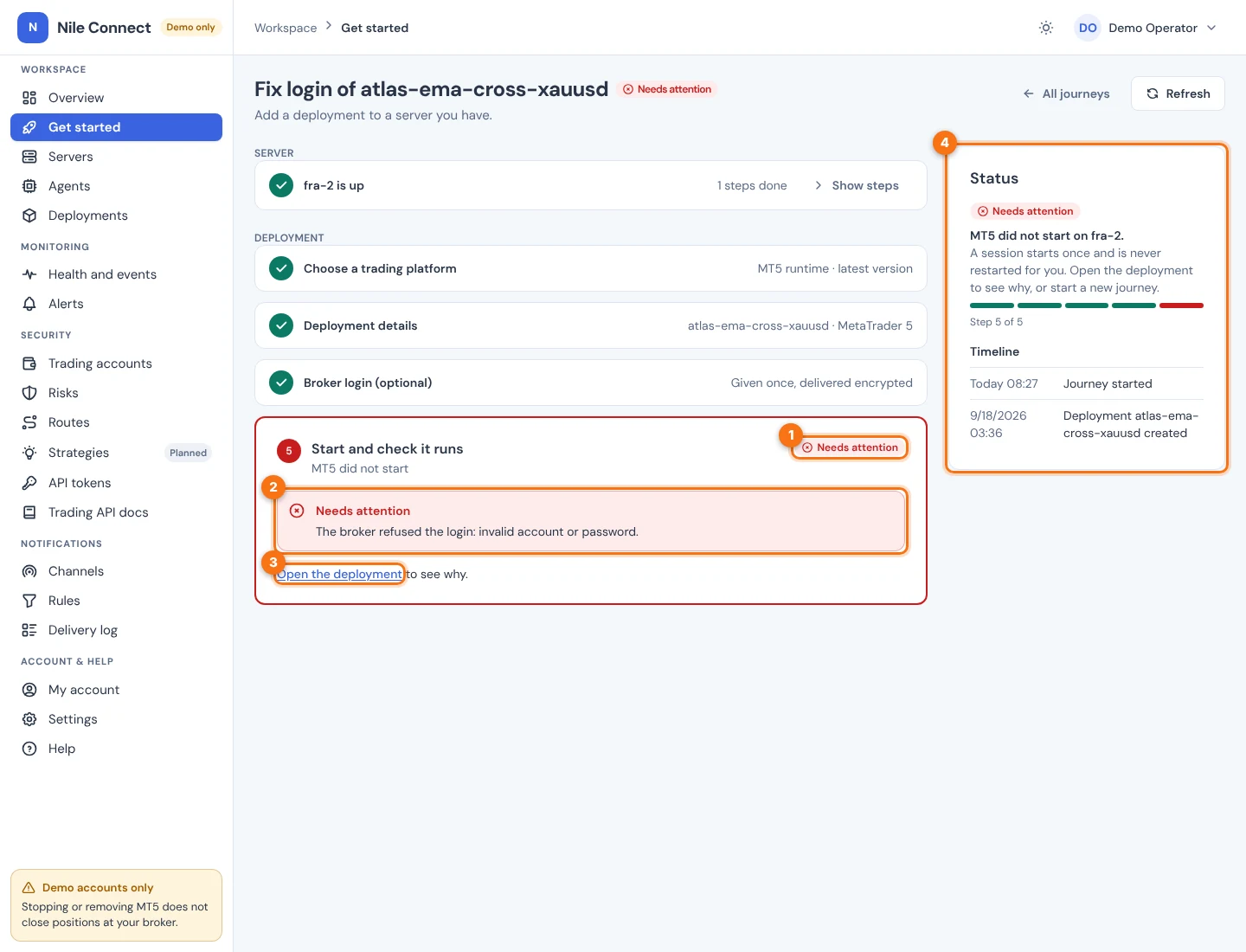
A failure never ends the journey. It stays open, the step turns red, and the message says what happened. Common cases:
| MESSAGE | WHAT TO DO |
|---|---|
| The server’s identity changed | Nothing was installed. Check with your provider whether the server was reinstalled. Do not trust a key you cannot explain. |
| Sign-in to the server failed, or installation failed | Nothing is lost. Choose the button to try again and give the password or key again. See Add a server for the codes. |
| Server not connected, or being removed | Check that the server runs and reaches the control plane. A server being removed takes no new work: delete the journey and start a new one on another server. |
| Download failed, or platform not offered | Try again. If the platform is gone from the catalog, choose another. |
| Deployment failed | A failed deployment is not repaired for you. Open it to see why, then start a new journey. |
| Broker refused the login, or the login was not delivered | A session starts once and the password is never sent again. Delete this journey, start a new one for a new deployment and enter the login again. Check the account number, password and broker server name first. |
| Broker connection not known | Check the account at your broker or in the terminal yourself. |
| MT5 did not start, or the deployment is stopped | Open the deployment to see why. A session is never restarted for you. |
| Not saved to the journey / Done is not saved yet | Choose Retry. It changes only the journey’s own record and never starts or stops anything. |
A notice “May be out of date” means part of the page could not refresh. Choose Refresh. For more help see Troubleshooting.
Next: create the trading account for the deployment, then set risk rules.