
Trading accounts and orders
See your broker demo accounts, turn trading on and off, close positions, manage pending orders and use the emergency stop.
1. What you will do
A trading account is a broker demo account that your programs trade through. There is one for each deployment that is allowed to take orders. In this guide you will find an account, switch trading off and on, close a position, look at pending orders and use the emergency stop.
You need:
- a deployment created with Allow orders from the Trading API (demo accounts only), started with a broker demo login, with a trading account created on its page (see Deploy a trading account);
- a role that may see trading accounts. Turning trading off, turning it on and closing positions each need their own permission, so a button can be missing or greyed out for you. Ask an administrator if you need one.
The screenshots come from a demo with made-up data. Your accounts and numbers will differ.
2. Find your accounts
- In the left menu, choose Trading accounts. The Accounts tab opens.
- Find your account in the list. Type in the search box (the magnifying glass) to filter by name, login or deployment.
- Choose its name, or choose Open at the end of its row.
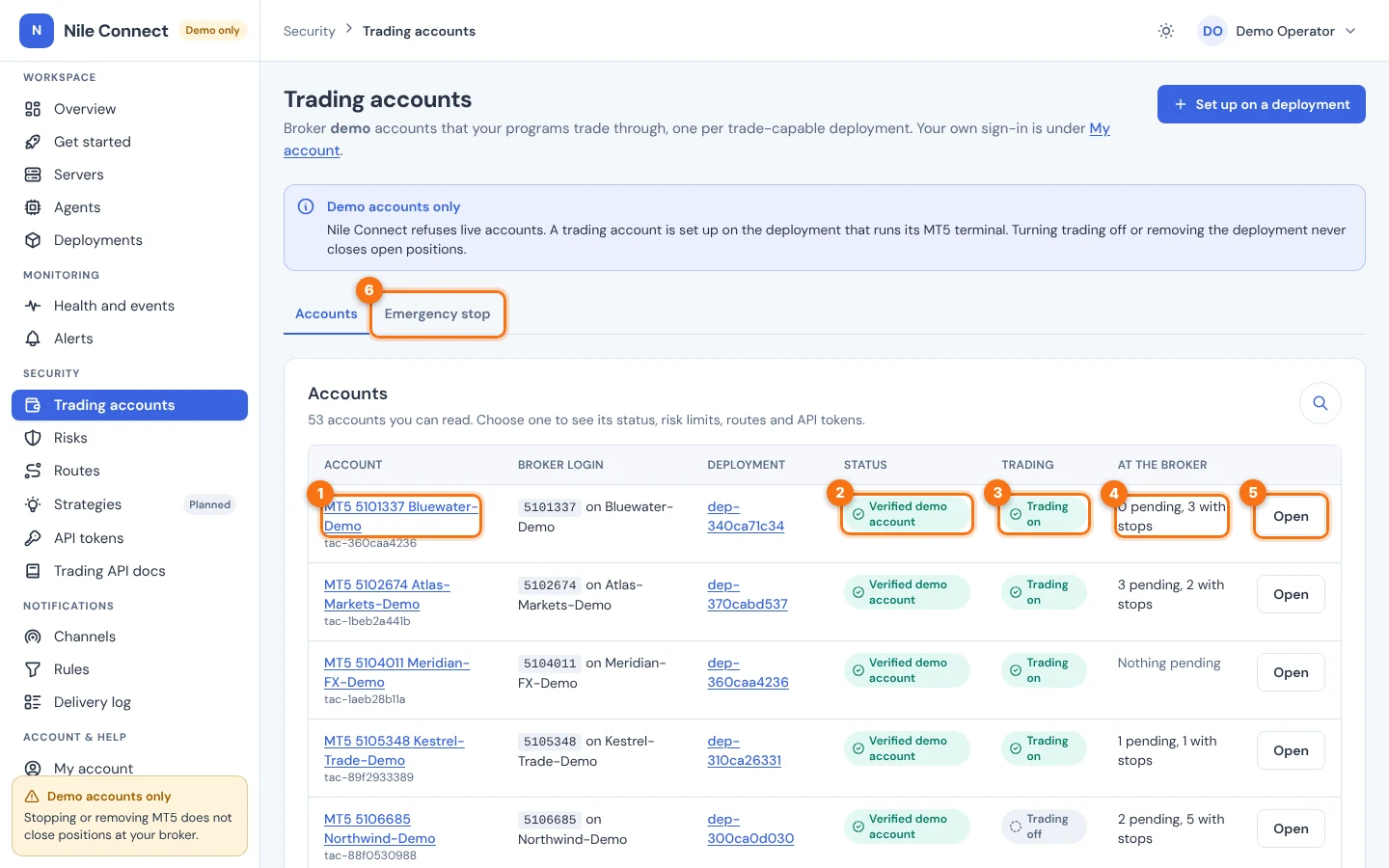
The columns are:
- Account: the name and the account id. The name is a link to the account.
- Broker login: the broker login and its broker server.
- Deployment: the deployment that runs the MT5 terminal for this account. It is a link.
- Status: for example “Verified demo account”.
- Trading: “Trading on” or “Trading off”.
- At the broker: how many pending orders and how many positions with a stop loss or take profit PerkBridge placed are resting at the broker, or “Nothing pending”. These stay at the broker even when PerkBridge stops.
If the list is empty, the page tells you how to get an account: create a deployment that allows orders from the Trading API, start it with your broker demo login, wait until the broker shows as connected, then choose Create trading account on the deployment’s page. Set up on a deployment at the top takes you to Deployments.
3. Open an account
An account has five tabs under its name.
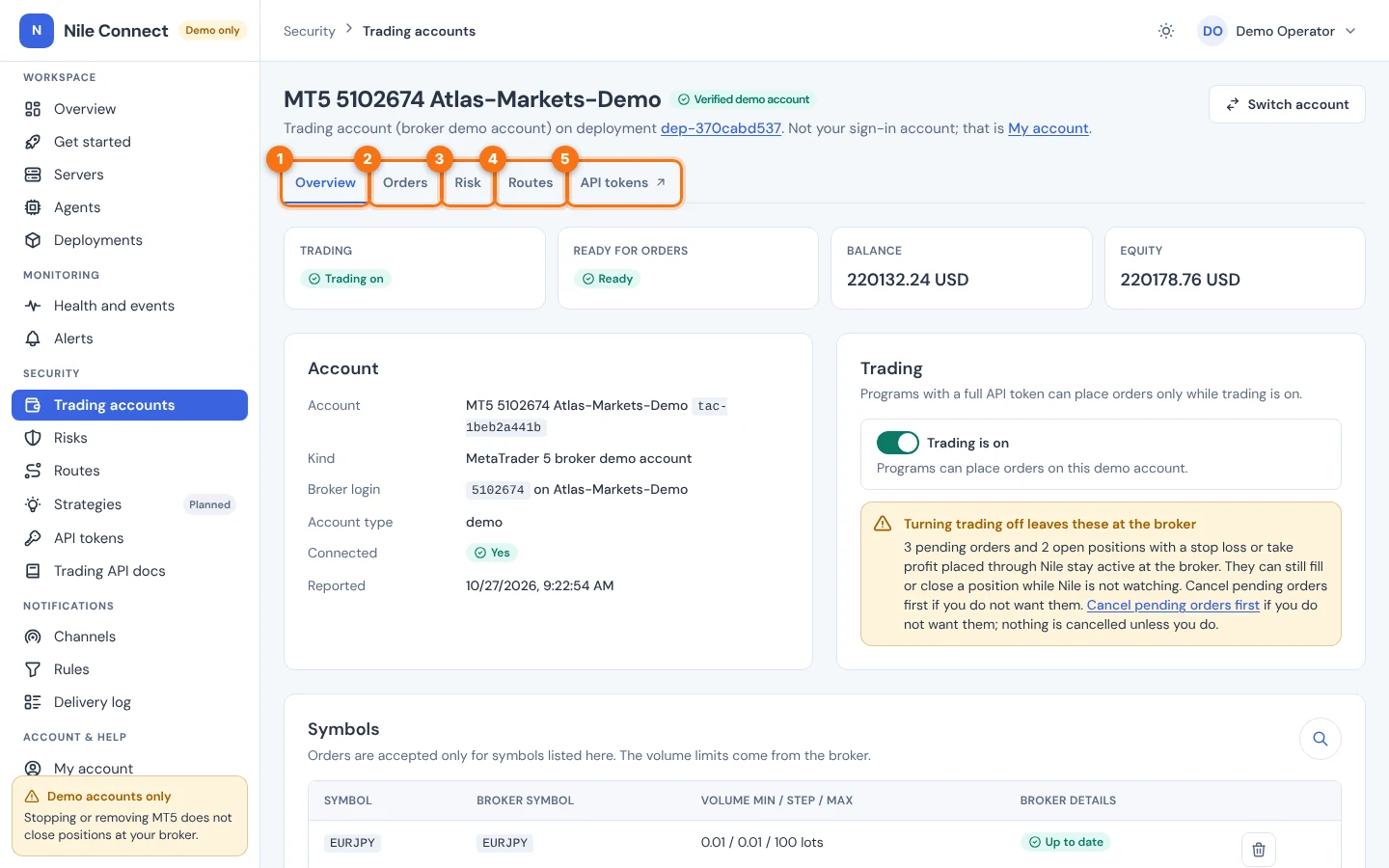
- Overview: whether trading is on, whether the account is ready for orders, balance and equity, the account details, the trading switch and the symbols programs may trade.
- Orders: open positions, pending orders and recent orders (sections 5 to 7).
- Risk: the account’s risk limits. See the risk guide.
- Routes: lanes inside the account for separate programs. See the routes guide.
- API tokens: opens the token page for this account. See the tokens guide.
The Overview also has a Symbols card. Orders are accepted only for symbols listed there. To add one, type the broker’s symbol name in Broker symbol (or pick it from the search), check the name in Symbol and choose Add symbol. A symbol shows “Waiting for the terminal” until the terminal reports its volume limits. If that does not clear, check the symbol name in MetaTrader 5. Removing a symbol stops new orders in it. Open positions stay open and can still be closed.
Use Switch account at the top right to go back to the list.
4. Turn trading off and on
The trading switch decides whether programs with a full API token can place orders on this account.
- Open the account. On Overview, find the Trading card.
- Select the switch (it says “Trading is on”). A question appears: “Turn trading off?”.
- Choose Turn off.
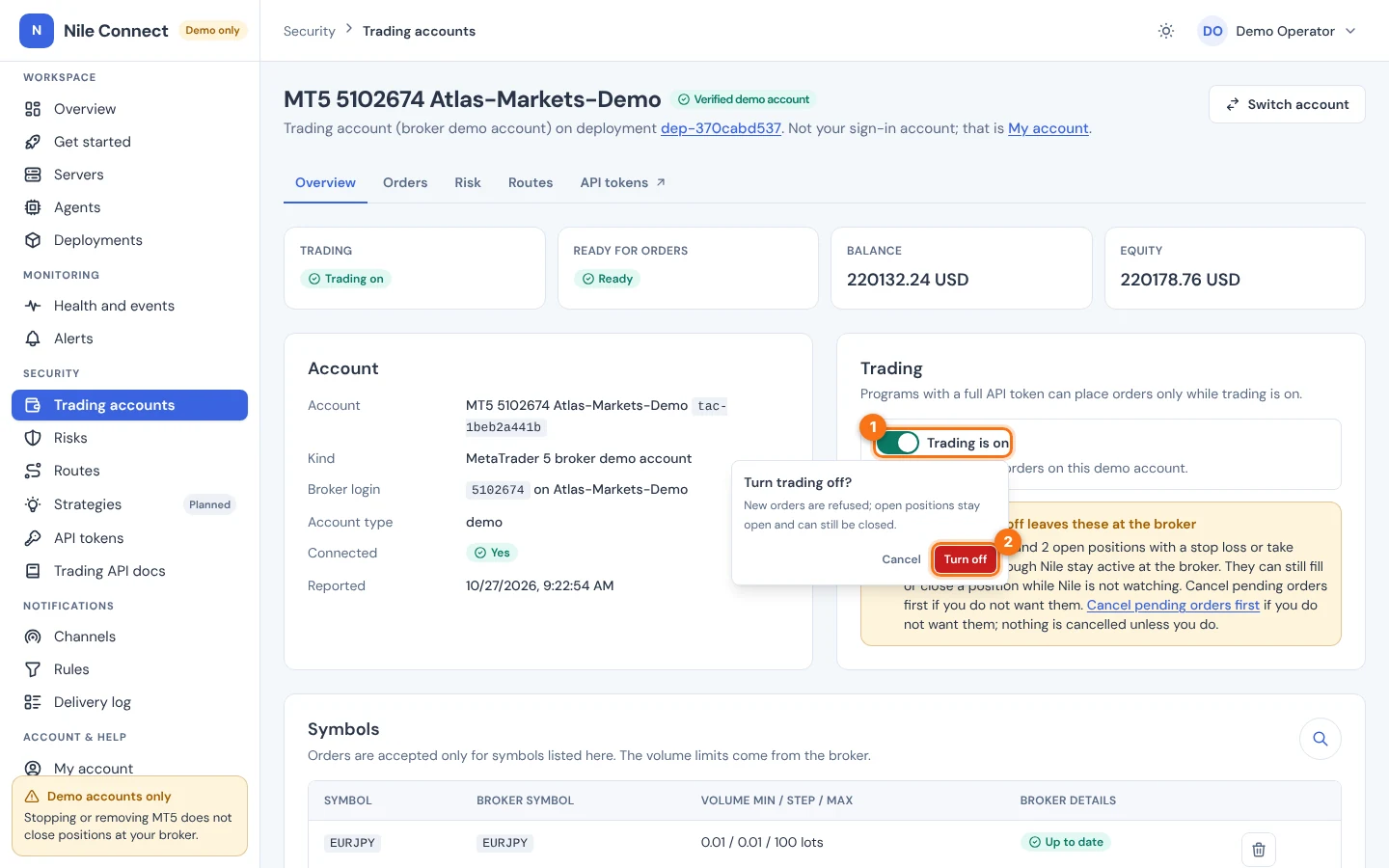
What you should see: a green “Done. Trading is off.” message, and “Trading off” in the tile at the top. New orders are refused and queued orders expire. Open positions stay open and can still be closed. Nothing at the broker changes.
If pending orders or positions with stops are resting at the broker, a yellow note lists them. Choose Cancel pending orders first in that note if you do not want them to stay. Nothing is cancelled unless you do it.
To turn trading back on:
- Select the switch (it now says “Trading is off”).
- Read the question “Turn trading on?” and choose Turn on.
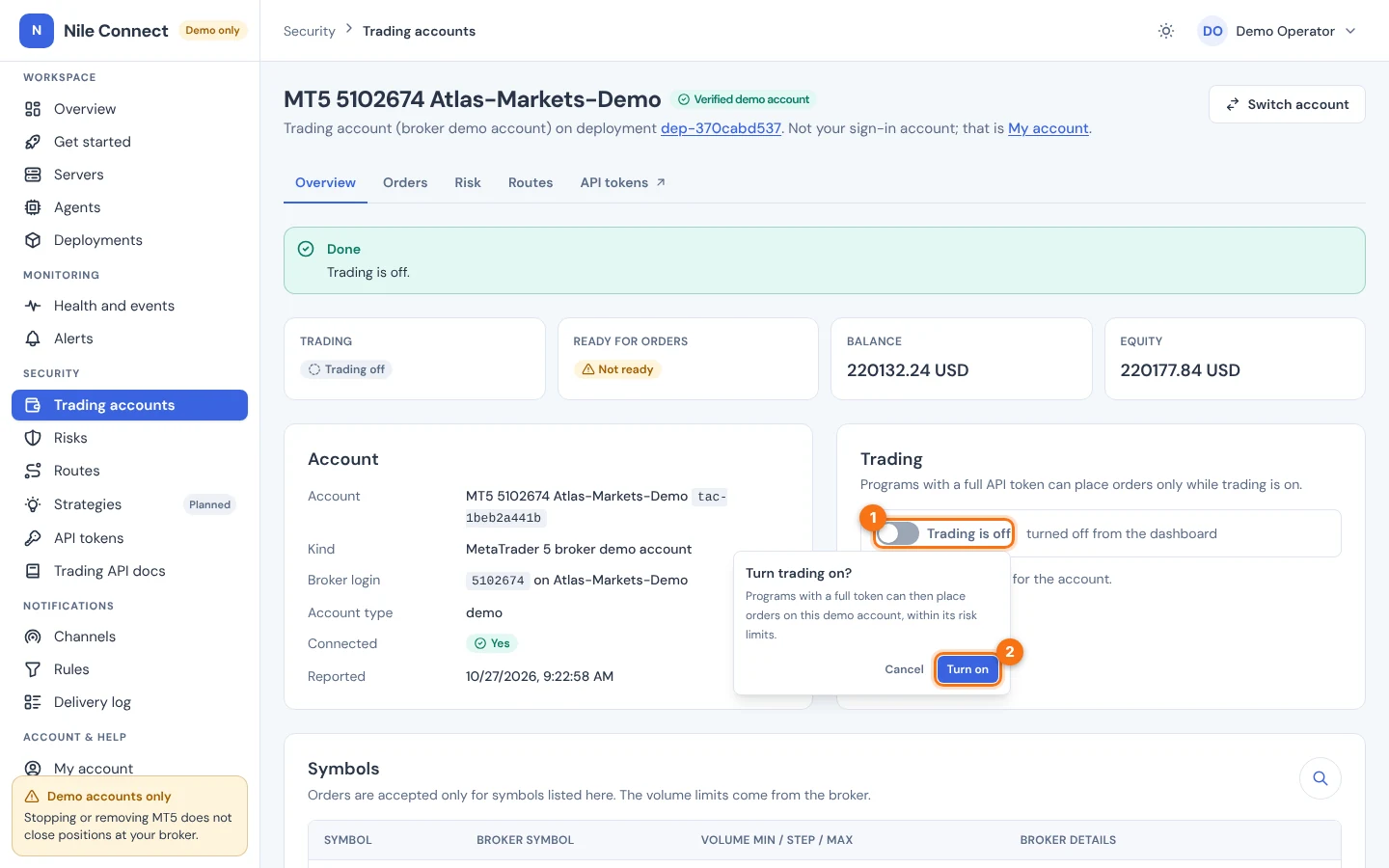
Turning trading off needs the trading:halt permission. Turning it on needs trading:configure. A disabled account cannot be turned on again; it needs a new deployment and account. Turning trading on still keeps every risk limit in force.
5. See and close positions
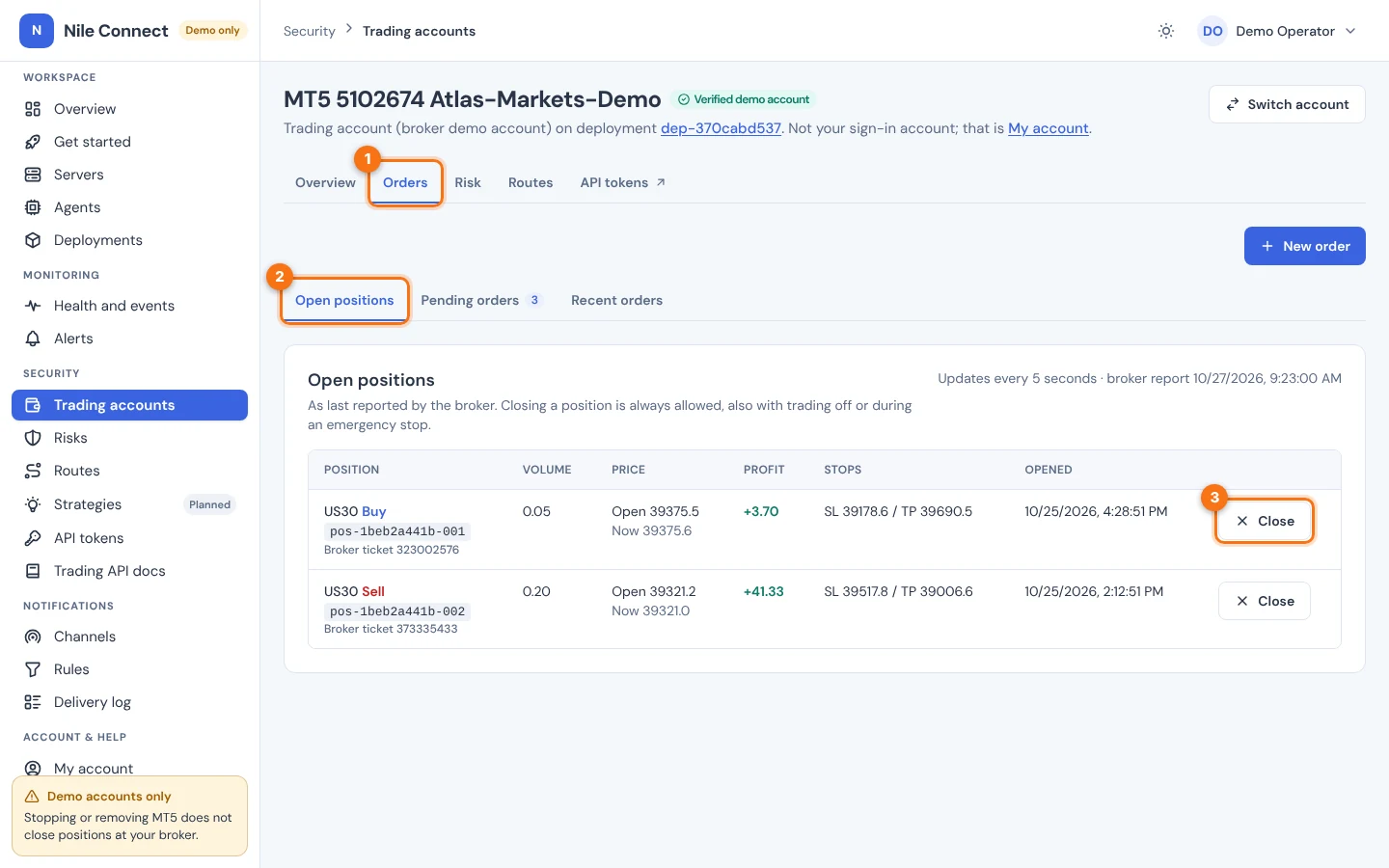
- Open the account and choose the Orders tab (1).
- Choose Open positions (2). It is the first section.
- Read the table: symbol and side, volume, open and current price, profit, stop loss and take profit, and when it opened. It refreshes every 5 seconds and shows the time of the last broker report.
- To close a position, choose Close in its row (3).
- Read the question: “Close 0.05 US30 now?”. A market order closes the whole position at the broker’s price, which can differ from the price shown.
- Choose Close position. Choose Cancel to keep it.
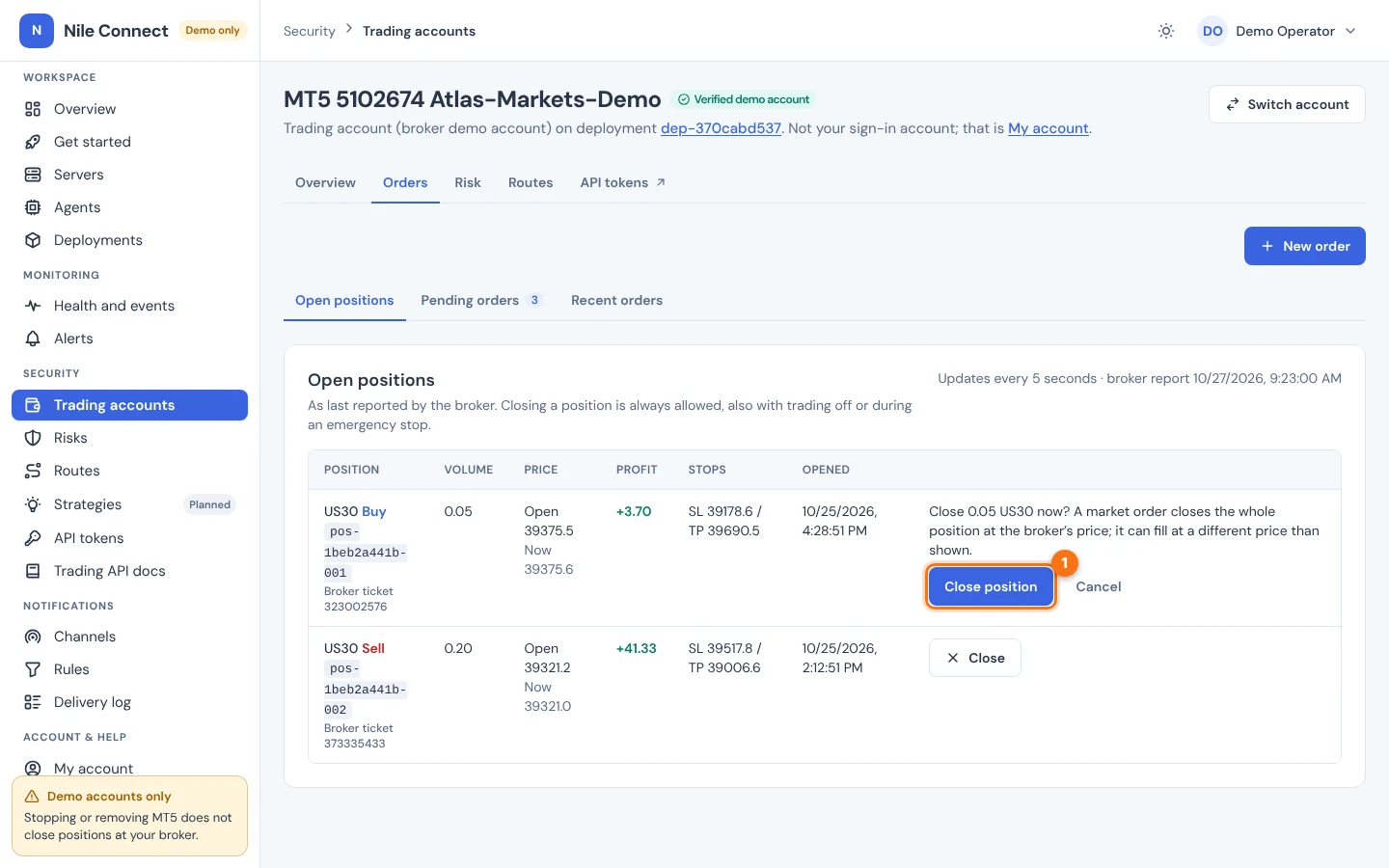
What you should see: a “Sent to Nile” message. The close is queued, then sent, so the position stays in the table until the broker reports it closed. The close also appears under Recent orders with its status. Do not press Close again while it is on its way; the button is not offered twice.
A user can always close a position. It works with trading off, during an emergency stop and after a risk rule has tripped. Closes are full closes only; PerkBridge cannot close part of a position. If a yellow note says the broker has not reported recently, prices and profit may be old and the position may already be closed. Closing still works, and the broker decides.
The New order button above the sections opens a form to place an order by hand: symbol, buy or sell, order type (market, limit, stop or stop limit), volume, price where needed, optional stop loss and take profit, time in force and a comment. Choose Review order, read the summary, then choose Place order. Orders are checked against the risk limits first and are not executed until their status says so. Stop loss and take profit on a market order are refused at present; use them on limit and stop orders.
6. Pending orders: modify and cancel
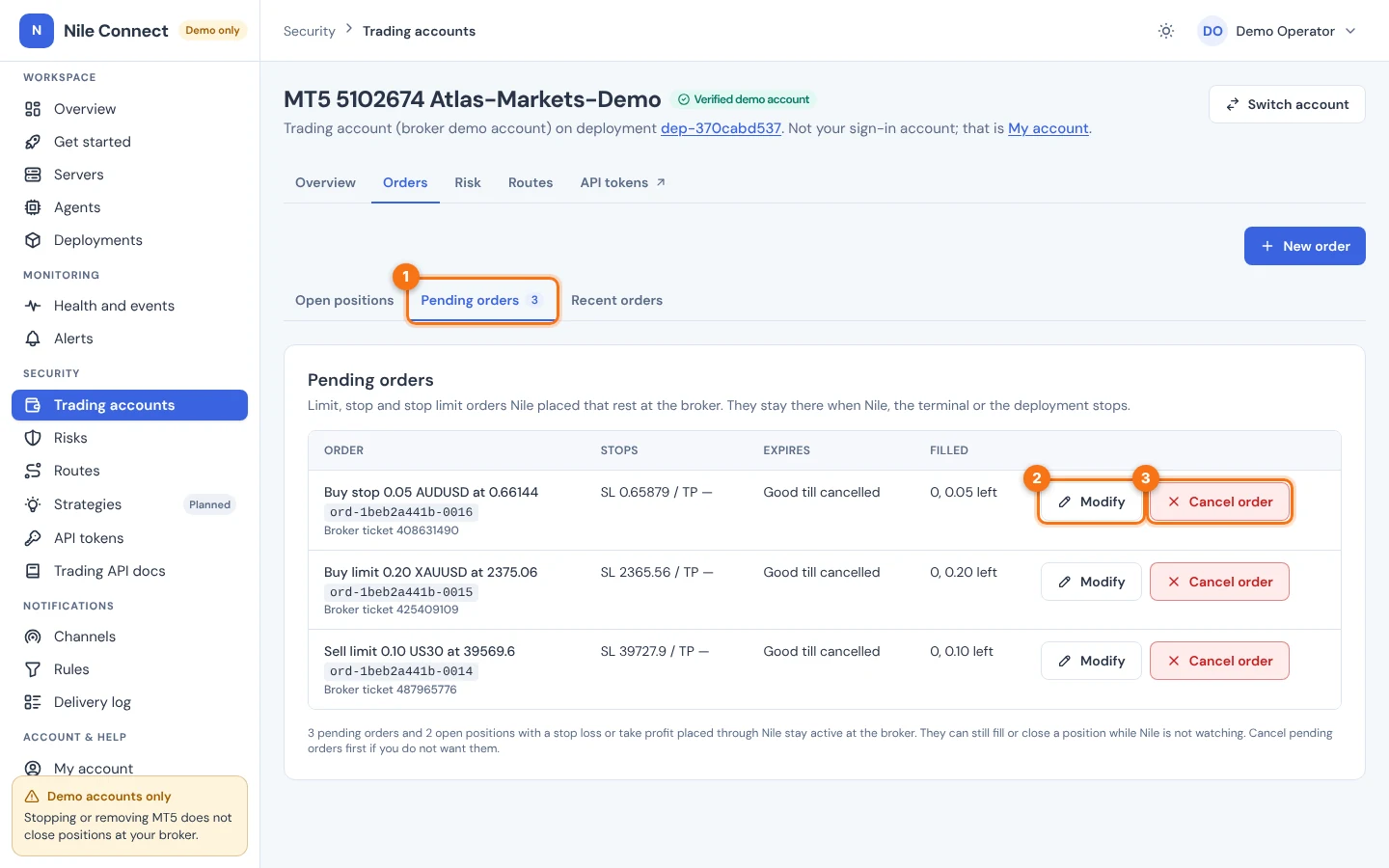
Pending orders are limit, stop and stop limit orders that PerkBridge placed and that wait at the broker for their price. They stay there if PerkBridge, the terminal or the deployment stops.
- On the Orders tab, choose Pending orders (1). The small number is how many are resting at the broker.
- To change an order, choose Modify (2). To remove it, choose Cancel order (3).
To modify:
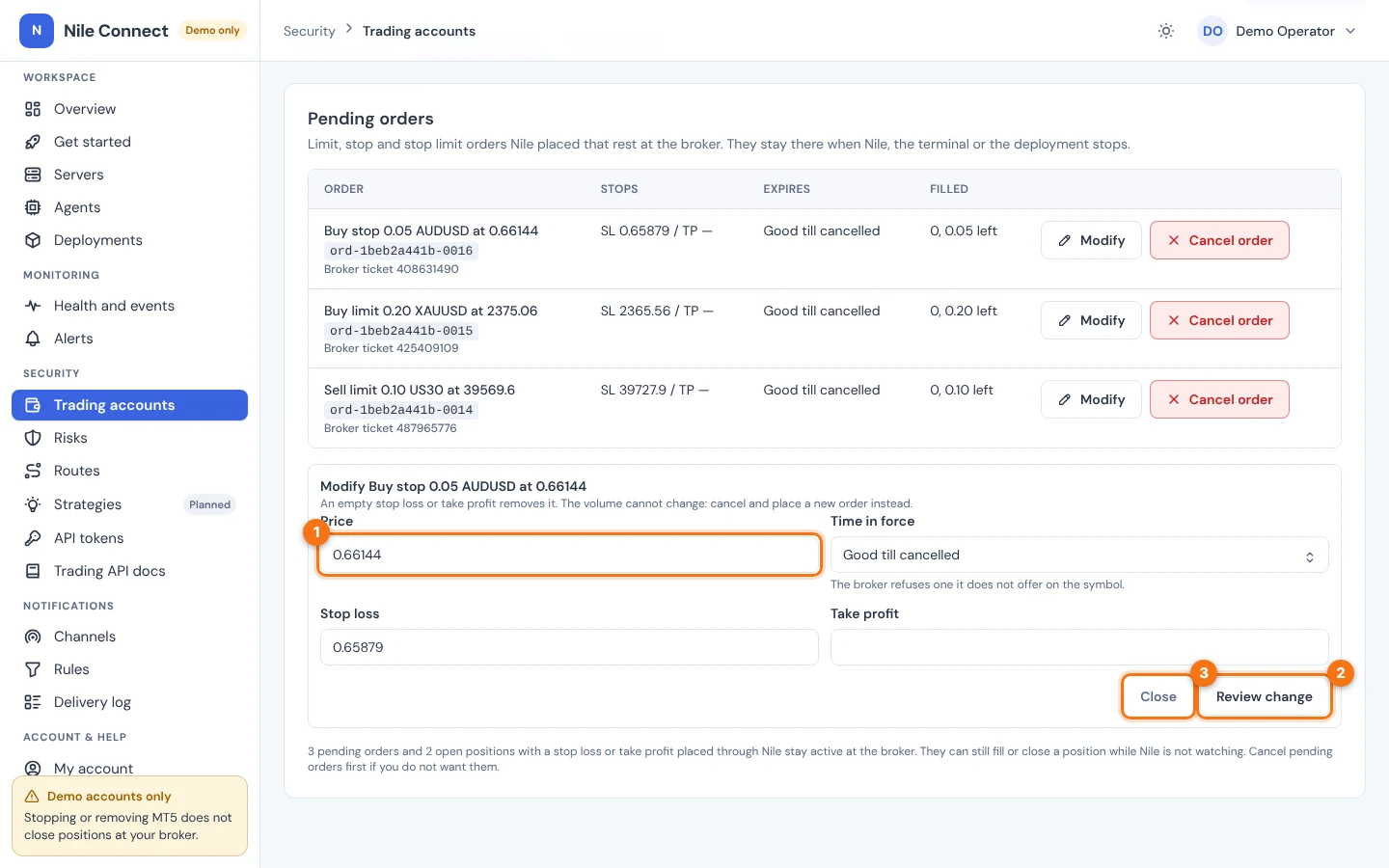
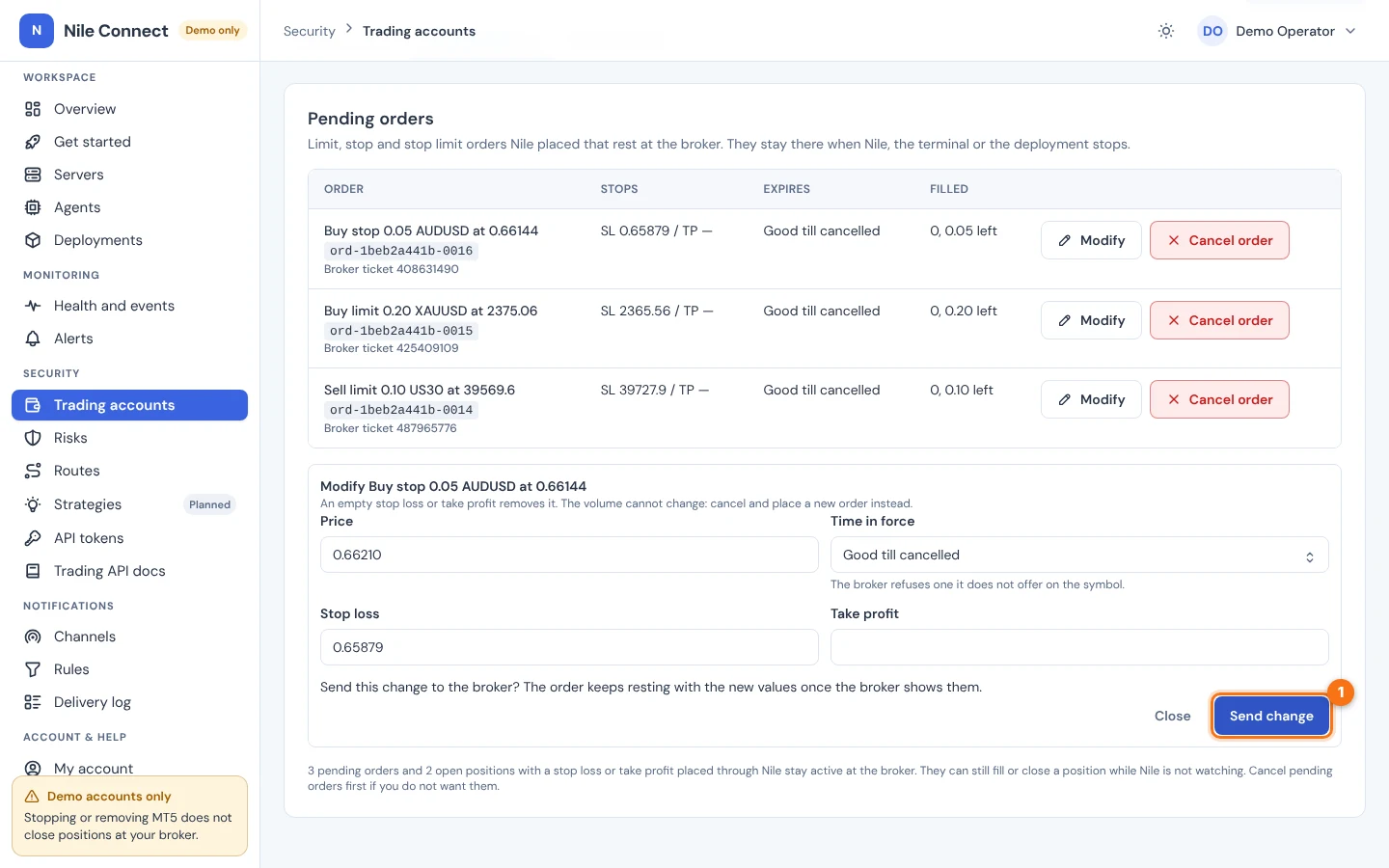
- Choose Modify. A form opens under the list with the order’s price, Time in force, Stop loss and Take profit. For a stop limit order the price field is the trigger price or the limit price, depending on how far the order has got.
- Change a value (1). The volume cannot change: cancel the order and place a new one. An empty stop loss or take profit removes it.
- Choose Review change (2). Read “Send this change to the broker?” and choose Send change. Choose Close (3) to leave the form without sending anything.
To cancel:
- Choose Cancel order in the order’s row.
- Read the question. A part that has already filled stays open. Choose Cancel at broker, or Cancel to keep the order.
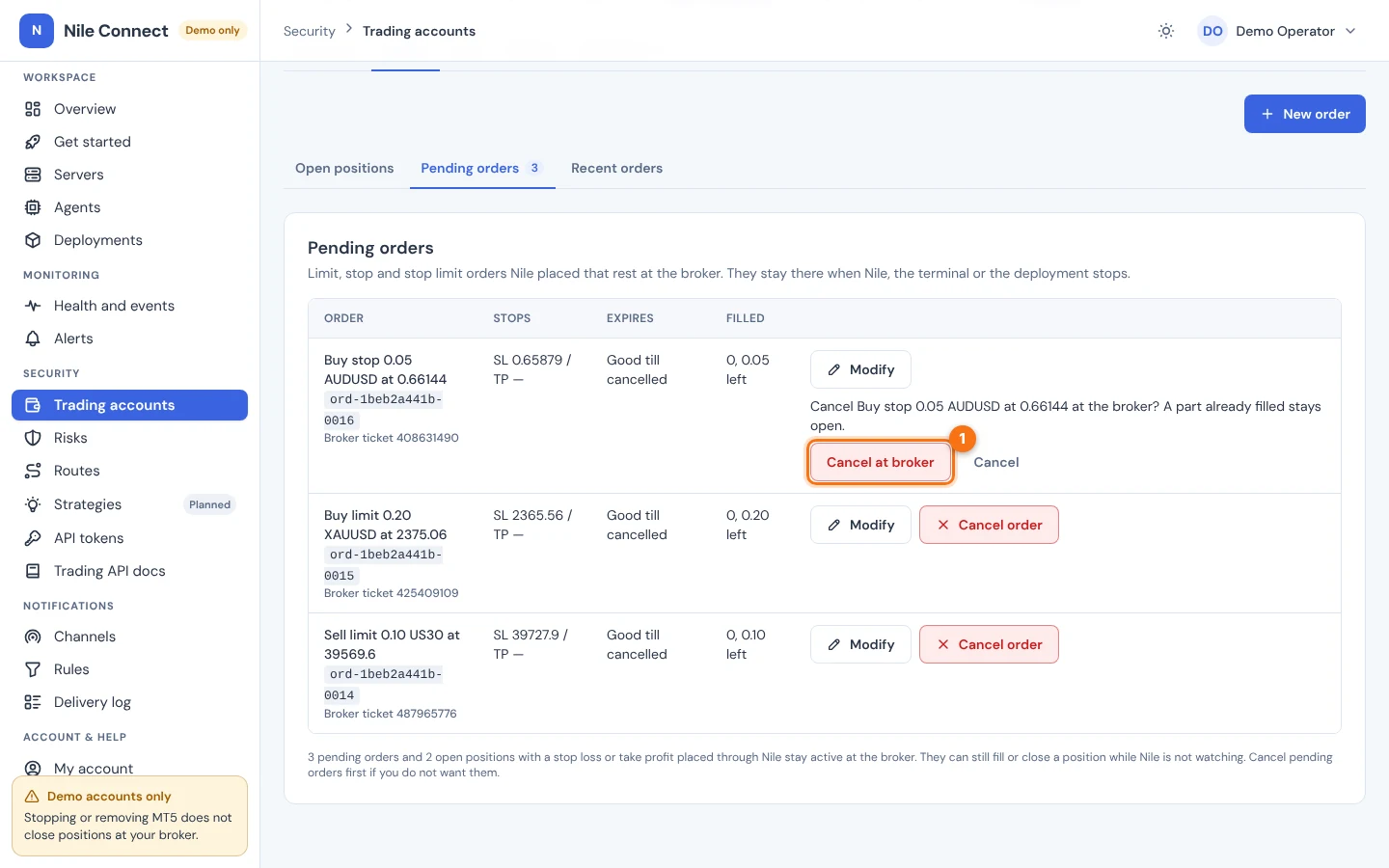
What you should see: “Sent to Nile”. A modify or cancel is queued and sent like any order, so the order leaves or changes in the list once the broker shows it. A second change is not offered while one is on its way. While trading is off, new orders and changes to pending orders are refused, but a cancel still works. A cancel counts as a close: it is always allowed, also during an emergency stop.
PerkBridge lists only the orders it placed. Orders you placed with other tools must be cancelled at the broker.
7. Recent orders
Choose Recent orders on the Orders tab to see the latest 25 orders, newest first. That includes closes, modifies and cancels. Each row shows the time, a summary, the order id and a status such as “Resting at the broker” or “Filled”. Choose Details to open the order’s full record. Use the search icon to find an older order by text.
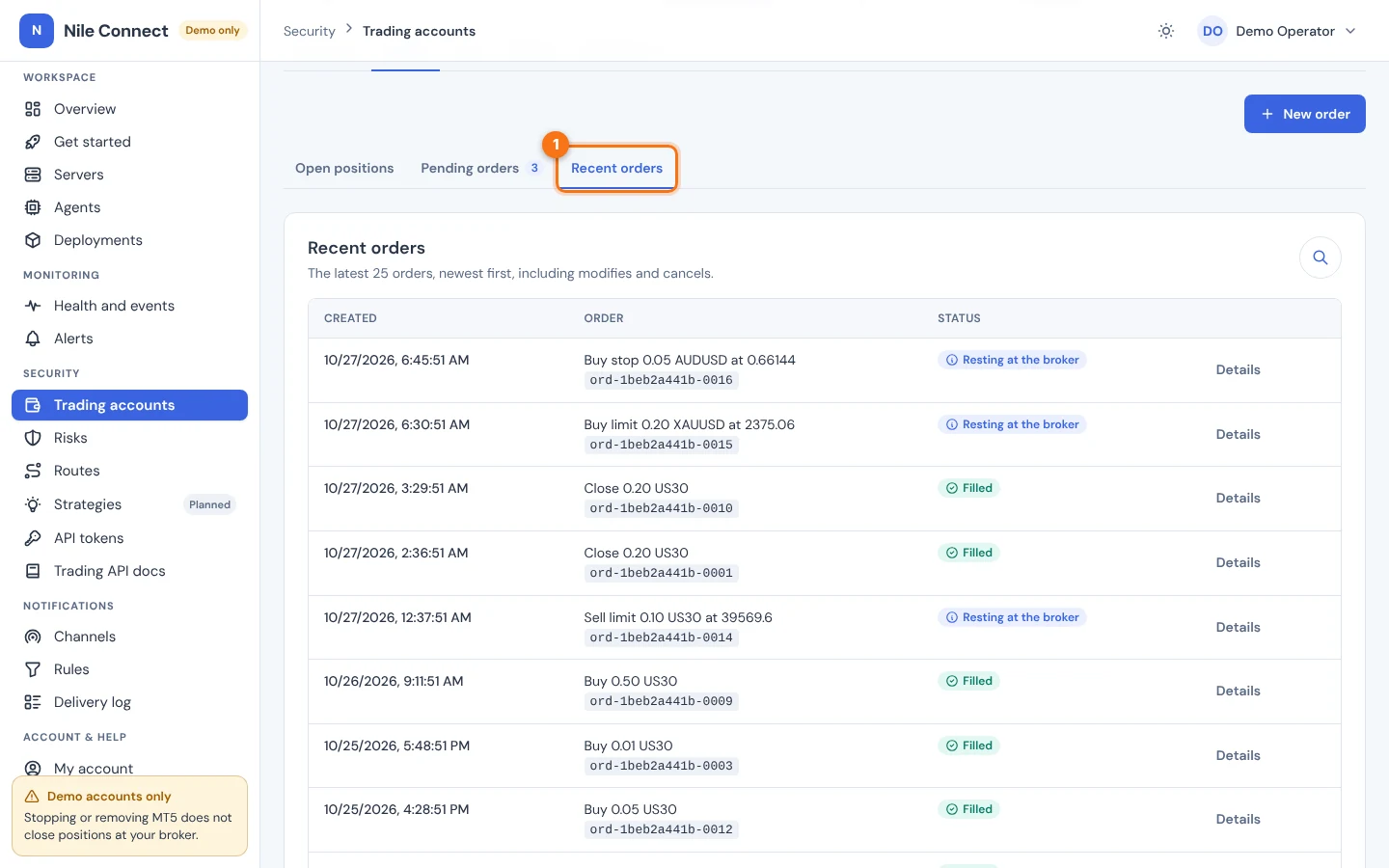
An order is checked, queued, then sent. If an answer is lost, the order shows an outcome that is not yet known. PerkBridge then checks with the broker and never sends it again by itself. Wait for the status before you act again.
8. Emergency stop
The emergency stop refuses every new position on every trading account of your organization at once. Use it when something is going wrong across accounts.
- Open Trading accounts and choose the Emergency stop tab (1).
- In Reason, type why (2), for example “broker incident”. It is recorded in the audit log.
- Optional: tick Also cancel Nile’s pending orders resting at the broker (3). Without it, pending orders keep resting and can still fill.
- Choose Place the emergency stop (4).
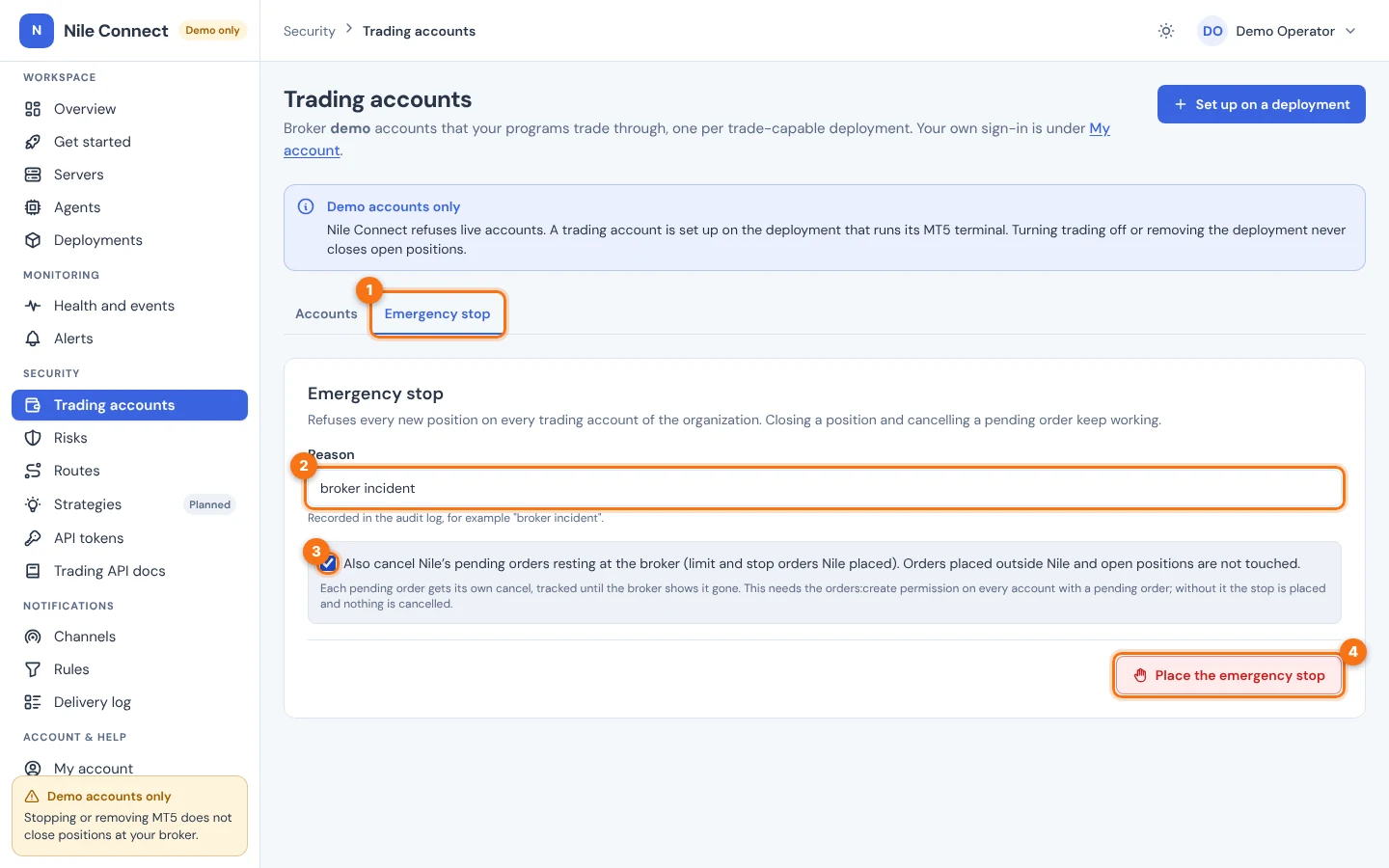
What you should see: a “Done” message, a red “On” next to the tab name, and a line with your reason and the time. If you ticked the cancel option, the message says how many pending orders were cancelled. Each cancel is tracked until the broker shows the order gone.
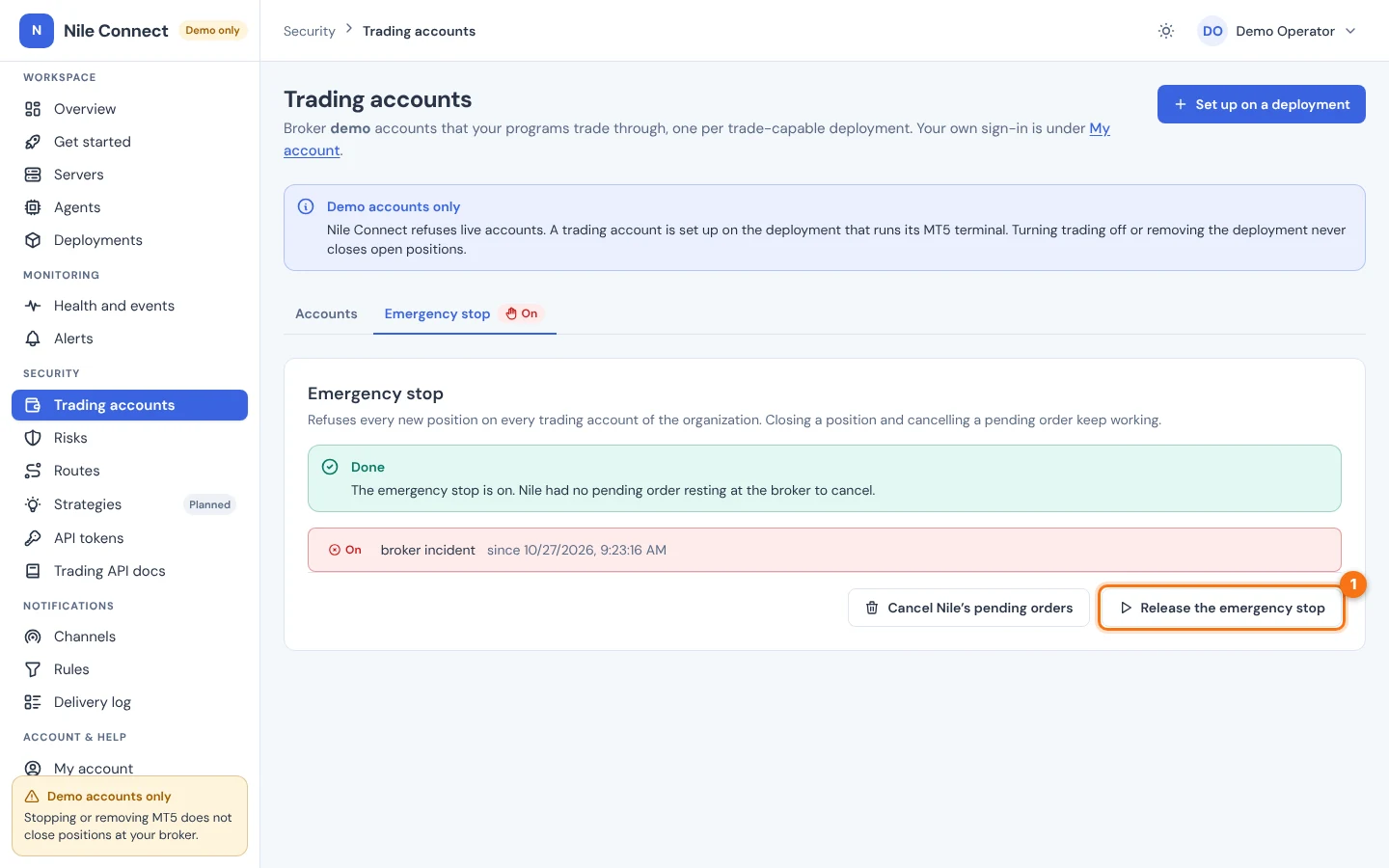
While the stop is on:
- New positions are refused on every account. Each account says so on its Overview and Orders tabs.
- Closing a position and cancelling a pending order still work. Cancelling pending orders counts as closing, so it is never blocked.
- If you did not tick the cancel option, choose Cancel Nile’s pending orders later to cancel them while the stop stays on.
- Nothing else changes. The stop does not close positions, stop terminals or log out accounts. Orders placed outside PerkBridge are not touched.
To end the stop, choose Release the emergency stop and confirm with Release. New positions are then allowed again on accounts with trading on, within their risk limits. The stop needs the trading:halt permission, and the cancel option needs permission to place orders on every account that has a pending order. For the stop through the API, see Stopping safely.
9. If something looks wrong
- The Turn on button is greyed out. Your role lacks trading:configure, the account is disabled, or the page is still loading. Ask an administrator.
- “Not ready” next to Ready for orders. Trading is off, or the terminal or broker is not connected. Check Connected on the Overview and the deployment’s page.
- A position is still listed after Close. The close is queued first. Follow it under Recent orders. If its outcome is unknown, wait: PerkBridge checks it with the broker and does not resend.
- A message says an order’s outcome is being checked. New orders wait until it is known. This is on purpose, so one order never becomes two.
- Orders to a symbol are refused. The symbol is not in the Symbols card, or its limits are still “Waiting for the terminal”.
- Pending orders remain after you turned trading off. Turning trading off does not cancel them. Cancel them first, or use the emergency stop with the cancel option.
Related: Routes, API tokens, Risk rules guide, Stopping safely, Trading API reference.