
Risk limits and rules
Set loss limits, guards, trading hours and news windows, step by step.
1. What you will do and what you need
You will open an account’s Risk tab, read what already protects the account, add rules for the limits your prop firm or your own plan sets, and add rules for trading hours, market close and news. You will also learn how long a tripped rule keeps blocking orders.
- A trading account on a demo MT5 deployment. See trading accounts.
- For the rules to block orders, the account’s deployment must run in risk mode. Section 4 shows how to check.
- Permission to configure trading on the account. Without it you can read everything, and the buttons to add, change and delete are not shown.
Rules block new orders. They never refuse an order that closes a position, and they never close a position by themselves. Only time rules (section 12) can close positions.
2. Choose an account
- In the sidebar, under Security, choose Risks.
- Choose Open risk limits on the account you want. If you have only one account, it opens at once.
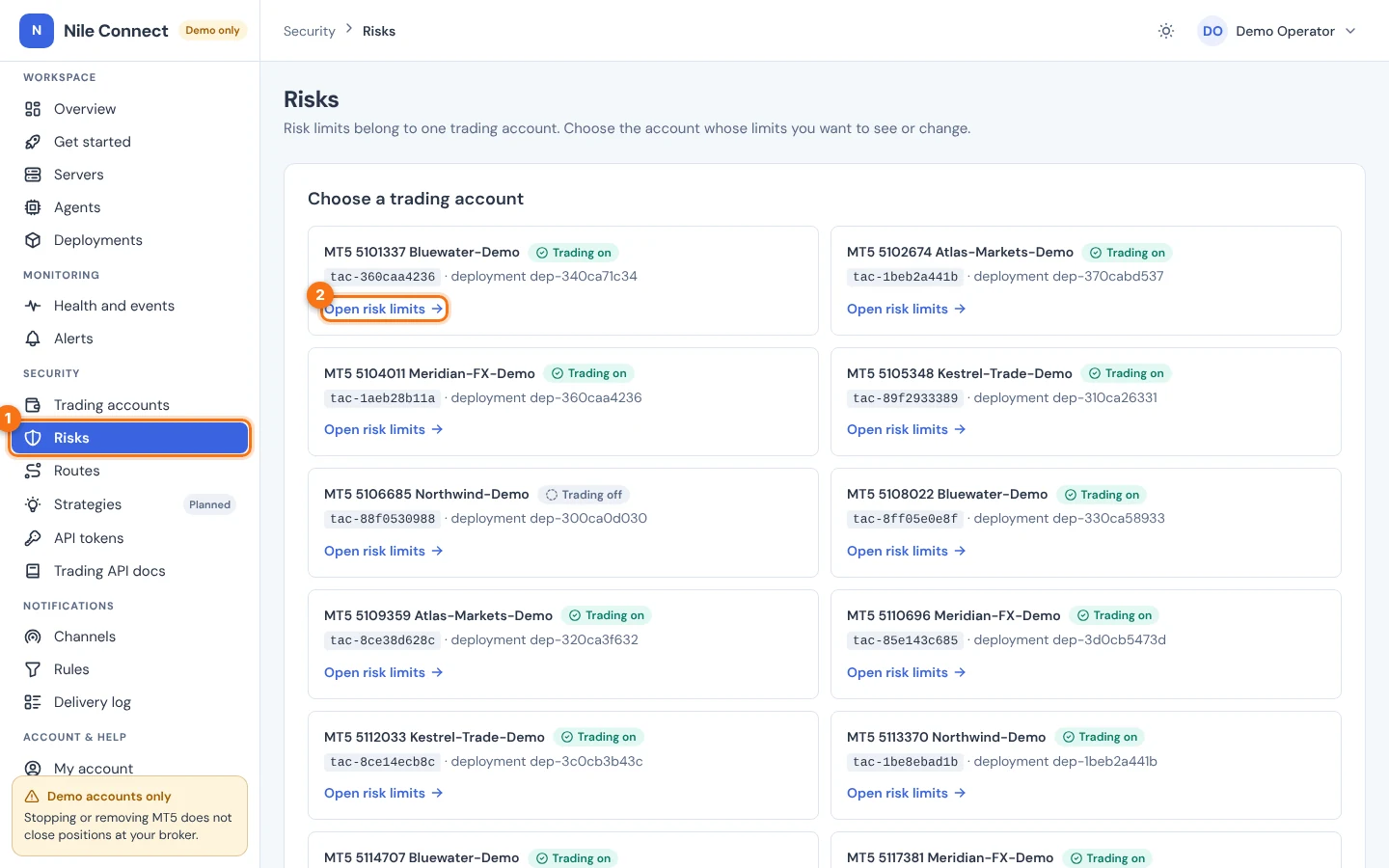
What you should see: the account’s page with the tabs Overview, Orders, Risk and Routes. You can also open it from Trading accounts and choose the Risk tab. Switch account at the top right goes back to the list.
3. The five sections
The Risk tab has five sections. The number in brackets is how many items each holds.
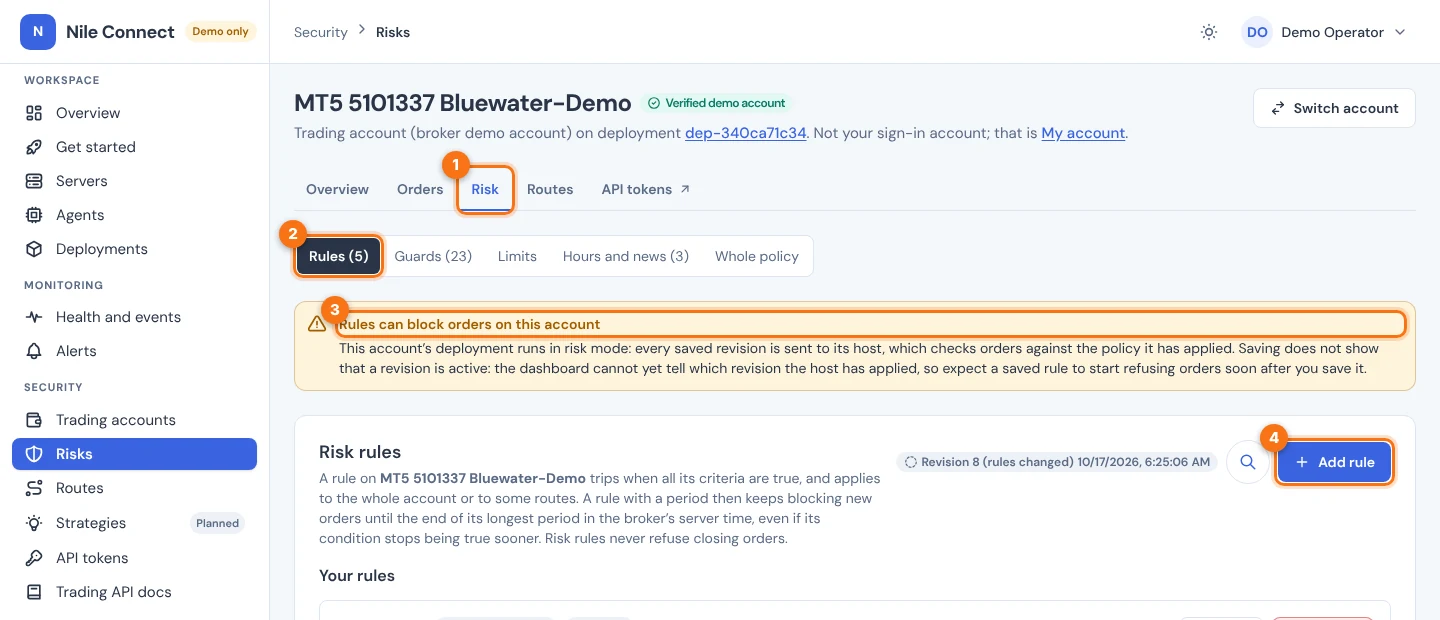
| SECTION | WHAT IT IS FOR |
|---|---|
| Rules | Your own rules: a name, one to four criteria, and where the rule applies. |
| Guards | Read-only checks that every account has. They come from the limits and cannot be deleted. |
| Limits | A short form: largest order, open positions, orders per minute and per day, daily loss, and more. Saving it changes the guards. |
| Hours and news | Time rules: trading hours, market close and news windows. |
| Whole policy | Every guard and rule written as one expression, with the revision number. Read-only. |
The search box next to Add rule filters the rules and guards by name or expression.
4. The warning about blocked orders
On Rules and Whole policy a notice tells you whether your rules are enforced on this account.
- Rules can block orders on this account (orange): the deployment runs in risk mode. Every saved change is sent to the server, and orders that break a rule are refused. The dashboard cannot yet show which revision the server has applied, so expect a saved rule to start refusing orders soon after you save it.
- Your rules are stored, not checked on this account (blue): the account has no risk-mode deployment, or no deployment at all. Your rules are saved but nothing enforces them. Only the guards from the limits are checked.
- Not known whether these rules are enforced (orange): the dashboard could not read the deployment. Treat the rules as active.
5. Add a rule with the form
This example stops new orders for the rest of the day once the account has lost 5 % of its balance that day.
- Open Rules and choose Add rule (4 in the picture of section 3).
- Type a Name, for example Daily loss 5 %. It is shown when the rule refuses an order and in alerts. Up to 100 characters.
- Under Applies to, keep Whole account. Choose Some routes to tick the routes the rule counts. A route rule counts only that route’s orders and positions.
- Under Edit as, keep Form.
- In the criterion, set Measure to Loss in % of balance, Period to Per day, Counts to Everything it applies to, Is to ≥, and Value (%) to 5. Choose Add criterion for more; all criteria must be true together.
- Leave Raise an alert when it trips as it is. See section 15.
- Choose Add rule.
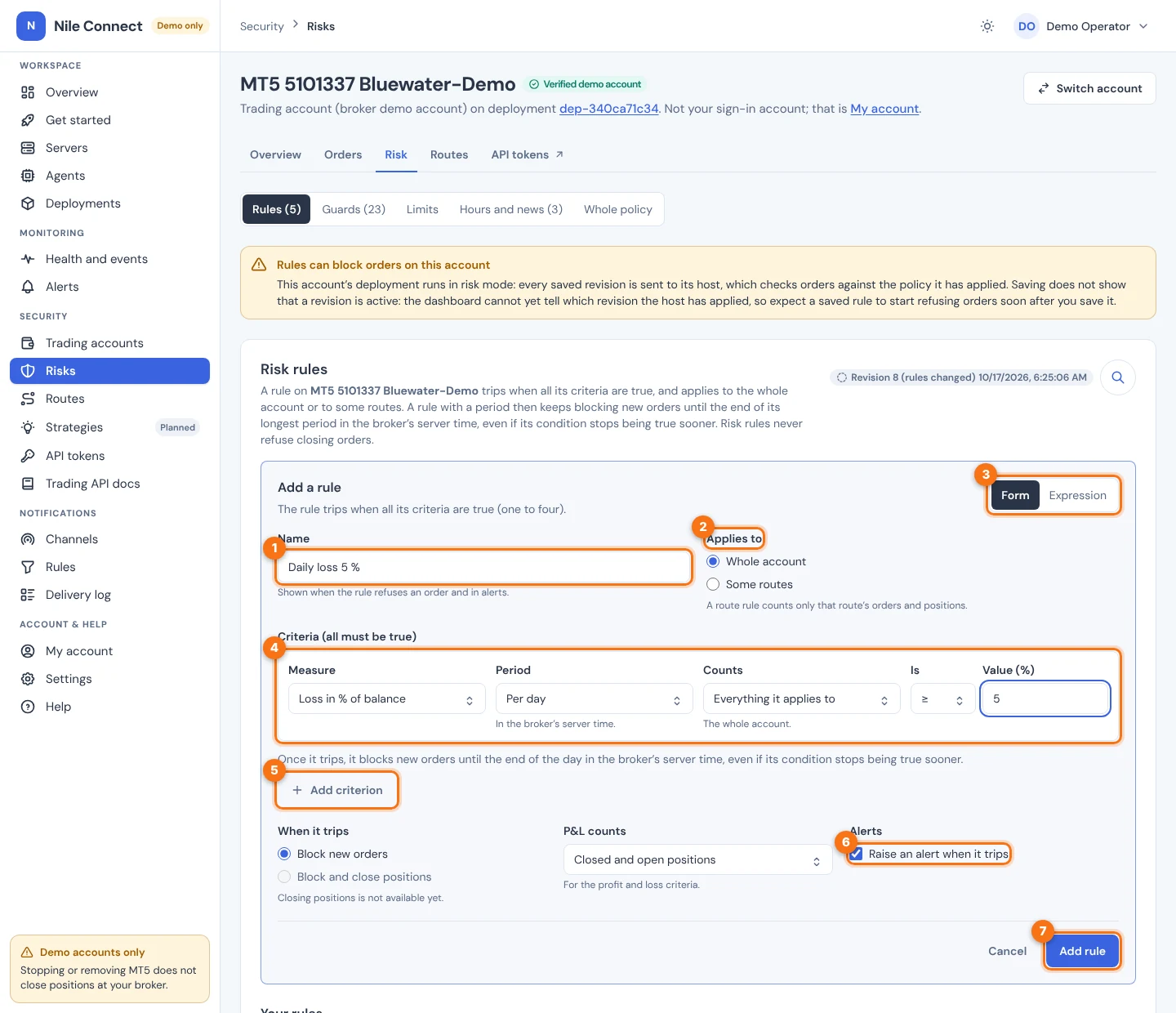
The form adapts to the measure you pick:
- Measure has three groups. Profit and loss: Loss, Loss in % of balance, Profit, Profit in % of balance. Activity: Trades opened, Orders, Open positions, Net volume, Orders in flight. Each order: Order volume, Net volume of the symbol after the order, Price age, Spread.
- Period is Per minute (orders only), Per day, Per week or Per month for counted measures, in the broker’s server time. For Open positions, Net volume, Orders in flight and the Each order measures it says None: the value is checked now, or on each order.
- Counts can be the whole account or route, One strategy, One symbol or One strategy on one symbol. A Strategy or Symbol field then appears. Type the strategy as your orders name it, and the symbol as the account names it, for example EURUSD.
- The unit of Value is in its label: account currency, %, lots, milliseconds or points.
- P&L counts is active only for profit and loss criteria. Choose Closed and open positions (the default) or Closed positions only.
Under the criteria a sentence says what the rule will do, for example “Once it trips, it blocks new orders until the end of the day in the broker’s server time”.
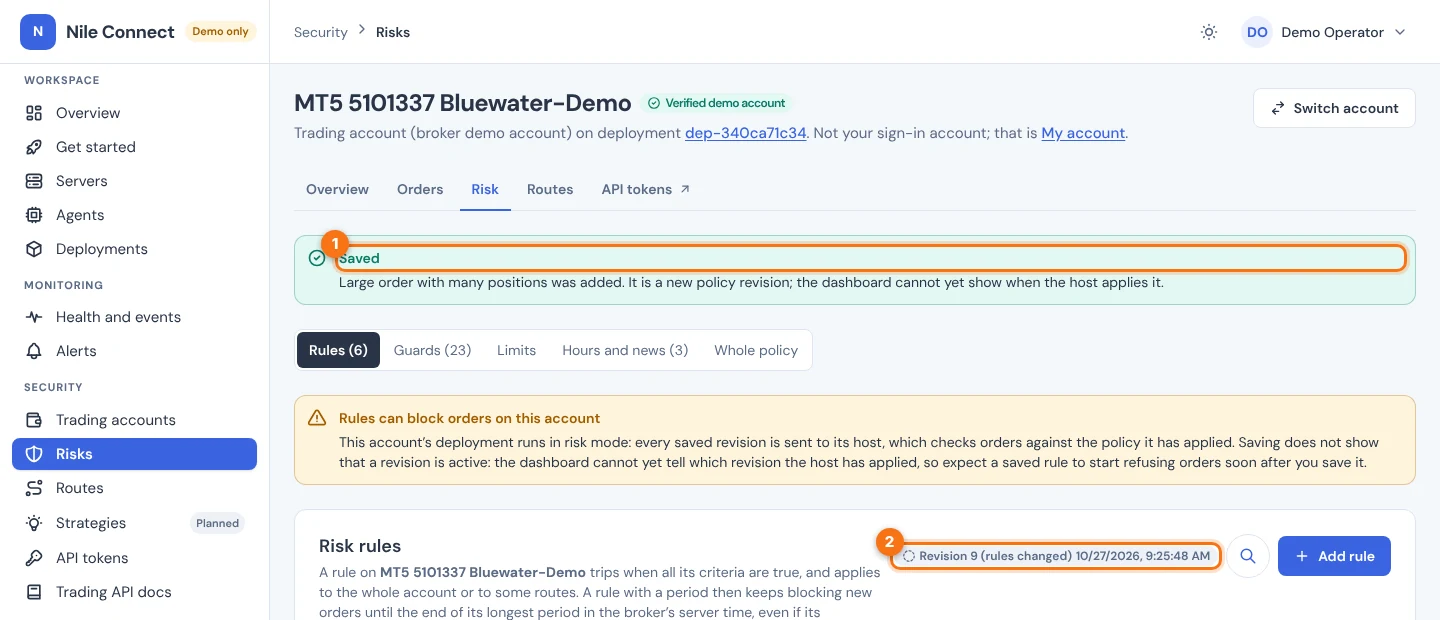
What you should see: the editor closes and a green Saved notice says the rule was added.
6. Add a rule with the expression editor
The expression editor is for people who prefer to type, and for rules the form cannot show. Both editors describe the same rule, and you can switch between them while you edit.
- Choose Add rule and type a Name.
- Next to Edit as, choose Expression.
- Type the criteria in the Expression box, joined by &&. For example account.open_positions >= 5 && order.volume > 100000000.
- Read the Preview below the box. It turns your expression into words, or tells you what is wrong, as you type.
- Choose Add rule.
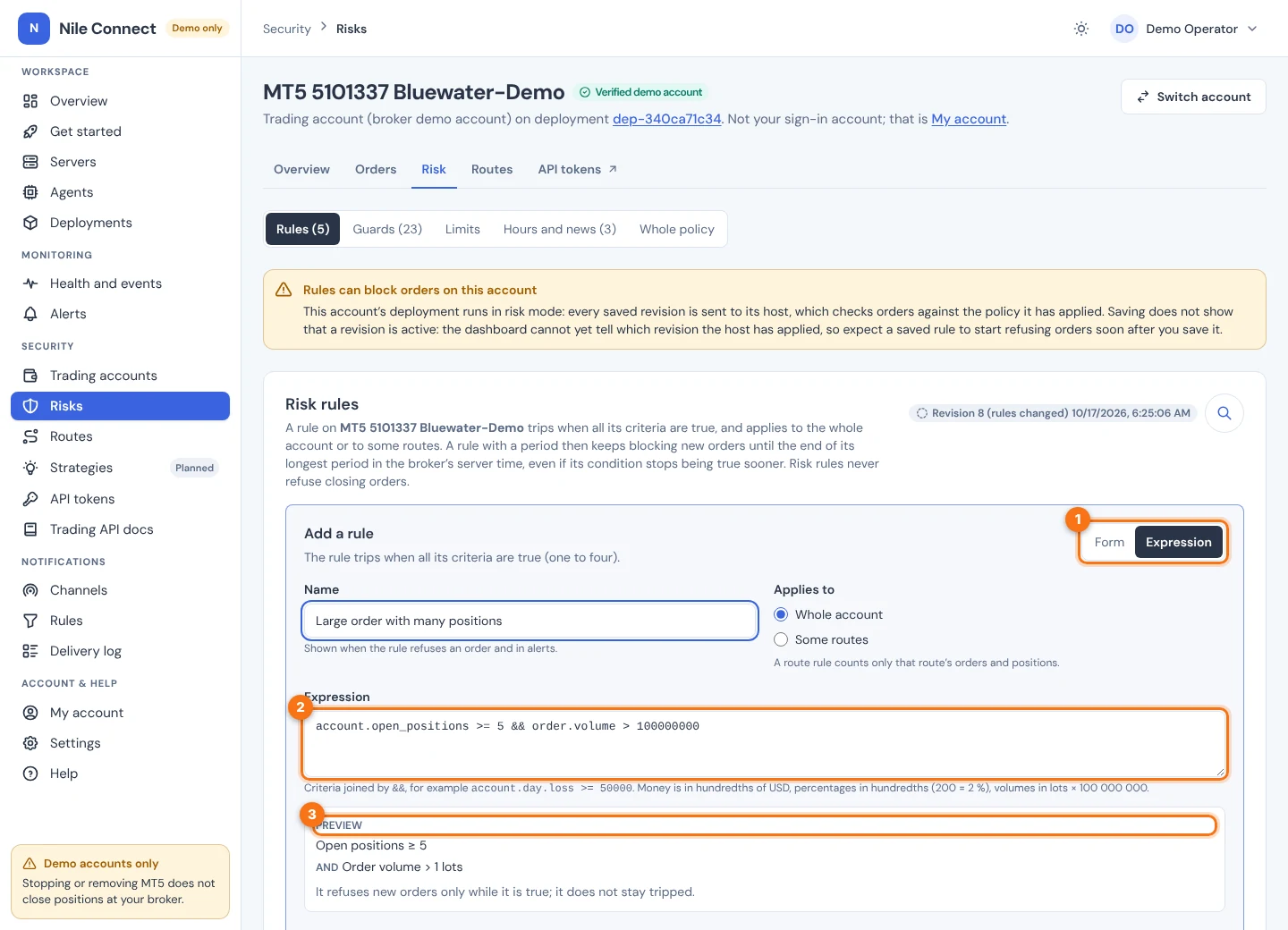
In an expression, every number is a whole number: money in hundredths of the account currency (50000 is 500.00), percentages in hundredths (500 is 5 %), and volumes in lots times 100 000 000 (100000000 is 1 lot). The form does this conversion for you. All measures and the grammar are in Writing a rule.
A rule has one to four criteria, at most 2,000 characters, and an account has at most 50 rules. Use && only. To block when either of two conditions is true, add two rules.
7. Prop-firm style examples
These use only what the form offers. Set each limit a little tighter than the firm’s, so your rule trips before the firm’s does. A tripped rule blocks new orders; it does not close a position that is already losing.
| GOAL | MEASURE, PERIOD, VALUE | EXPRESSION |
|---|---|---|
| Daily loss, firm limit 5 %: stop at 4 % | Loss in % of balance, Per day, ≥ 4 | account.day.loss_pct >= 400 |
| Weekly loss of 6 % of balance | Loss in % of balance, Per week, ≥ 6 | account.week.loss_pct >= 600 |
| Daily loss of 500 in account currency | Loss, Per day, ≥ 500 | account.day.loss >= 50000 |
| No order above 2 lots | Order volume, None, > 2 | order.volume > 200000000 |
| At most 10 open positions | Open positions, None, ≥ 10 | account.open_positions >= 10 |
| At most 6 orders a minute on one route | Orders, Per minute, ≥ 6 (Applies to: Some routes) | route.minute.orders >= 6 |
| One strategy on gold: stop after a weekly loss and 20 trades | Two criteria. Loss, Per week, One strategy on one symbol, ≥ 500. Trades opened, Per week, same strategy and symbol, ≥ 20 | strategy.breakout.symbol.XAUUSD.week.loss >= 50000 && strategy.breakout.symbol.XAUUSD.week.trades >= 20 |
With ≥ a rule trips when the figure reaches the value. Choose > to block only above it.
8. Edit and delete a rule
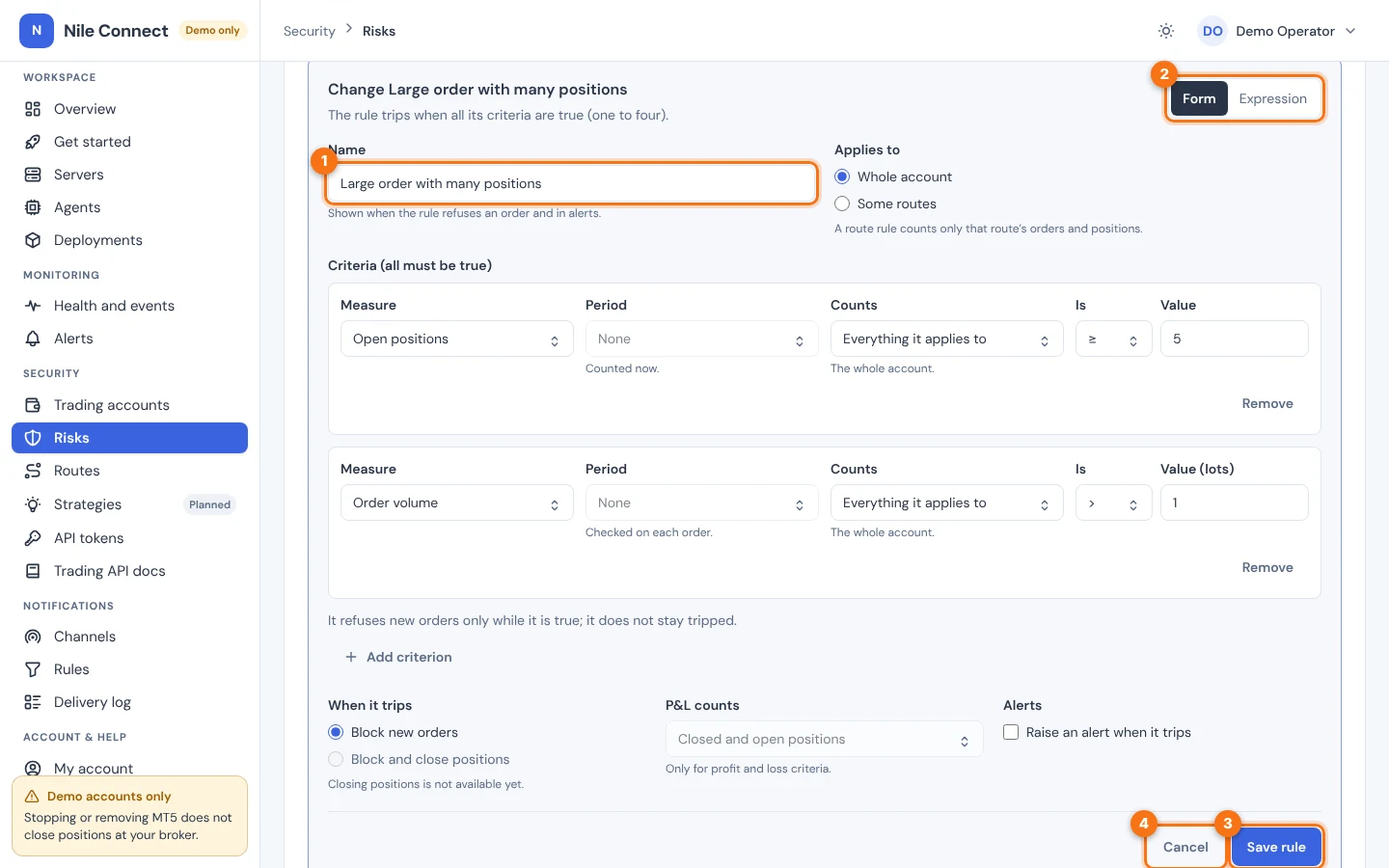
- On Rules, find the rule and choose Edit. The same editor opens with the rule’s values.
- Change what you need and choose Save rule. Choose Cancel to leave the rule unchanged.
- To remove a rule, choose Delete, then confirm with the second Delete. Choose Cancel to keep it.
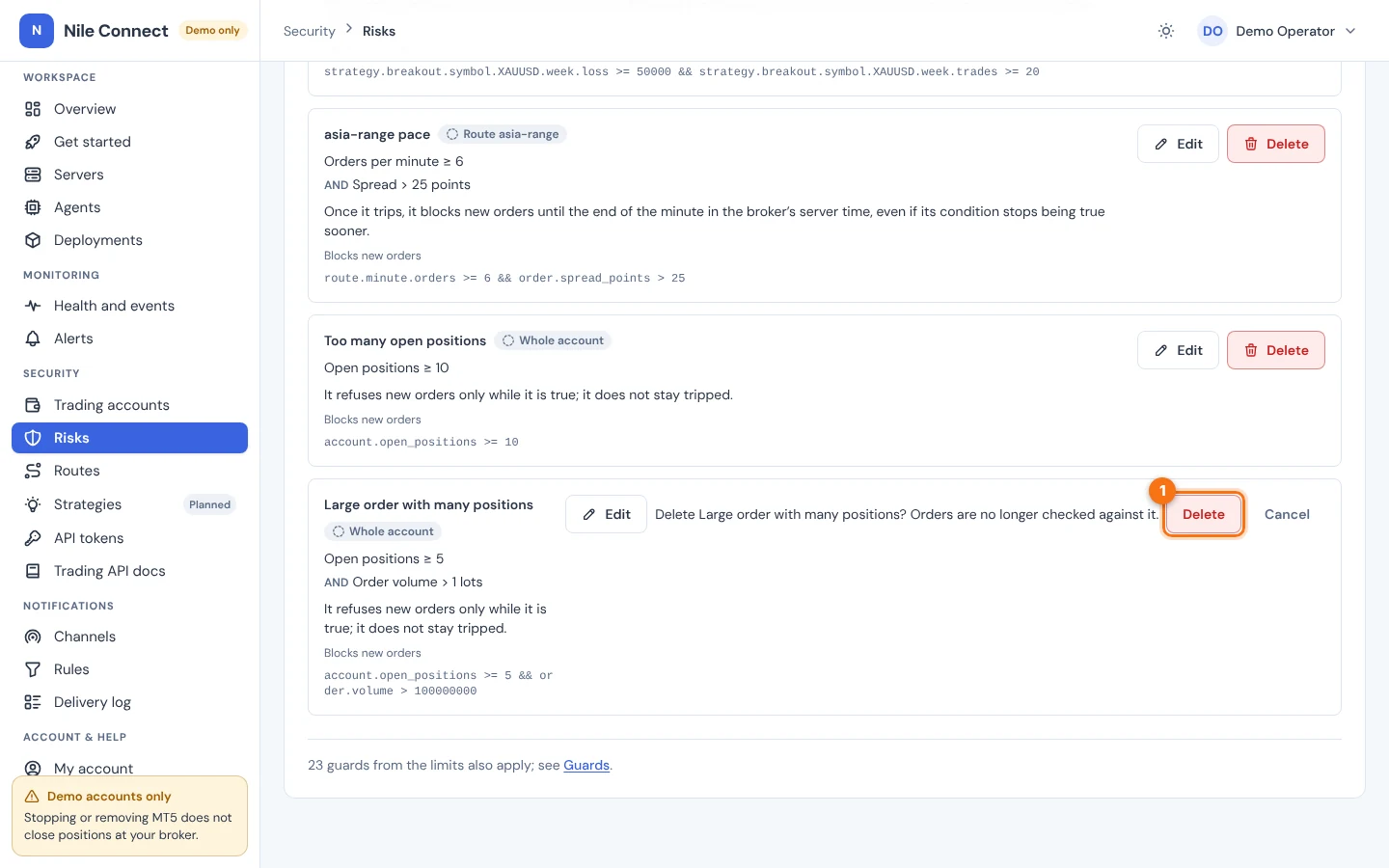
- While one editor is open, Edit and Delete on the other rules are switched off. Finish or cancel first.
- A rule the form cannot show opens in the expression editor.
- If someone else saved the policy while your editor was open, a notice says The policy changed meanwhile and your save will be refused. Choose Cancel and edit again.
- Deleting a rule that has tripped removes its block. Delete one only on purpose.
9. What saving, enforcement and revision mean
- Revision. The badge on each section, for example “Revision 8 (rules changed)”, is the version number of the account’s whole policy. Each save of rules, time rules, limits or routes makes a new one, with the time it was issued.
- Saved is not the same as applied. The green message ends with “It is a new policy revision; the dashboard cannot yet show when the host applies it.” The server applies it shortly after. Until it does, new opening orders can be refused with the code risk_policy_pending. Closes are not held.
- Enforcement. A saved rule only blocks orders where the notice in section 4 says so. A stored rule on an account without risk mode does nothing.
- Limits work the same way, with Save risk limits, and apply to orders placed from then on.
- If the dashboard cannot read the account’s data fresh, saving is paused with a message until it can.
10. Guards and limits
Open Guards. Each line is one check with its name, its condition in words, and what it covers (Whole account or a route). You cannot edit or delete a guard. Choose Limits to change them.
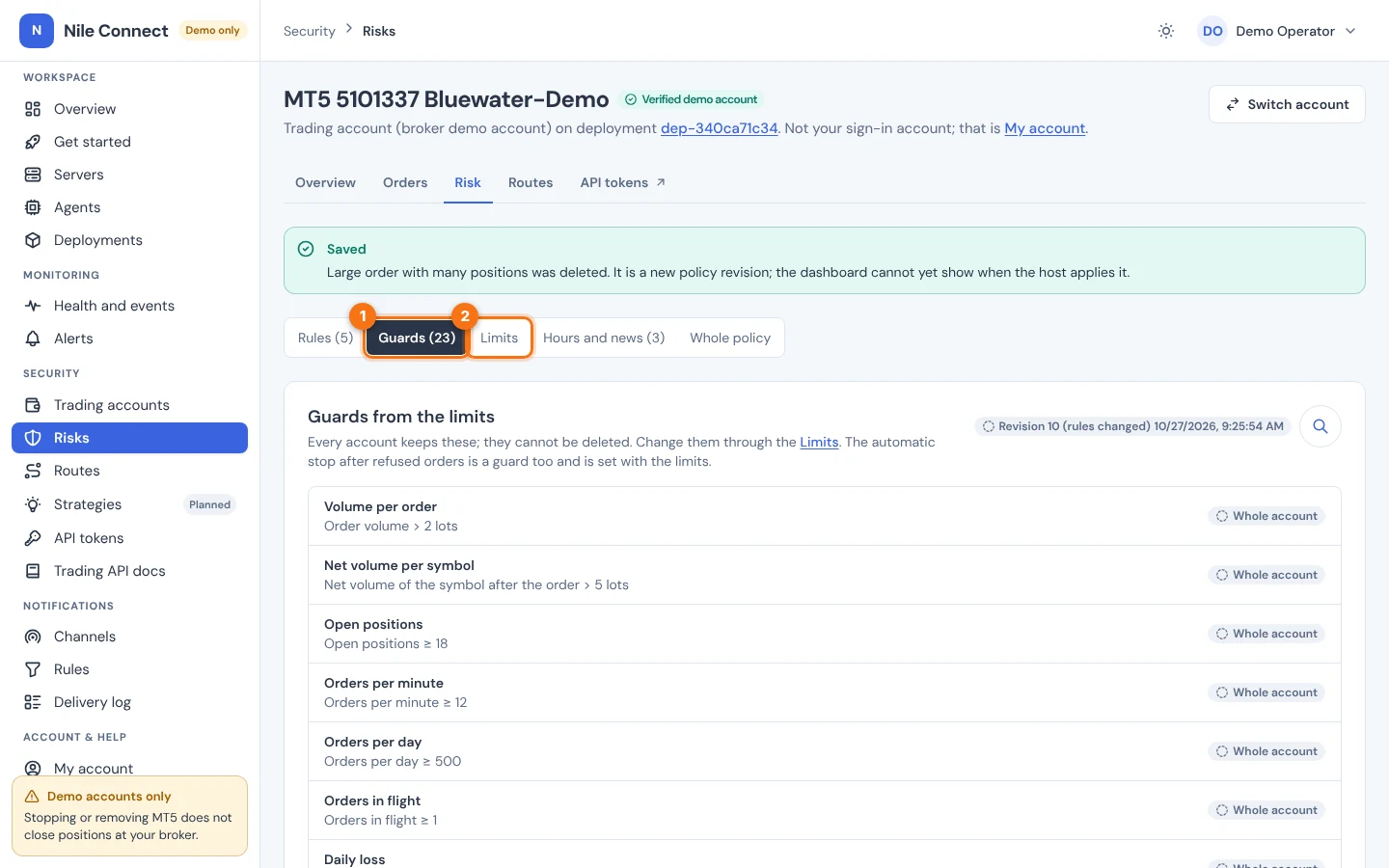
In Limits, fill in the fields and choose Save risk limits. Discard changes goes back to the saved values.
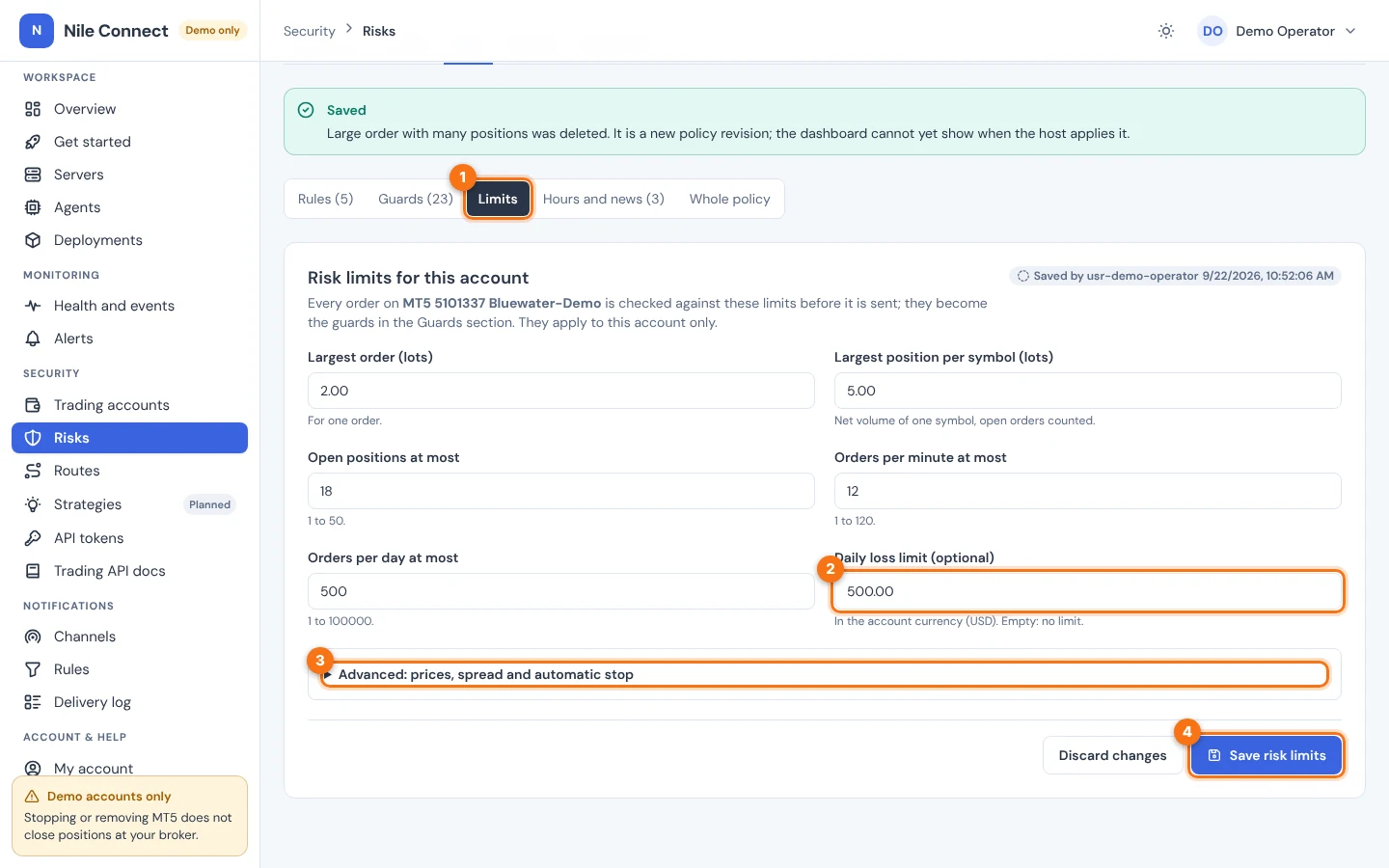
- Largest order (lots) and Largest position per symbol (lots) accept decimals, such as 0.50.
- Open positions at most takes 1 to 50, Orders per minute at most 1 to 120 and Orders per day at most 1 to 100000. The dashboard shows the range under each field.
- Advanced holds the oldest usable price in milliseconds, the widest spread in points (optional), and Automatic stop after refused orders: this many refused orders within a minute turn trading off.
- A badge “Not saved yet: demo defaults filled in” means nobody has saved limits for this account yet.
- There is no unlimited setting, except an empty daily loss limit or spread.
A route can also have its own limits. They are set on the Routes tab. See routes.
11. Rules on one route
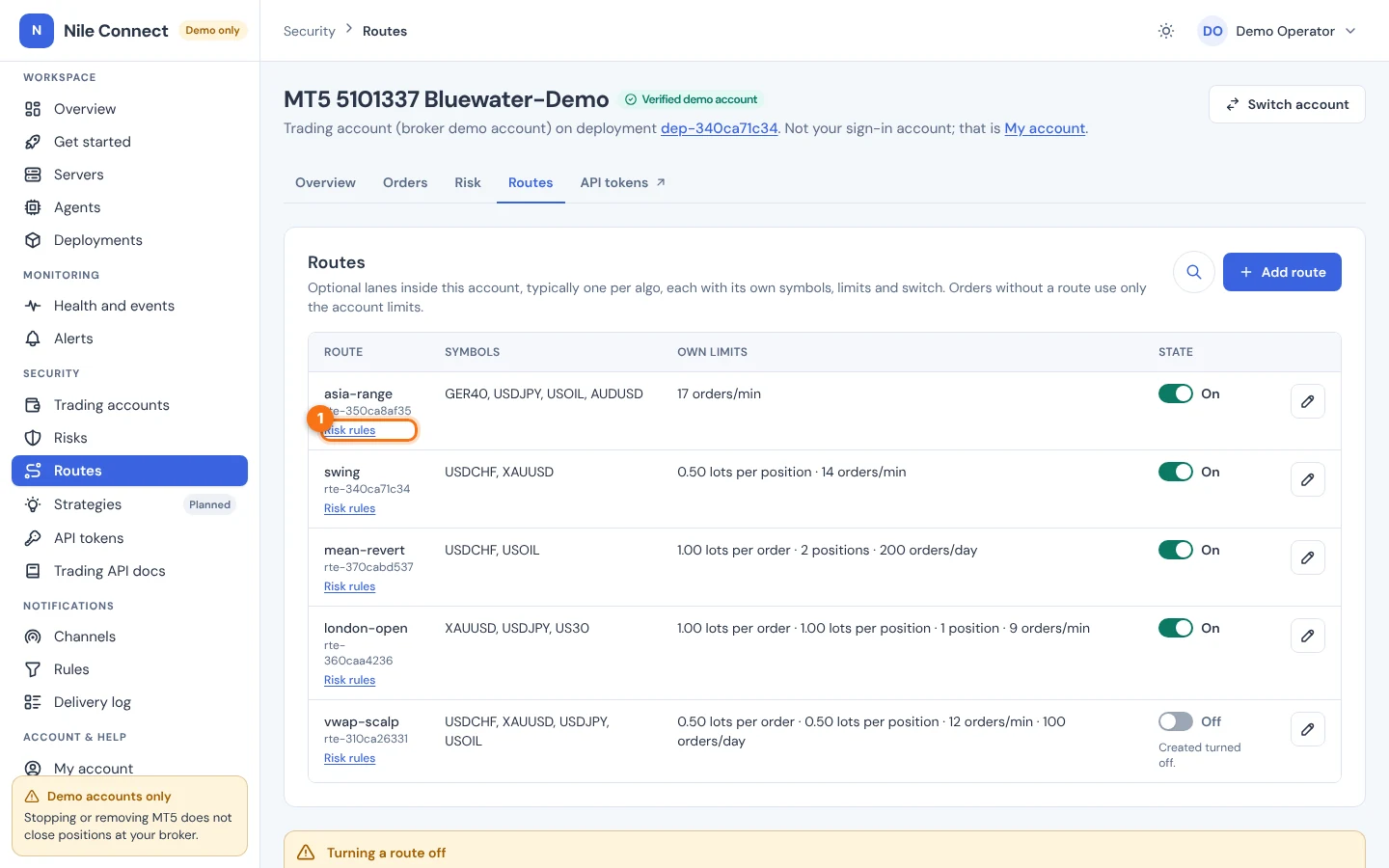
To see what applies to one route, open the account’s Routes tab and choose Risk rules under the route’s name.
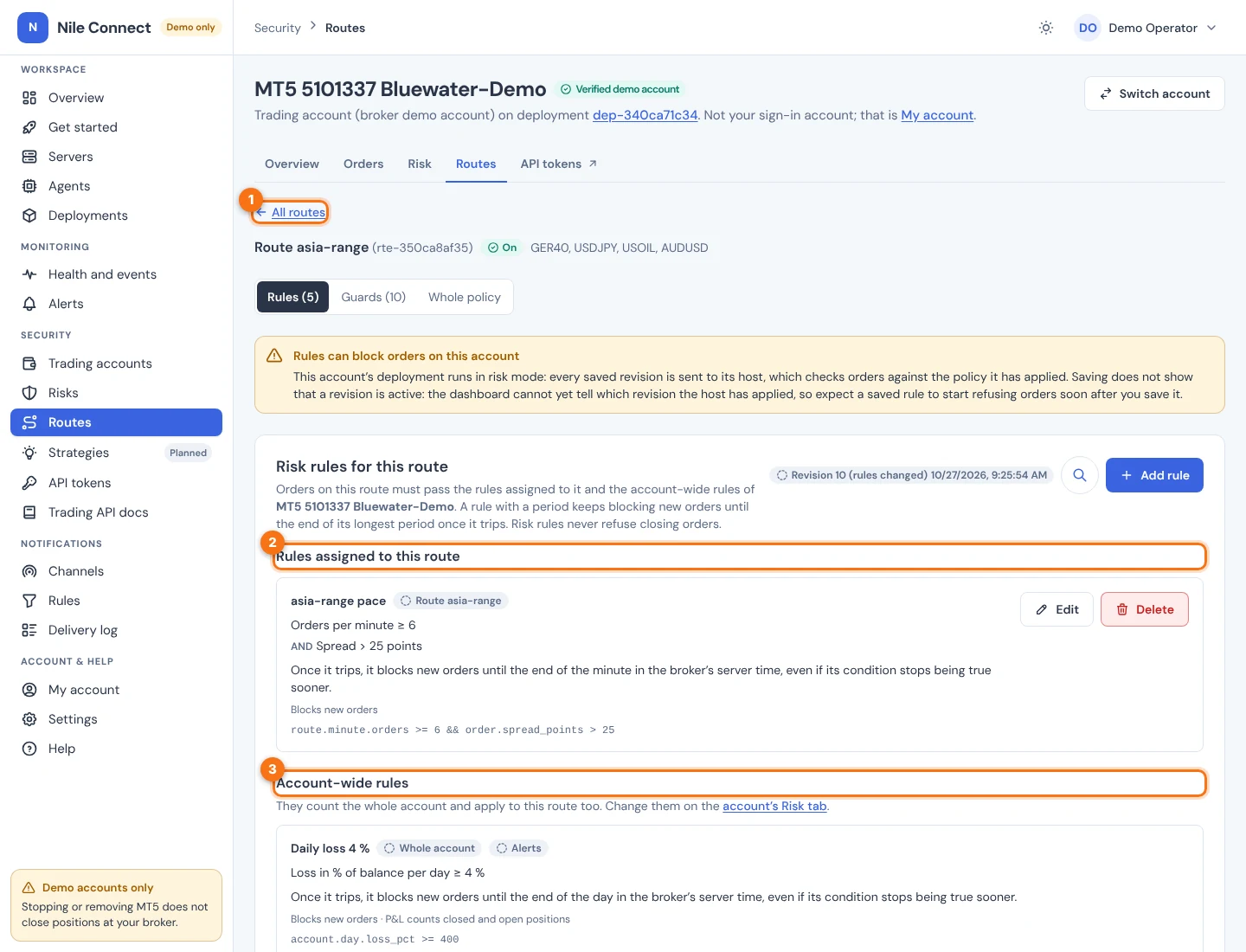
The route view has only Rules, Guards and Whole policy. Limits and Hours and news belong to the account. A rule you add here is assigned to this route and counts only its orders and positions. An order on a route must pass the route’s rules and every account-wide rule.
12. Trading hours, market close and news
Open Hours and news. Time rules decide when new positions may open. They need risk mode: if the account is not in risk mode, a notice says Time rules need risk mode and a rule cannot be saved. They apply to orders sent through the platform. Other Expert Advisors and manual trading in the terminal are not stopped.
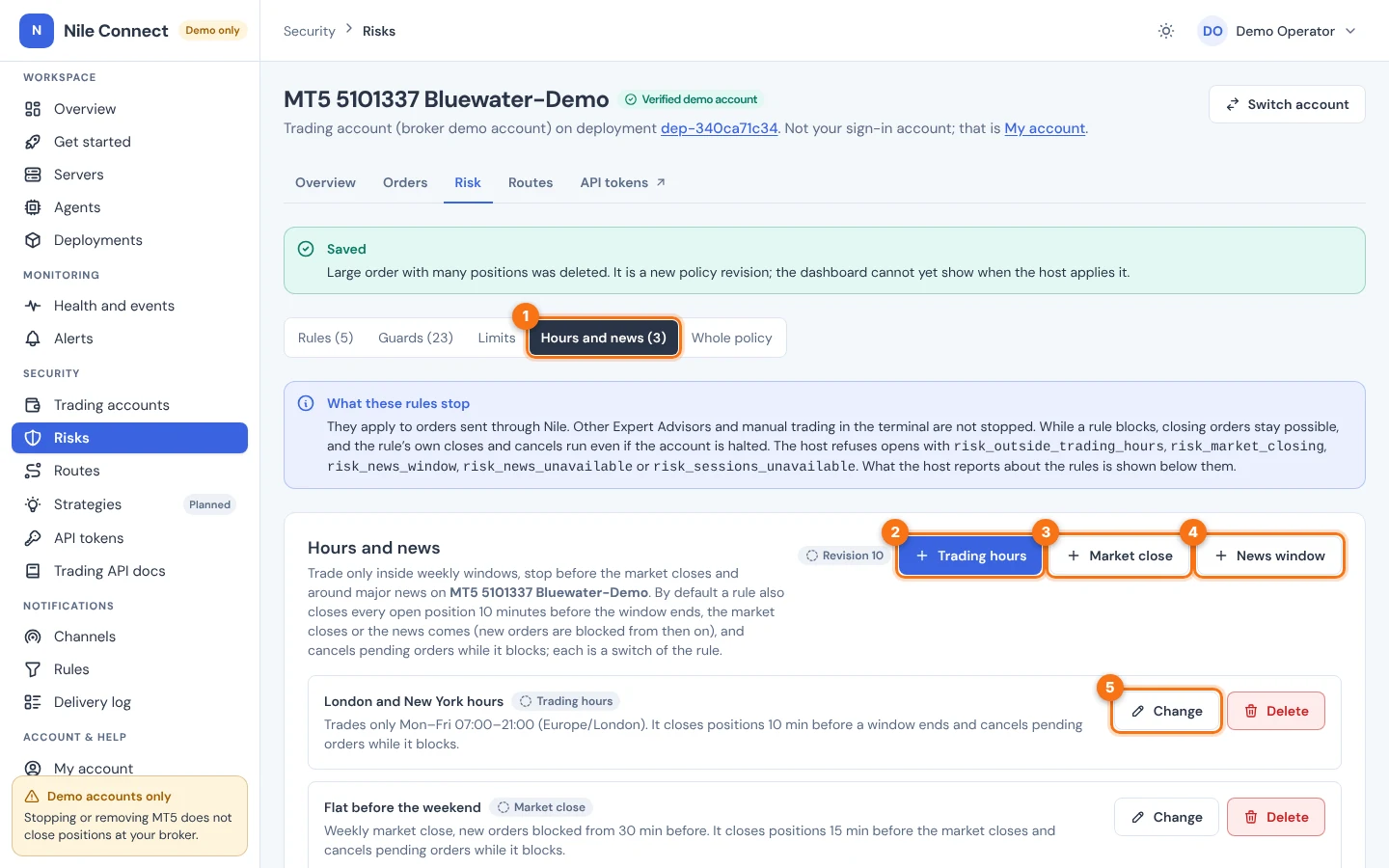
Every time rule has a Name and an optional Only these symbols field (broker symbols separated by commas; empty means everything the rule covers). An account can have up to 20 time rules.
Trading hours
- Choose Trading hours, then type a Name such as Office hours.
- Set Clock. broker follows the broker’s server clock. Or type a time zone such as Europe/Berlin, which follows daylight saving.
- Tick the days of the first window and set From and To as HH:MM. A window that ends before it starts crosses midnight, and 24:00 is the next midnight. Add a window adds another (up to 14). Remove window deletes one.
- Decide what happens when the rule blocks (section 13), then choose Save.
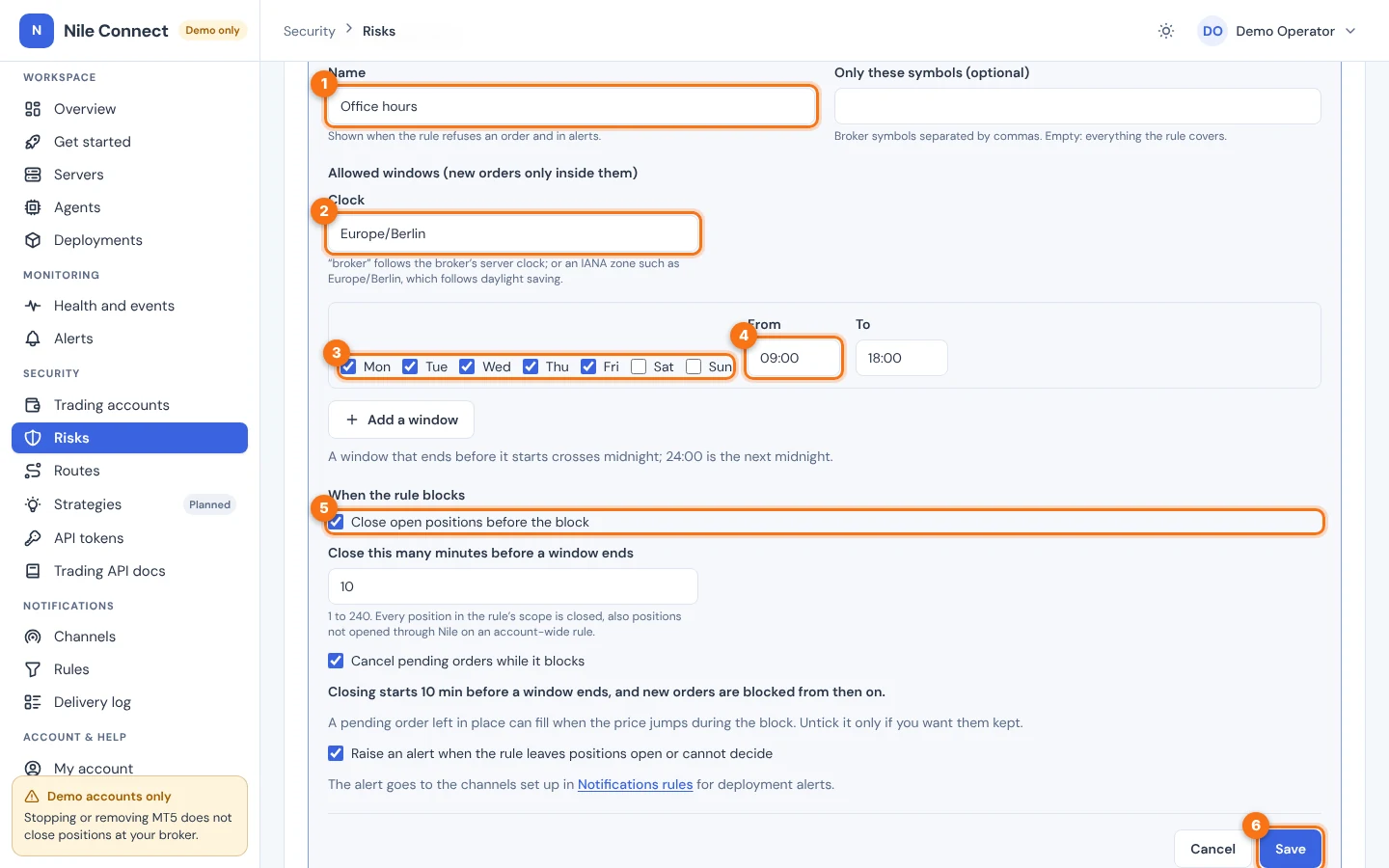
New orders outside the windows are refused with risk_outside_trading_hours.
Market close
- Choose Market close and type a Name.
- In Which close, choose Weekly close (the weekend) or Daily close (every break of the symbol’s trading sessions). Times come from the broker’s sessions.
- Set Block new orders before it (minutes), 0 to 240.
- Choose Save.
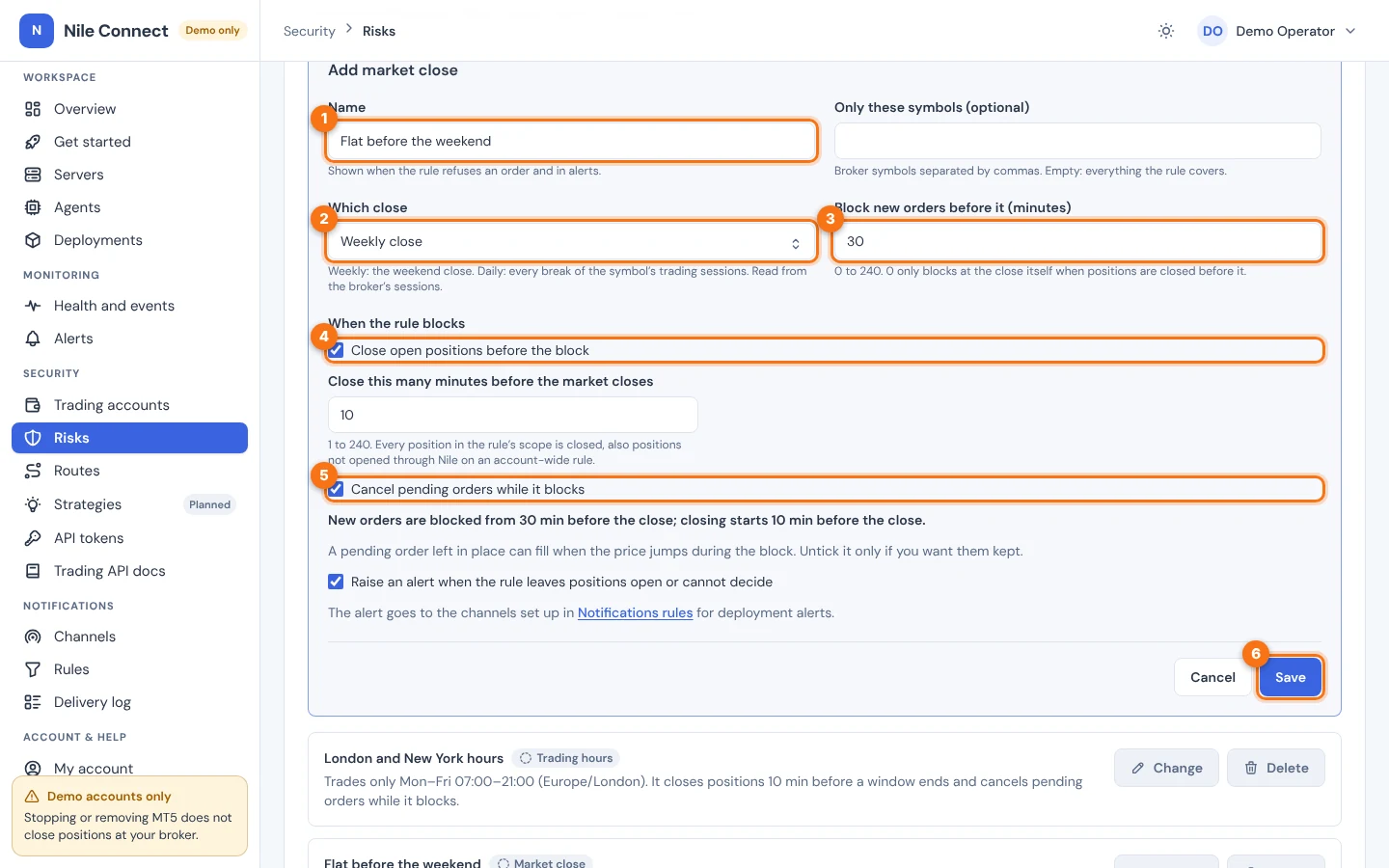
Orders are refused with risk_market_closing until the market opens again.
News window
News comes from the economic calendar built into MetaTrader 5. A news rule blocks new orders from some minutes before to some minutes after an event.
- Choose News window and type a Name.
- In Which news, choose All events of the chosen impact (then pick High impact or High and moderate impact) or Only these events (see the next part).
- Set Currencies. auto uses the currencies of the symbol being traded. Or type codes such as USD, EUR.
- Set Block before the news (minutes) and Block after the news (minutes), 0 to 240 each. Both start at 15.
- Set Events without an exact time: Block the whole day or Ignore them. The calendar lists some events by date only.
- Choose Save.
Orders are refused with risk_news_window while the window is open.
Choose exact events with the event picker
Use Only these events to react to the events you choose, such as central bank rate decisions, and ignore the rest. A chosen event counts whatever its impact, for the currencies you set.
- In the news editor, set Which news to Only these events.
- Under Find events in the economic calendar, type part of a name in Search events, for example Rate. You can also narrow the list by Currency and Minimum impact.
- In the list, choose Add next to each event you want. The button changes to Added and the event appears under Chosen events. Choose the cross on a chosen event to remove it.
- Choose Save. The rule cannot be saved without at least one chosen event.
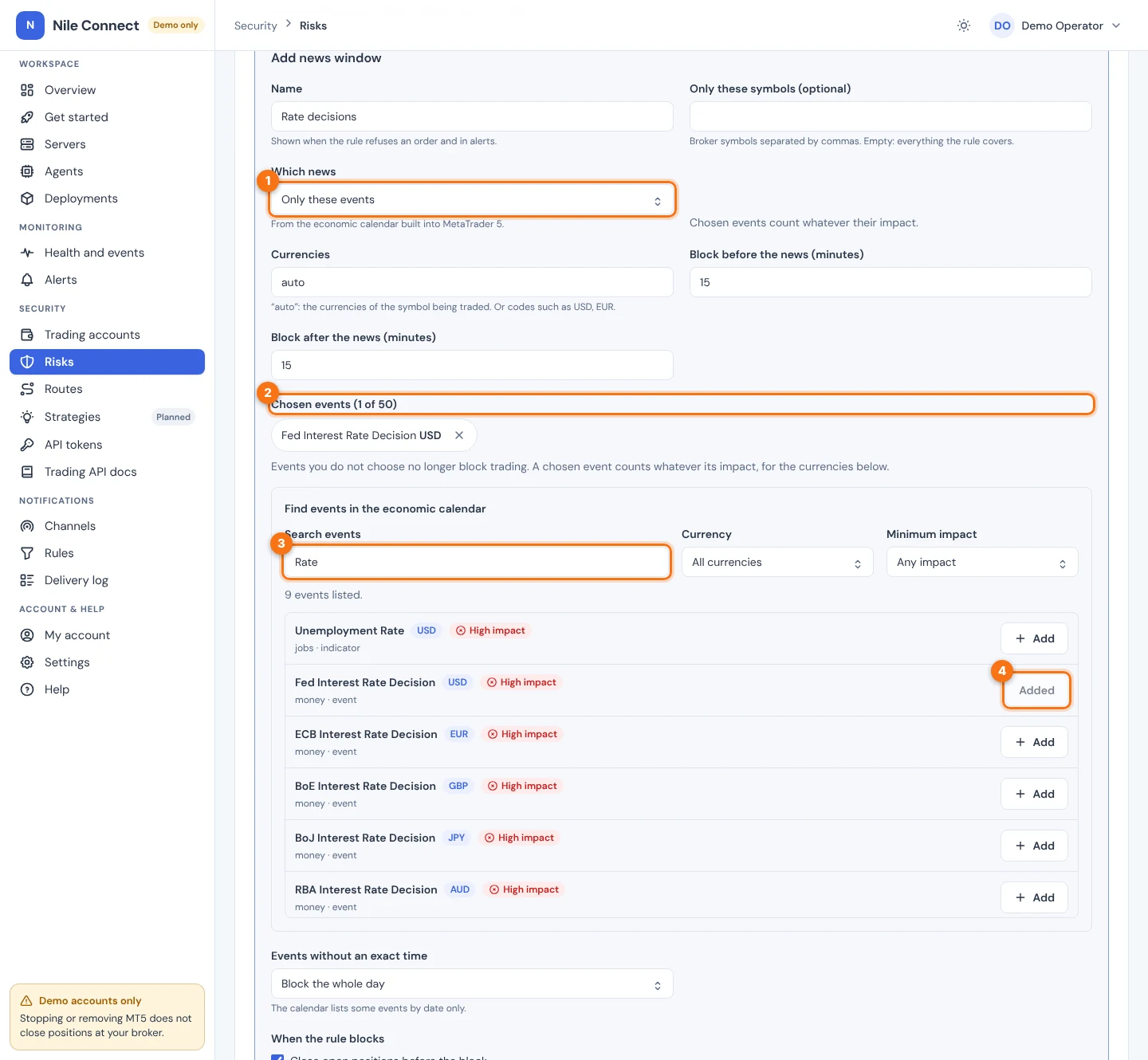
- The list needs a running terminal with a calendar. If it cannot load, a notice says so and offers Retry. Events you chose before stay and can be removed.
- You can choose up to 50 events. For more, make a second rule.
- The list can show Load more. The search covers the first 20 000 events of the calendar, so narrow it if the event you want is missing.
13. Close positions and cancel orders around the block
At the bottom of every time rule, under When the rule blocks:
- Close open positions before the block is on by default. Set how many minutes before (1 to 240, 10 by default): before a window ends, before the market closes or before the news. Every position in the rule’s scope is closed, and on a rule for the whole account that includes positions that were not opened through the platform. Turn it off if you do not want positions closed.
- Cancel pending orders while it blocks is on by default. A pending order left in place can fill when the price jumps during the block.
- Raise an alert when the rule leaves positions open or cannot decide is on by default. The alert goes to the channels set up under Notifications, Rules. See alert notifications.
A sentence under the checkboxes spells out the timing, for example “New orders are blocked from 30 min before the close; closing starts 10 min before the close.” Read it before you save.
Time rules never latch: the block ends when its window ends. They never refuse an order that closes a position. When a time rule cannot decide, for example because the news calendar is more than 30 minutes old or a symbol’s sessions are unknown, it refuses new orders instead of guessing (risk_news_unavailable, risk_sessions_unavailable).
Below the rules, What the host reports (shown when the account is in risk mode) lists for each rule its state, the next block, when closing starts, and what it would do now, such as “5 positions to close, 0 pending orders to cancel”. Check it after you save.
14. What blocks until when
When a rule with a period trips, it latches: it keeps blocking new orders until the end of its longest period in the broker’s server time, even if the figure drops back. Each rule says so in words.
| RULE | BLOCKS NEW ORDERS |
|---|---|
| Loss, Per day | Until the broker’s midnight (00:00). |
| Loss, Per week | Until the end of the week. The week starts on Monday 00:00. |
| Loss, Per month | Until the 1st of next month at 00:00. |
| Orders, Per minute | Until the end of that minute. |
| A day and a week criterion in one rule | Until the end of the longest period, the week. |
| Open positions, Net volume, Orders in flight | Only while the condition is true. It does not stay tripped. |
| Order volume, Price age, Spread | Refuses each order it is true for. It does not stay tripped. |
| Time rules | Never latch. The block ends when the window ends. |
Because the broker’s clock decides, a daily rule resets at the broker’s midnight, which may be a different hour from yours.
15. What is not available yet
- Close positions when a rule or limit trips. The form shows Block and close positions greyed out with “Closing positions is not available yet.” Rules and limits only block new orders. Only time rules close positions, before a window ends, a market close or news.
- Alerts for rule and limit trips. Raise an alert when it trips is saved with the rule (it is on by default for profit and loss rules), but trip alerts are not raised yet. A tripped rule shows as a refused order and in the account’s events. Time rules do raise alerts.
- Showing and clearing latches in the dashboard. API only, see section 14.
- Showing which revision the server has applied.
- Choosing risk mode in the New deployment form.
- Real accounts. Only demo accounts are accepted, and the engine is not yet verified against a real broker’s demo server.
16. Read the whole policy
Open Whole policy to see everything in one place: the guards, then your rules, each written as an expression. A rule with several criteria is put in brackets. Rules are joined by ||, which means that any tripped rule blocks. This is the saved revision, not proof that the server has applied it.
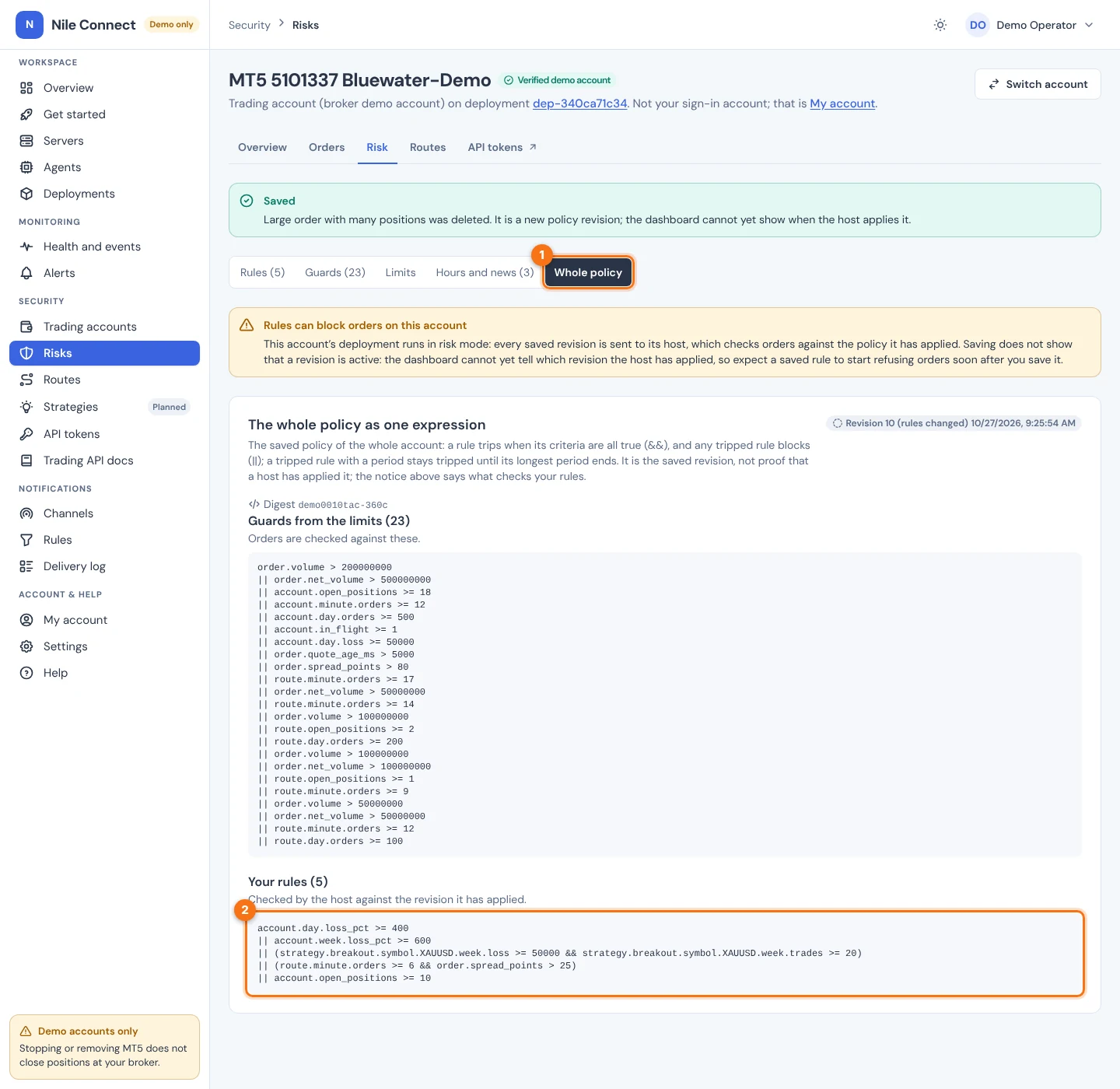
17. If something looks wrong
- No Add rule button, or Edit and Delete are missing. You can read the account but not configure it. Ask an administrator for the trading configure permission.
- Add rule is greyed out. The policy has not loaded fresh, or the account already has 50 rules.
- “Your rules are stored, not checked on this account”. The deployment is not in risk mode. Rules and time rules block nothing until it is.
- The expression is refused. Each value must be a whole number without a decimal point, in the unit explained in section 6. Names with a dash go in brackets, for example strategy[“mean-rev.v2”].
- A rule seems to keep blocking. It has probably latched. See section 14 for when it ends.
- Orders refused with risk_policy_pending. A saved revision is not yet applied on the server. Wait a moment, then try again.
- Your save is refused after a long edit. Someone else changed the policy. Cancel and edit again.
Related: Writing a rule (measures, units and the API), How risk rules work, routes, trading accounts and alert notifications.