
Deliver broker credentials
This guide shows you how a broker password reaches your server encrypted, what PerkBridge keeps and what it does not, and how to remember a password on the server if you choose to.
1. How delivery works
You type the broker login and password when you start a deployment. They are not stored by PerkBridge unless you choose to remember them on the server (section 5).
- Your browser sends them to the control plane over HTTPS.
- The control plane checks your permissions and seals them with HPKE to an encryption key that the target server’s agent created and holds. The sealed copy is bound to your organization, server, agent, deployment, this one session and a validity window (10 minutes by default).
- The sealed copy travels inside the signed start command over the agent’s mutual-TLS connection.
- The agent checks every binding itself, opens it, and writes the login to a short-lived file on a RAM disk. The terminal reads it once, and the file is overwritten and deleted.
The database, logs, audit events, backups and browser storage never hold the password. The only stored form is the sealed copy, which only that one agent’s key can open. It is deleted when the start finishes or expires.
2. Start with credentials
Create the deployment with Deliver once at start (see Deploy a trading account). The server’s agent must be connected, its policy must have remote.credential_delivery: true (servers added from the dashboard have it by default), and its encryption key must be confirmed.
- Open the deployment’s Credentials tab and choose Start with credentials.
- If you signed in more than about 15 minutes ago, confirm your identity first, with your password or with single sign-on.
- Enter the Broker account number (login) (digits only) and the Broker account password.
- Tick This is a demo account. Deliver these credentials once to this deployment’s session.
- Choose Send once and start.
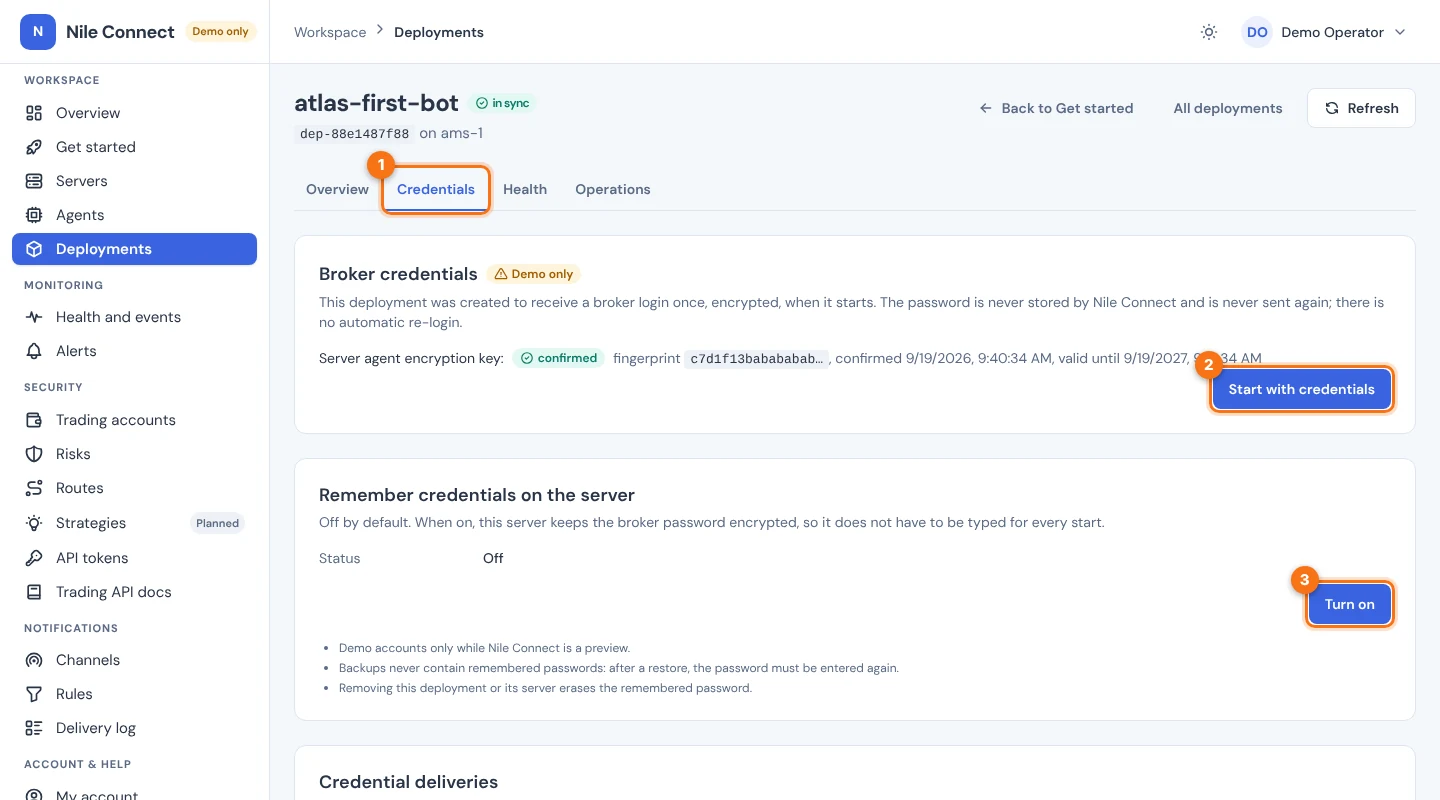
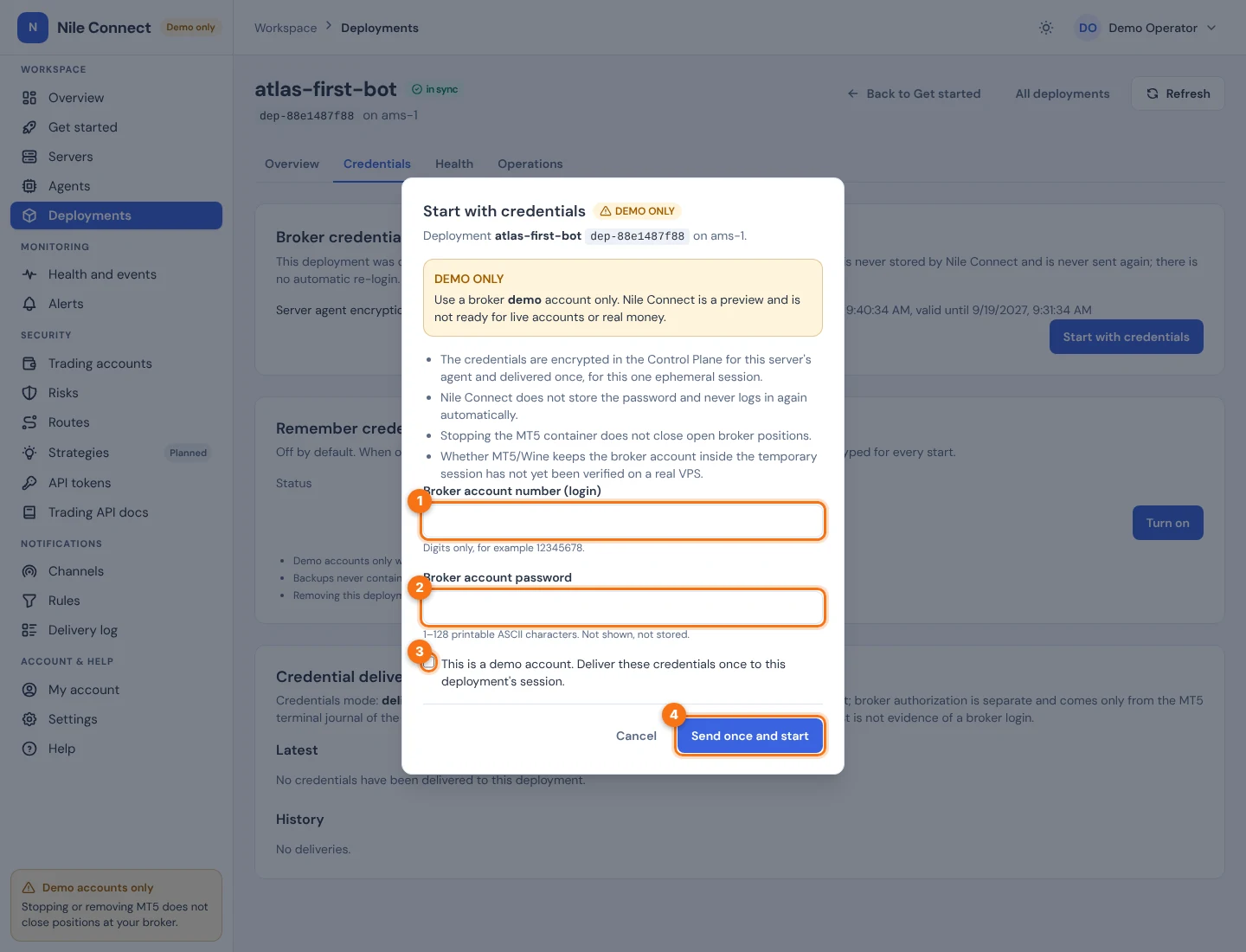
You need the credential:deliver and deployment:manage permissions. A request is never retried for you. If the connection drops, the page checks what happened and offers Check again, never a second send.
3. Read the result
The dashboard shows two separate values.
| VALUE | WHAT IT MEANS |
|---|---|
| Delivery state | How far the sealed copy got, for example DISPATCHED, RECEIVED, APPLIED (the terminal read it), EXPIRED or FAILED. |
| Broker status | BROKER_AUTHORIZED or BROKER_AUTH_FAILED, taken only from the terminal’s own login journal. With no result within 5 minutes (the default) it shows BROKER_UNDETERMINED, never success. |
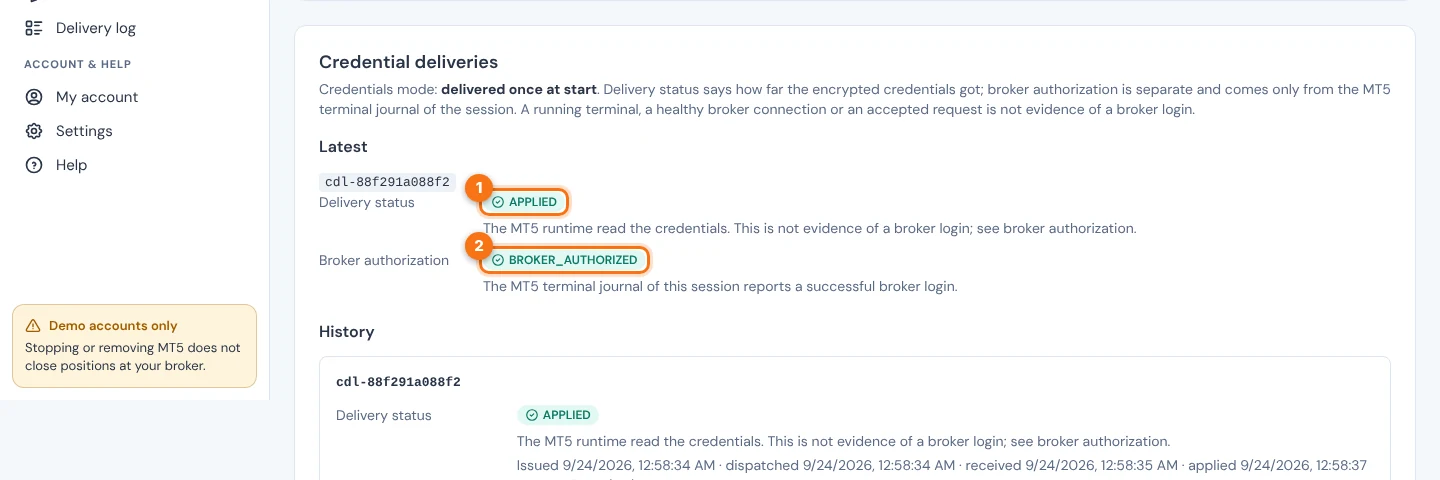
An applied delivery is not a broker login. If the start fails, start again with a new request; because sessions are single-use, you may need a new deployment.
Common refusals: agent_offline (nothing was sealed or stored), encryption_key_unavailable, reauthentication_required, credentials_required.
4. What delivery does not protect against
- A compromised control plane. It sees the password in memory for the moment it takes to seal it, so it could capture passwords typed while it is compromised. It cannot open passwords delivered earlier.
- Your server’s administrators. Root, members of the docker group, your hosting provider and the hypervisor can read the password on the host. The terminal itself holds it for the whole session.
- Swap. Host swap can hold RAM-disk pages. Encrypted or disabled swap is your choice.
- MT5’s own files. Whether MT5 writes a password-derived value inside the session has not been verified. The session’s files are on a RAM disk and are removed at cleanup.
Revoking an agent does not erase credentials already on that host. If you think a password leaked, change it at your broker.
5. Remember credentials on the server (optional)
If you do not want to type the password for every start, you can let your server remember it. The password is encrypted, and the key that opens it is split in two halves: one stays on the server in nile-vault, the other is kept by the control plane. Neither side alone can open it.
It is off by default and turned on per deployment. It needs:
- a deployment created with Deliver once at start;
- the control plane vault key (see Install the control plane);
- nile-vault on the server, installed when you add it with Remember credentials on the server (section 6).
On the deployment’s Credentials tab, under Remember credentials on the server, enter the login and password, tick This is a demo account. Remember its password on this server. and choose Turn on and save. Later, choose Start with the remembered password. A start you make still needs a recent sign-in.
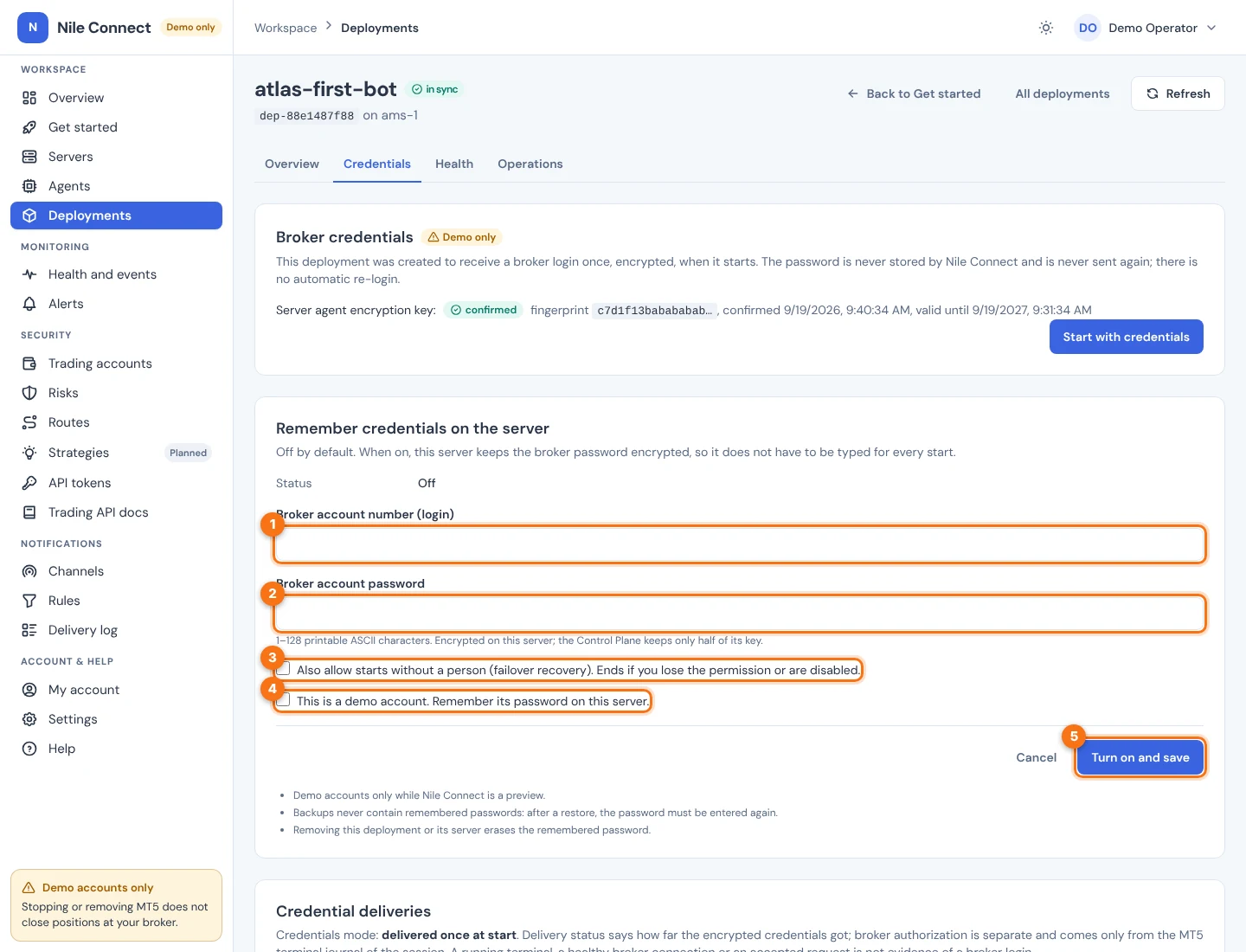
Automatic use. You can also allow starts with nobody present. PerkBridge then uses the remembered password only for starts you set up: a new session after a container or terminal failure, after a server reboot, or on a failover standby. Every such start begins with trading halted and is audited with the control plane as the actor. You can stop automatic use at any time.
Standby servers. When you choose a standby server for failover, PerkBridge copies the remembered record from the main server’s vault to the standby’s vault, sealed to that server. The password never passes through a new place in readable form. If the main server is offline, the copy waits, and you can type the password for the standby server instead. Turning failover off or choosing another standby erases the record there.
Choose Turn off to withdraw consent. The control plane’s half is deleted at once, and the page shows Erase on the server not confirmed yet until the server confirms with Erased from the server. Removing the deployment or its server also erases it. Erasing does not remove copies taken earlier, such as disk snapshots.
6. nile-vault on the server
Choose Remember credentials on the server when you add a server, and setup installs nile-vault from the release bundle, starts it and connects it to the agent. Where the server has a TPM, the vault’s identity key is sealed to it. See Add a server.
The option is chosen only when the server is added. For a server added without it, remove the server and add it again with the option. Removing the server with host cleanup stops nile-vault and removes its stored halves.
The vault runs with no network, no Docker access and no capabilities, talks only to the agent, and refuses to start if it cannot lock its memory. It has not been reviewed independently yet.
Terms used here are explained in the glossary.