
Failover to a standby server
Choose a standby server for a deployment, decide what happens when a server, container or terminal fails, and understand how PerkBridge switches without sending an order twice.
1. What failover does
Failover keeps a deployment trading when its server, container or terminal fails. You choose a standby server for the deployment. When the active side fails, PerkBridge moves the deployment to the standby, checks the account against the broker, and then lets trading continue.
Failover is chosen per deployment and is off by default. With it off, a failure raises alerts and nothing more. Removing a deployment, stopping a terminal or switching servers never closes positions at the broker.
2. The settings
You need the deployment:failover permission, and saving asks for a recent sign-in. The deployment must have a trading account and be on a server of yours. Demo accounts only.
- Open Deployments and choose the deployment.
- Choose the Failover tab (1). The first card, Failover, shows the current settings. With nothing set it reads Off (alerts only).
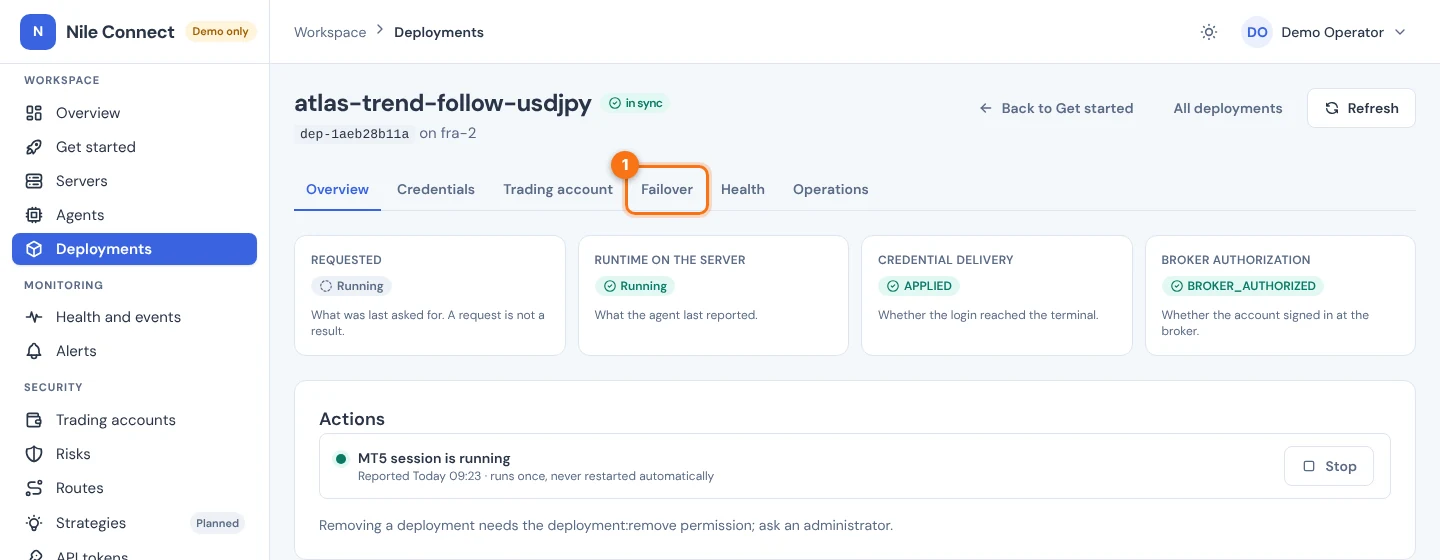
The card Change failover settings lower on the page holds the settings below.
| SETTING | CHOICES | DEFAULT |
|---|---|---|
| Failover on | On or off. Off means alerts only. | Off |
| Standby server | Another server of your organization. | None |
| Standby type | Hot: the standby terminal is logged in to the same account and ready. Warm: the container is prepared, and the terminal logs in only at the switch. | Hot |
| Switch | Manual (a Switch to standby button) or automatic. | Manual |
| On server failure | Switch to the standby, or alert only. | Switch |
| On container or terminal failure | Switch to the standby, start a new session on the same server, or alert only. | Switch |
| On broker disconnect | Switch only if the standby is connected to the broker, or alert only. | Switch if the standby is connected |
| Keep the standby ready on its own | Re-arm the standby without a person after a switch or a lost standby. | Off |
| Start again after a server reboot | Start a new session when the deployment’s own server comes back from a reboot (section 6). | On for new deployments |
Safety is not a setting. No choice lets a switch skip the checks in section 4. A change applies to the next failure, never to a switch in progress, and every change is audited.
Anything that starts a terminal with nobody present uses the deployment’s remembered credentials with automatic use allowed. Turn that on first on the deployment’s Credentials tab. See Remember credentials on the server.
3. Choose and arm a standby
The standby server must:
- have a connected agent and a confirmed encryption key;
- allow trading in its server policy, if the deployment trades (Allow trading when the server was added);
- have room under its Maximum deployments;
- be able to reach the broker;
- have Remember credentials on the server, if the standby should start without a person.
The Standby server list offers only servers that qualify. A server that does not is named under the list with the reason, for example “sgp-1 cannot be the standby: the agent is disconnected”.
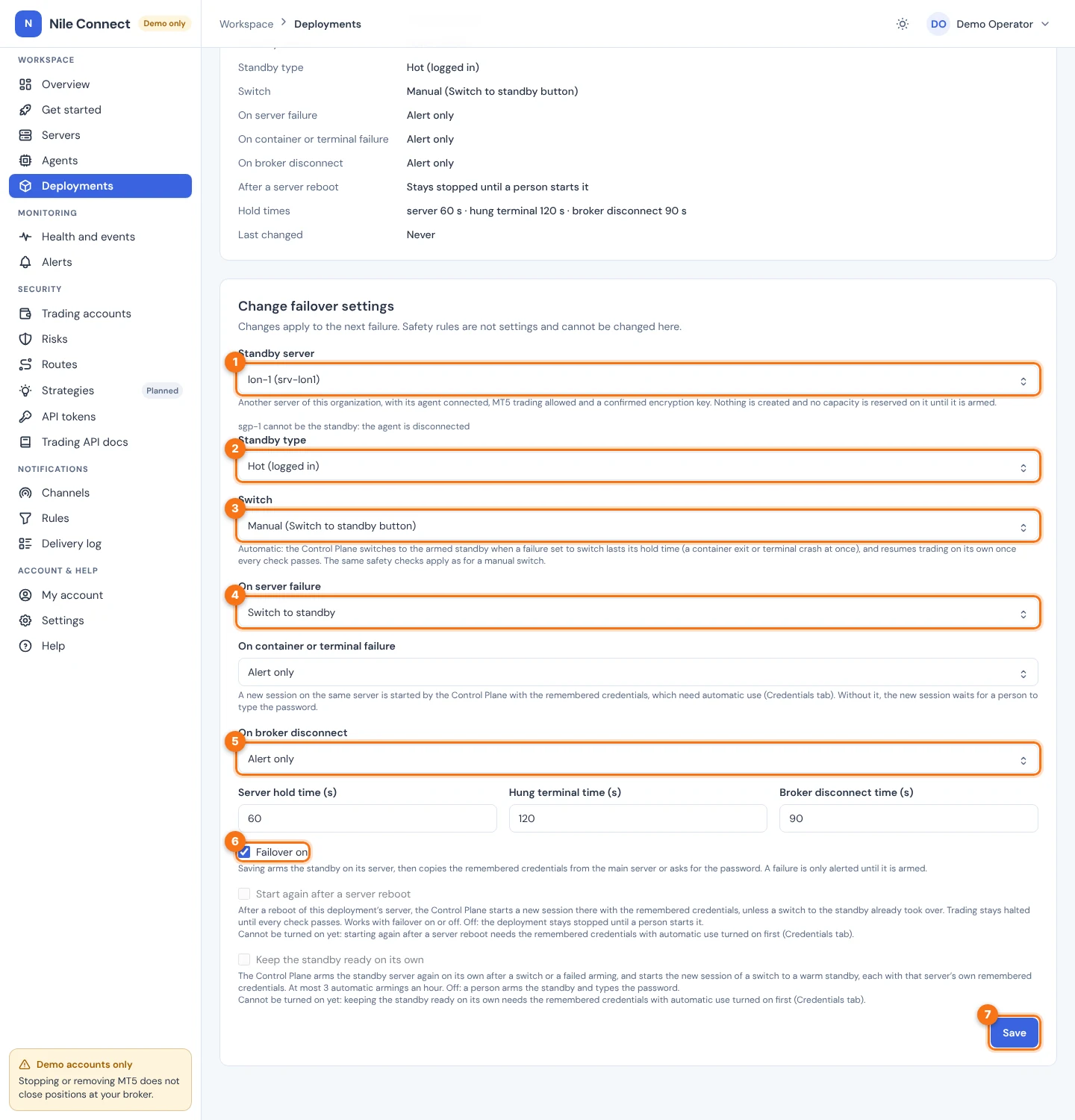
- On the Failover tab, go to Change failover settings and choose the Standby server (1). The standby type and switch choices appear once a server is chosen.
- Choose the Standby type (2): Hot (logged in) or Warm (prepared, password at switch time).
- Choose Switch (3): Manual, or Automatic (switched on a failure). Start with Manual.
- Choose what happens On server failure (4), On container or terminal failure and On broker disconnect (5). Each can also be left as “Alert only”. The three hold times below them default to 60, 120 and 90 seconds.
- Tick Failover on (6). If it cannot be ticked, the line under it says what is missing, for example remembered credentials with automatic use.
- Choose Save (7).
Saving with failover on also arms the standby: the standby server’s agent reserves room on that server and creates the standby container. For a hot standby, the terminal then logs in. If the deployment remembers its credentials, PerkBridge copies the remembered record from the main server’s vault to the standby’s vault, sealed to that server. If the main server is offline, the copy waits and you can type the password for the standby server instead. Without remembered credentials, the dashboard asks for the password. If a standby is chosen but arming did not start, an Arm standby button appears on the standby card. Choose it and then Arm now. Disarm undoes it.
What you should see. The Standby server card lists what the standby still needs, each as Ready or Waiting: Server, Credentials (1), Armed (2), Room on the server (3), Broker login (4) and Failover. The standby is ready when all of them are Ready.
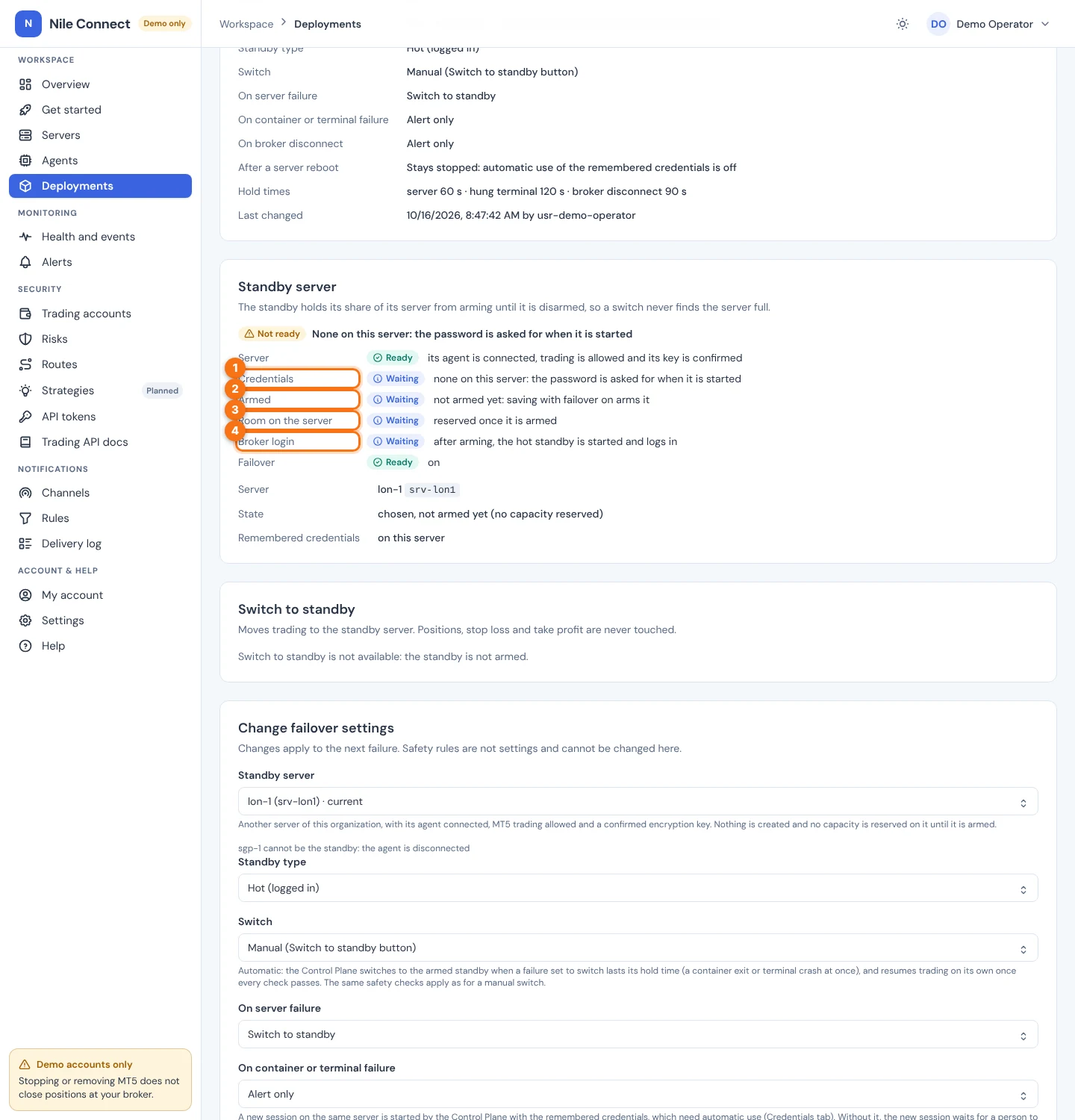
Until the standby is armed, the deployment shows Not protected: a failure is only alerted, and the Switch to standby card says “Switch to standby is not available: the standby is not armed.” If arming is refused, for example because the standby server has no room, the settings stay saved and the card says why.
A standby that has not logged in never receives trading commands. Its agent refuses them until it becomes active.
If something looks wrong. “Arming failed” on the card names the reason. Fix it (room, credentials, agent connection), then arm again. With Keep the standby ready on its own on, PerkBridge retires the failed standby and arms again by itself.
4. Switch to the standby
A switch is offered when the active server has been unreachable for the hold time, at once when its container or terminal fails, after the hung terminal time (120 seconds by default) when the terminal hangs, or when you choose Switch to standby.
To switch by hand you need an armed standby and the deployment:failover permission:
- On the Failover tab, find the Switch to standby card and choose Switch to standby. The button is missing, with the reason written there, while the standby is not armed.
- Read the question “Switch to …?”. It says orders go only to the standby from now on, that the old server is not stopped, and that new positions stay halted. Choose Switch now, or Cancel.
- Watch the card. It names the state (switching, reconciling, ready to resume) and lists anything still open on the old server.
- When it is ready, choose Resume trading. This needs trading:halt. An automatic switch resumes on its own.
These steps have no screenshots, because the demo dashboard used for the pictures has no armed standby and never shows the button.
What PerkBridge does after you choose Switch now:
- Switching. The old server is taken out of service for this deployment. Nothing more is sent to it, and the account is halted for new positions.
- Reconciling. The standby becomes active with its trading switch still off. PerkBridge reads the account’s positions, pending orders and deals from the standby’s own session, including activity since the old server’s last report.
- Ready to resume. Only when no order of the old server is still open and unexplained.
- Active. A manual switch is resumed by a person with trading:halt. An automatic switch resumes on its own only when every check passed and nothing unexpected was found.
Anything unclear keeps the switch blocked with trading halted and an alert that names what is still open. Queued orders wait during the switch and are never sent to the old server. Closes go through as soon as nothing of the old server is open; new positions wait for the resume. Nothing is ever resent.
When a deployment with a standby loses the control plane for 5 minutes, its server closes the terminal on its own, so it cannot keep trading unseen. Positions, pending orders, stop loss and take profit stay at the broker. The container is kept.
5. When the old server comes back, and falling back
A returning server is told its role before anything else. For a deployment that moved away, its agent stops the old terminal (positions are never touched) and refuses every trading command for it from then on. The server then becomes the deployment’s unarmed standby. With Keep the standby ready on its own on, PerkBridge arms it again without a person, at most 3 times an hour.
A switch fails when the new session does not run on the standby within 10 minutes. PerkBridge raises SWITCH_FAILED and, when the remembered credentials allow automatic use, starts the deployment again on its own server once that server is healthy and its old terminal is confirmed stopped. This is the fall back. You do nothing: on the Switch to standby card you see “Switch failed: the new session did not run on the standby”, then a recovery card while the new session starts on the deployment’s own server. If it does not start by itself, the SWITCH_FAILED alert stays open until a person acts.
6. New sessions without a person
PerkBridge never restarts a terminal inside its old session. A recovery is always a new session: a new container and a new trade key, started halted, checked against the broker, then resumed. Old requests can never reach it.
- Container or terminal failure with “start a new session on the same server”: PerkBridge starts it with the remembered credentials. It needs automatic use allowed.
- Start again after a server reboot: when the deployment’s own server reboots and comes back healthy, PerkBridge starts a new session there. It is on by default for deployments created from now on, and you can tick it for older ones. It works with failover on or off, is included in every plan, and needs remembered credentials with automatic use. Without them the deployment stays stopped with a STOPPED_BY_REBOOT alert until a person starts it. This has not been verified on a real reboot yet.
- Limit. At most 3 automatic starts per deployment in any hour. After that the deployment stays halted with an AUTOMATIC_RESTART_LIMIT alert until a person acts.
The agent and the Watchdog never start anything themselves. Only the control plane starts a session, and the audit trail names it as the actor.
7. Alerts and limits
| ALERT | MEANING |
|---|---|
| SWITCH_FAILED | The new session did not run on the standby. |
| STANDBY_NOT_READY | “Keep the standby ready on its own” is on, but the standby could not be kept ready, for example no room or no remembered credentials there. |
| STOPPED_BY_REBOOT | The deployment should run, but its session ended with a server reboot and nothing started it again. |
| AUTOMATIC_RESTART_LIMIT | Automatic starts reached their limit. |
| TERMINAL_CLOSED | The server closed the terminal after losing the control plane or its agent. |
These alerts can also be sent to Telegram, Slack, email or a webhook. See Alert notifications.
- Turning failover off, or choosing another standby server, stops and cleans the standby and erases the remembered record on the server no longer used. Positions and orders are never touched.
- One control plane runs per installation. If the control plane itself runs on the failed server, restore it first. After a restore, a switch stays blocked until the old server’s orders are settled. See Backup and restore.
- Failover is offered with the paid plans. See Pricing.
For what keeps running during an outage without failover, see Outages and reboots.