
Routes
Give each program its own lane inside an account, with its own symbols, limits and switch.
1. What a route is
A route is an optional lane inside one trading account, usually one lane for each program (algo or EA). A route has:
- a name, for example the program that uses it;
- an optional list of symbols it may trade;
- optional own limits: largest order, largest position per symbol, open positions, orders per minute and orders per day;
- its own on/off switch;
- its own risk rules (see the risk guide).
The account’s limits always apply too. A route can only be tighter than the account, never looser. Orders sent without a route use only the account’s limits. A token limited to one route can only trade through that route (see API tokens).
Use routes when two programs share one broker account and you want to switch one off without touching the other, or to give each its own limits.
You need a trading account first (see Trading accounts and orders). Creating or changing a route needs the trading:configure permission. Turning one off needs trading:halt. Without these you can still see routes, and the buttons are missing or greyed out.
2. Open the routes of an account
- In the left menu, choose Routes. A list of your trading accounts appears.
- Choose Open routes on the account you want (1).
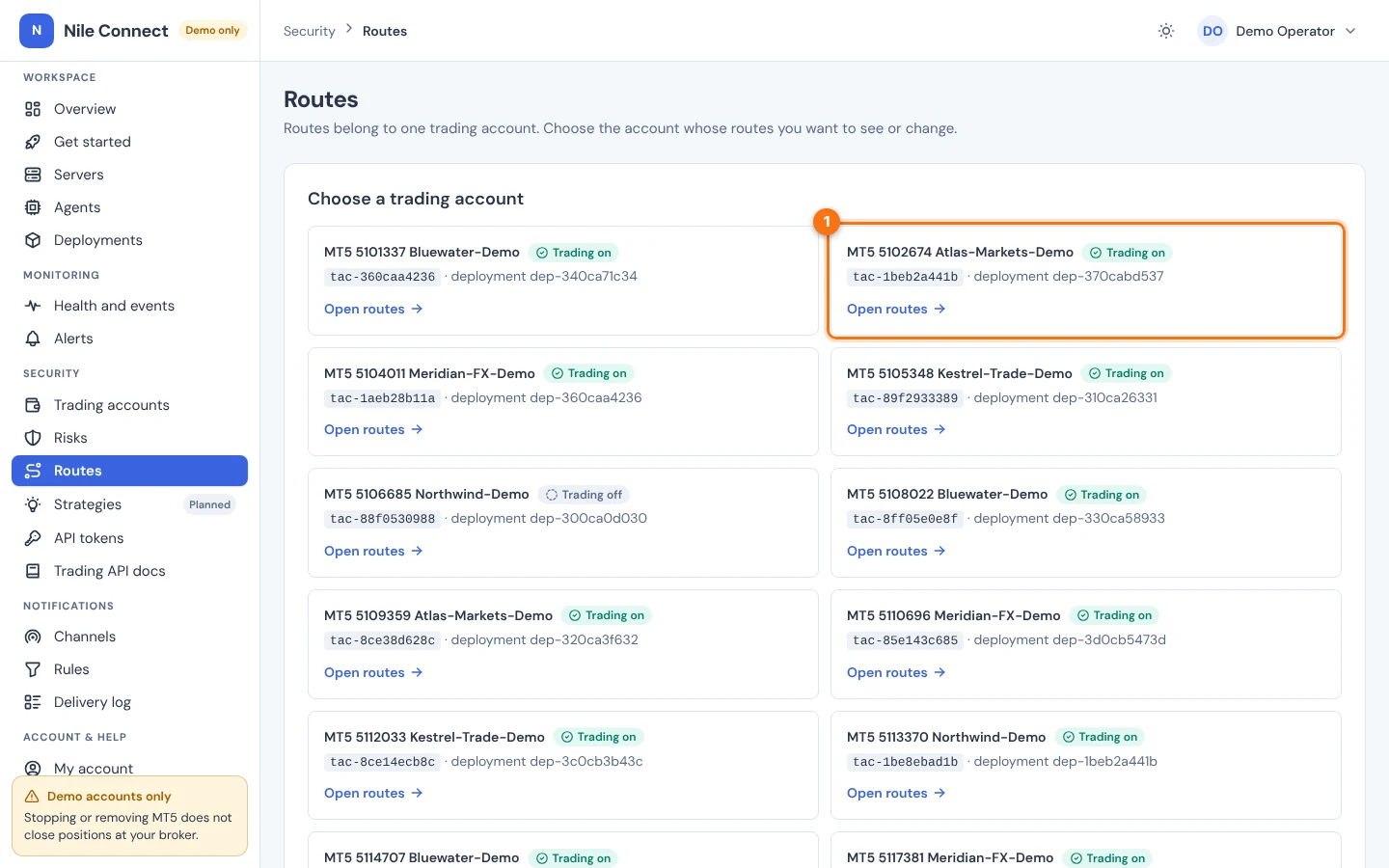
You can also open the account from Trading accounts and choose its Routes tab.
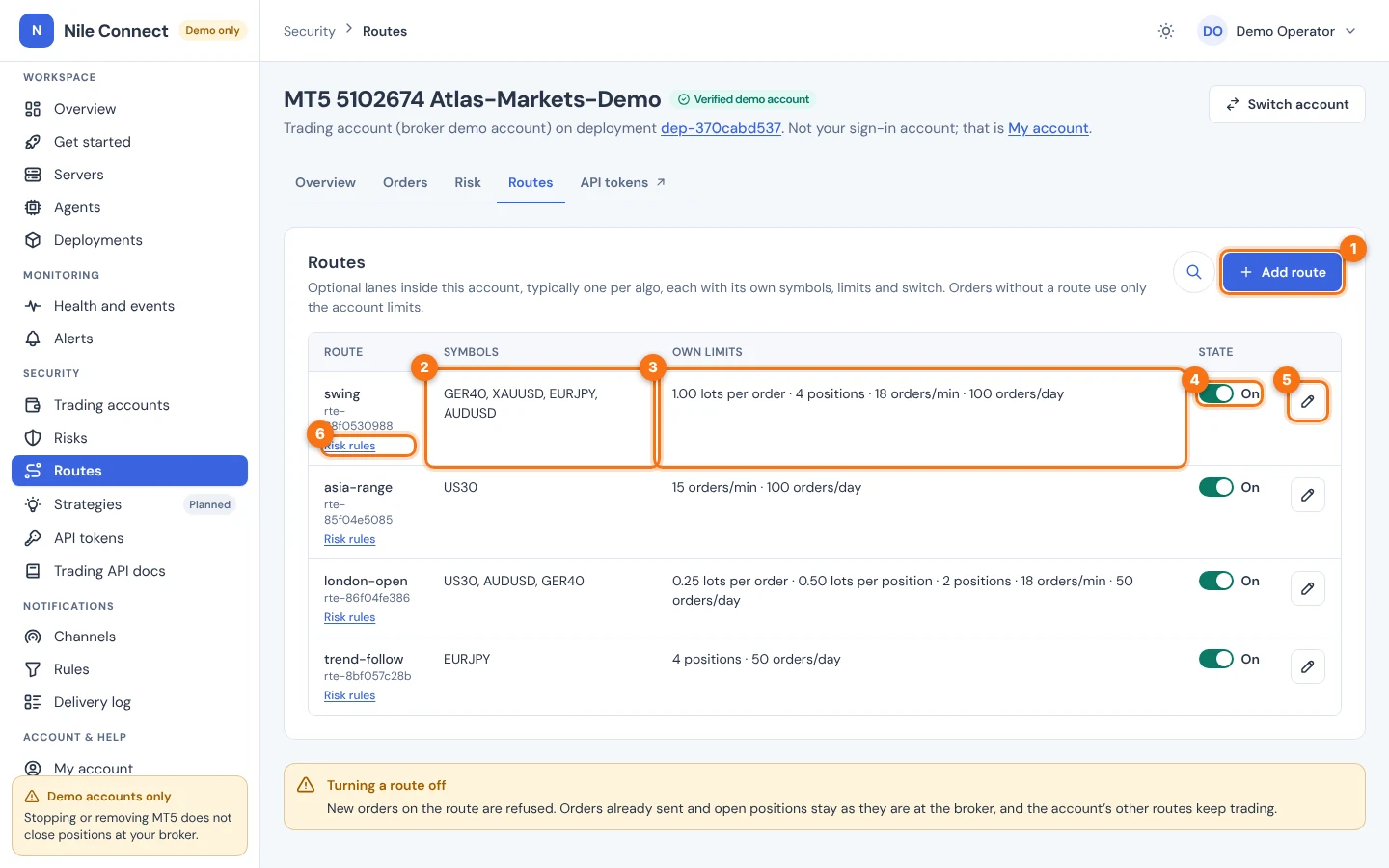
Each row shows the route’s name and id, its symbols (“Every symbol of the account” when the list is empty), its own limits on one line (“Account limits only” when it has none), and its state.
3. Add a route
- On the Routes tab, choose Add route. A form opens.
- In Name, type a name (1). It can be up to 64 characters. Use the name of the program that will use it.
- Optional: in Symbols (optional), type the symbols the route may trade, separated by commas (2), for example EURUSD, GBPUSD. Use capital letters, digits, dot, dash or underscore. Leave it empty to allow every symbol of the account. You can list up to 100.
- Optional: fill in any limits you want (3). Leave a field empty to use the account’s limit.
- Choose Add route (4).
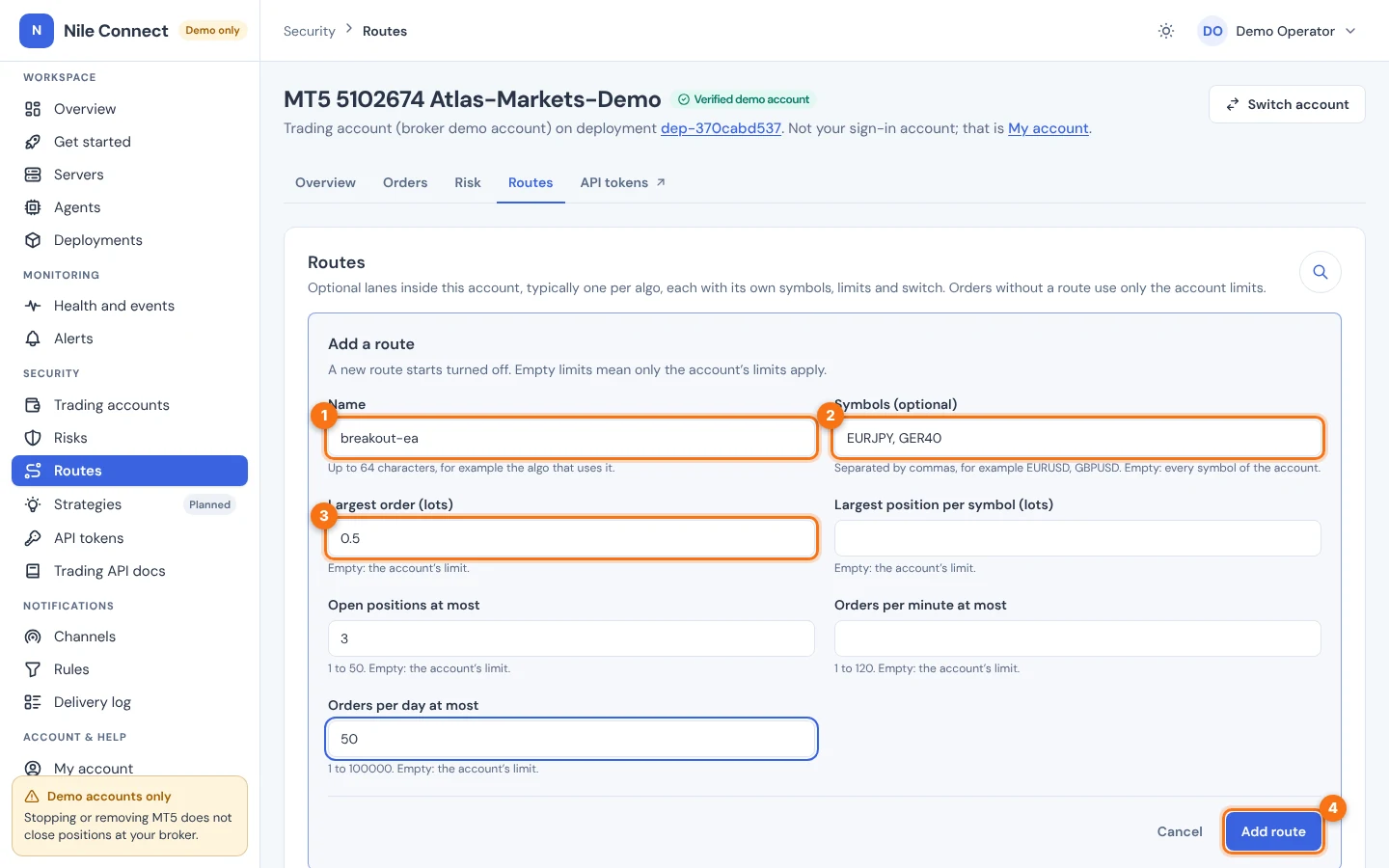
The limit fields are:
- Largest order (lots): the biggest volume of one order. A number above 0, with a dot for decimals.
- Largest position per symbol (lots): the biggest total volume in one symbol. A number above 0.
- Open positions at most: a whole number from 1 to 50.
- Orders per minute at most: a whole number from 1 to 120.
- Orders per day at most: a whole number from 1 to 100000.
If a field is not valid, a red message under it says what to fix and nothing is saved.
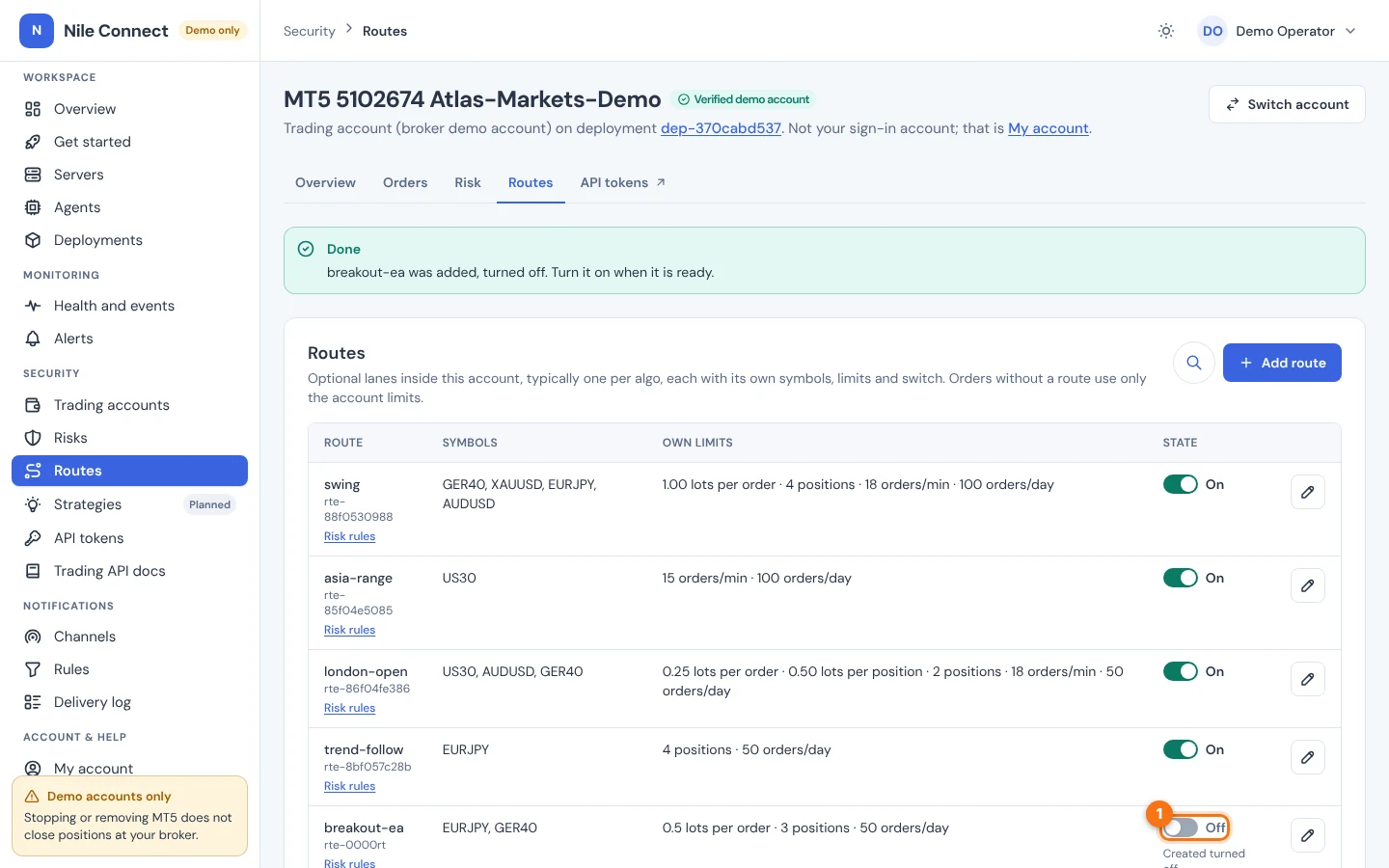
What you should see: a green message “breakout-ea was added, turned off. Turn it on when it is ready.” The new route is at the bottom of the list. A new route is always turned off, so no program can trade through it yet.
4. Turn a route on or off
- In the route’s row, select the switch in the State column (1).
- Read the question. To turn a route on it says: “Tokens for this route can then place orders within its limits and the account’s.” Choose Turn on (2).
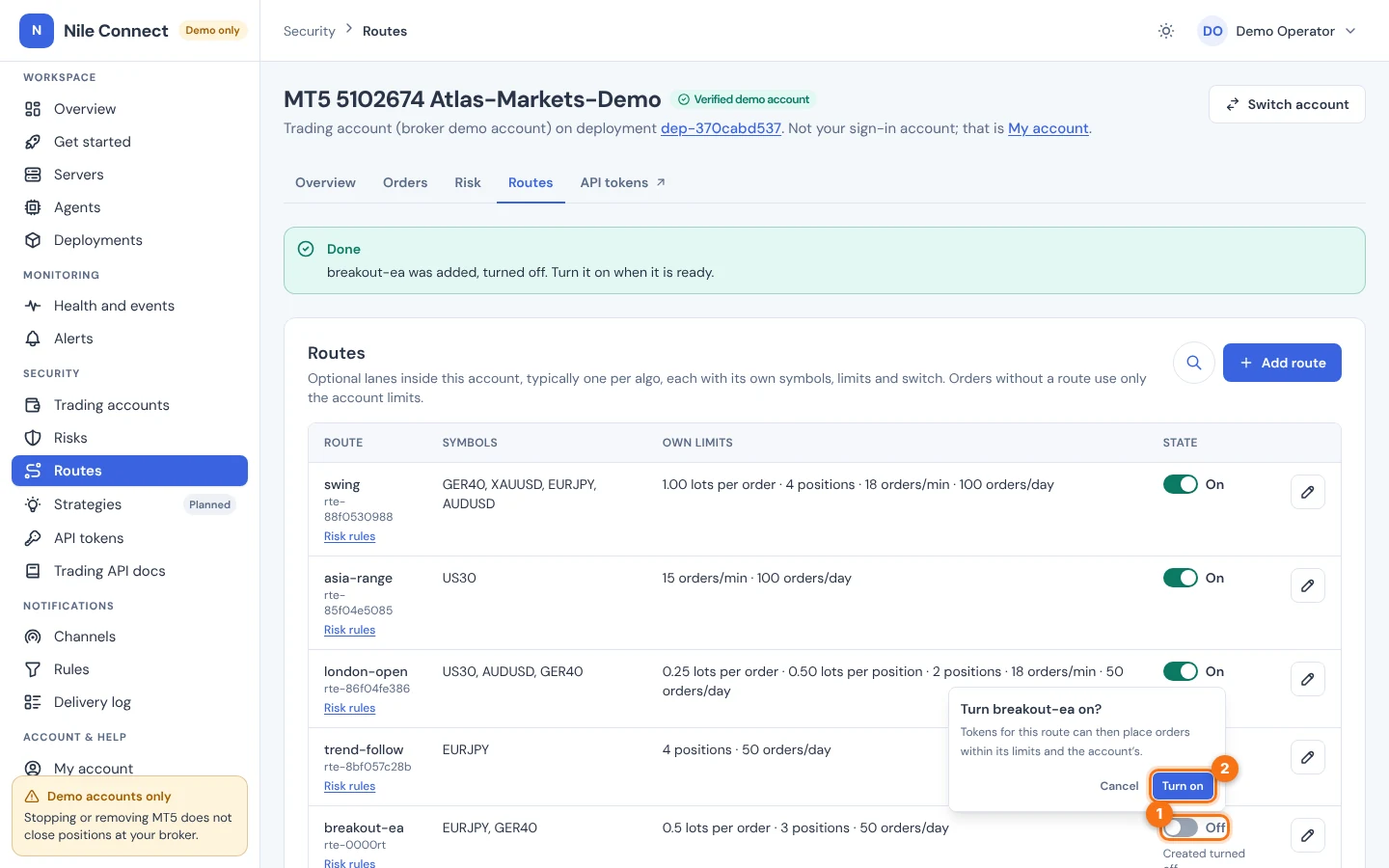
To turn a route off, select the same switch and choose Turn off. The question says: “Its new orders are refused; open positions stay open.”
What you should see: a green “breakout-ea is on.” (or “is off.”) and the switch changes. Turning a route off refuses its new orders only. Orders already sent and open positions stay as they are at the broker, and the account’s other routes keep trading. Positions can still be closed.
5. Edit a route
- In the route’s row, choose the pencil icon (Edit).
- Change the name, symbols or limits. The form is the same as for a new route and starts with the current values. Empty a limit field to go back to the account’s limit.
- Choose Save route. Choose Cancel to leave without saving.
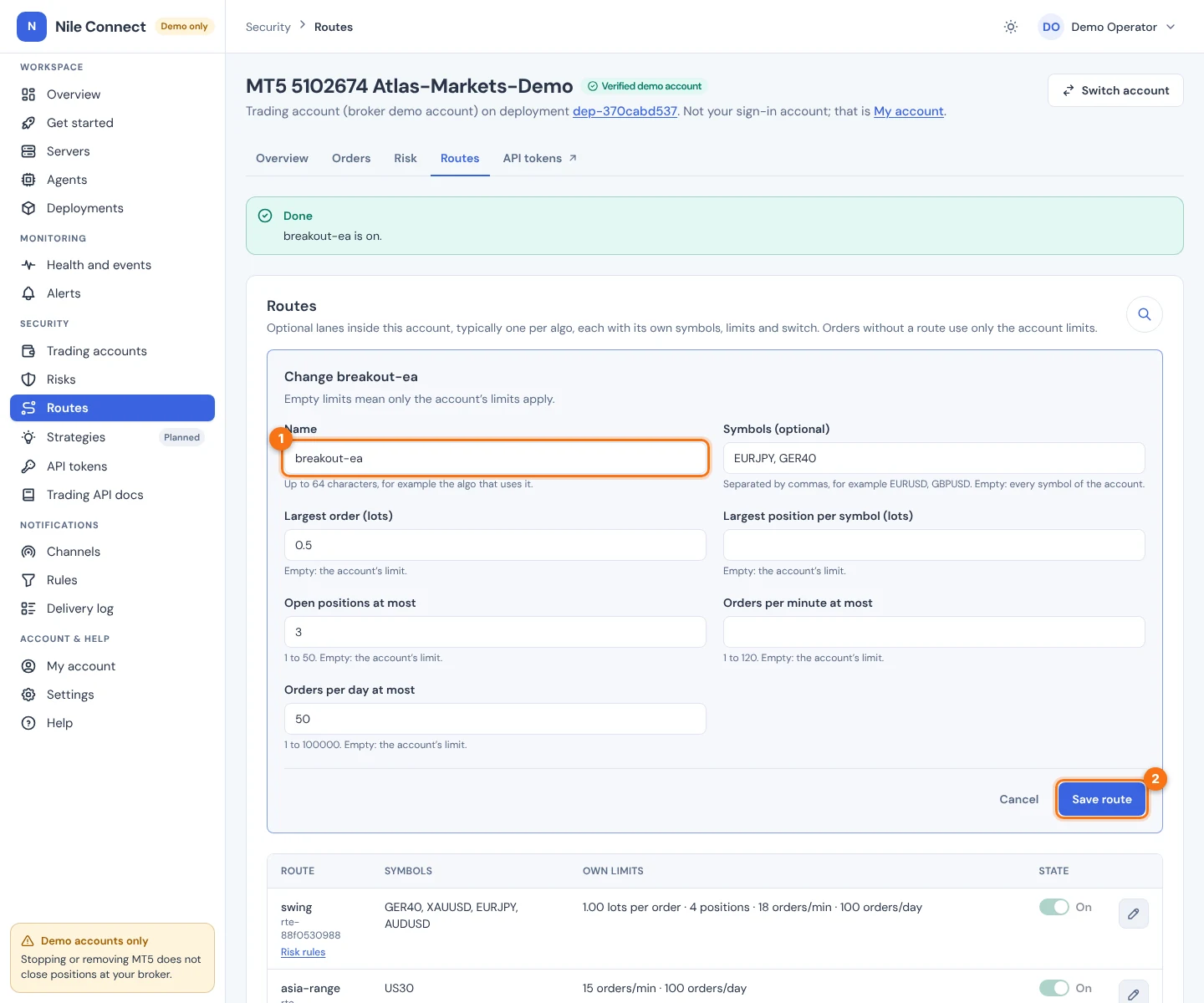
Editing does not turn the route on or off. While the form is open, the other buttons in the list are disabled.
6. Delete a route
The dashboard has no button to delete a route at present. If you no longer need one, turn it off. A route that is off refuses all its new orders. Tokens tied to it can be revoked on the API tokens page (see API tokens).
7. Risk rules for one route
Each route has its own risk rules on top of the account’s rules. In the route’s row, choose the Risk rules link under its name (6 in the first picture of the list). A page for that route opens with tabs for its rules and guards, and a link All routes to go back.
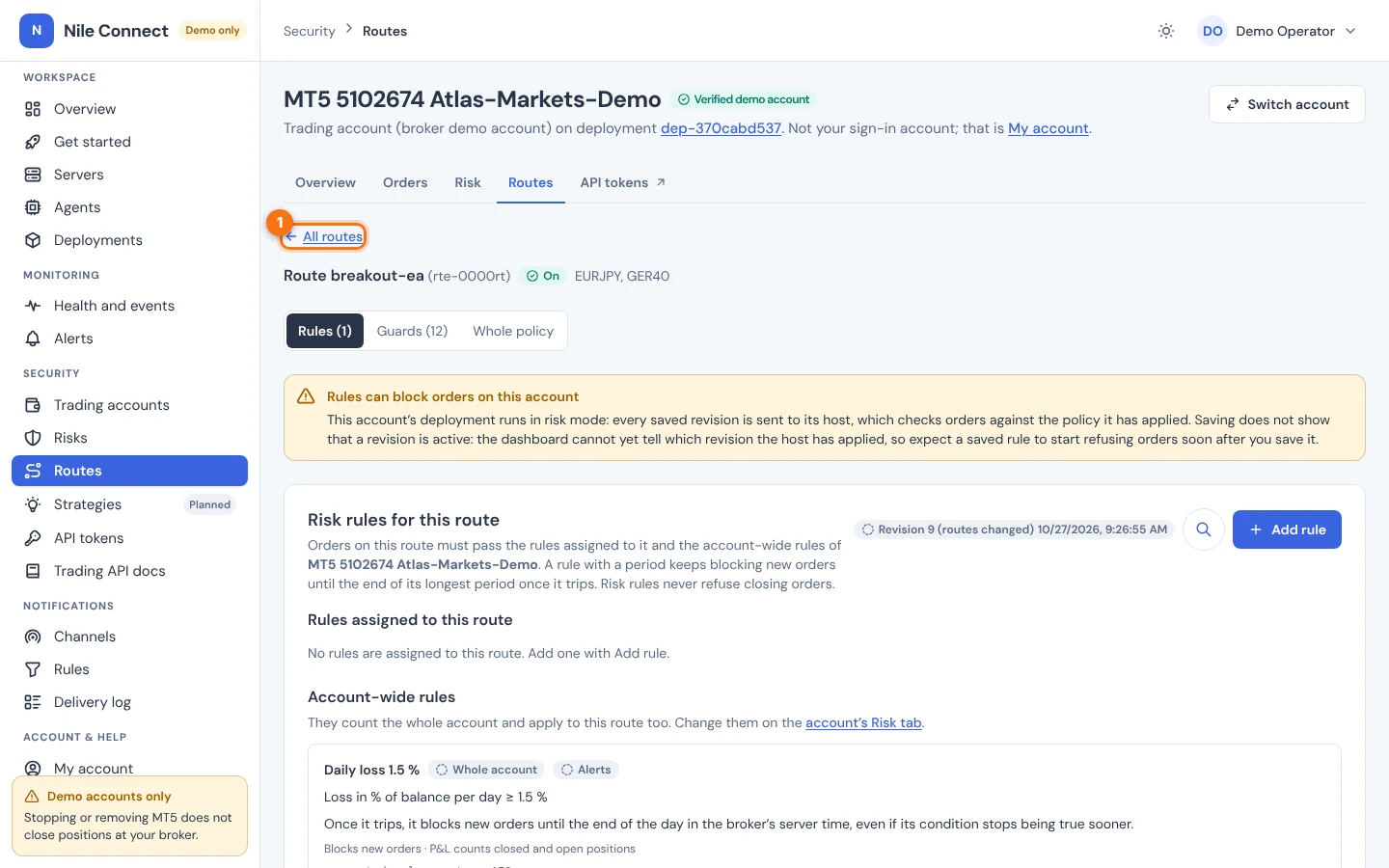
How to write a rule is covered in the risk guide. Orders on a route must pass the rules assigned to it and the account-wide rules. Risk rules never refuse a closing order.
8. If something looks wrong
- Add route is greyed out, or there is no pencil. You lack trading:configure, or the page is still loading. Ask an administrator.
- The switch is only a label. You can see the route but lack the permission to change it.
- “Listed twice” or “Not a symbol”. Check the symbols: capital letters, digits, dot, dash or underscore, each symbol once.
- A program is refused after you turned a route on. Check that its token is tied to this route (or to the whole account), that the symbol is in the account’s Symbols card and in the route’s list, and that account trading is on.
- The route list does not load. A yellow note offers a retry. Changes stay paused until the list is current.
Related: Trading accounts and orders, API tokens, Risk rules guide, How risk rules work.