
API tokens
Create, scope and revoke the tokens your programs use to call the Trading API.
1. What a token is
An API token lets one of your programs use one trading account through the Trading API, without your sign-in. The program sends the token with each request. A token has:
- one trading account it works on;
- an access level: Read only (balances, prices, positions, orders and history) or Full (also places orders and closes positions, within the account’s risk limits);
- a route: one route of the account, or the whole account;
- an expiry: every token expires, from 1 to 365 days after you create it.
You need a trading account (see Trading accounts and orders). If you want a token for one program only, add a route for it first (see Routes). You can only give a token access that you have yourself. Seeing tokens needs the trading:tokens permission.
2. Open the API tokens page
- In the left menu, choose API tokens. You can also choose the API tokens tab on an account, which opens this page for that account.
- In Trading account (1), choose the account. Only accounts you can read are listed.
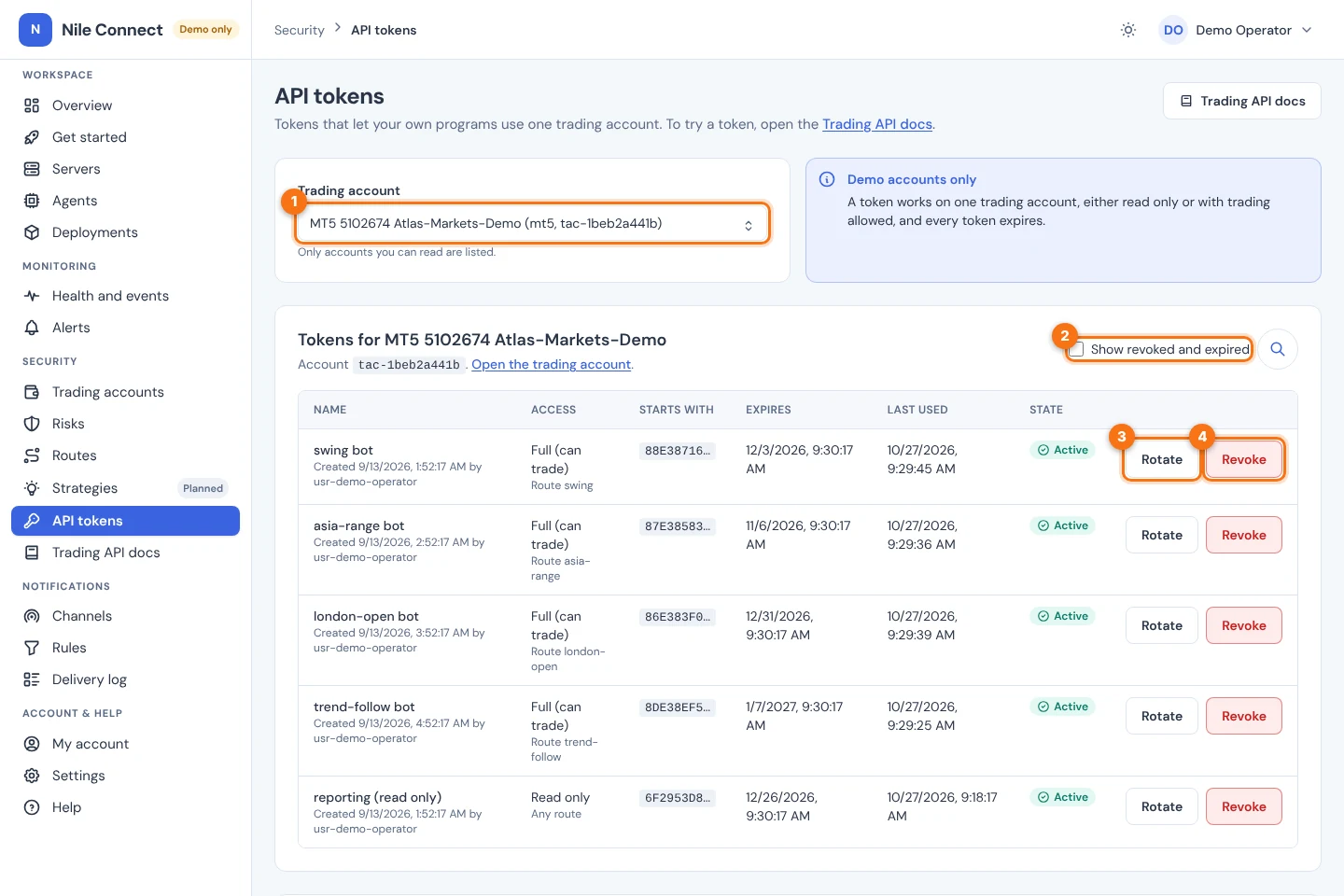
The table lists each token with:
- Name, with who created it and when;
- Access: “Full (can trade)” or “Read only”, and the route (“Any route” when it is for the whole account);
- Starts with: the first characters of the secret, so you can tell tokens apart. The full secret is never shown again;
- Expires and Last used (“Never” until a program uses it);
- State: Active, Expires soon, Expired or Revoked.
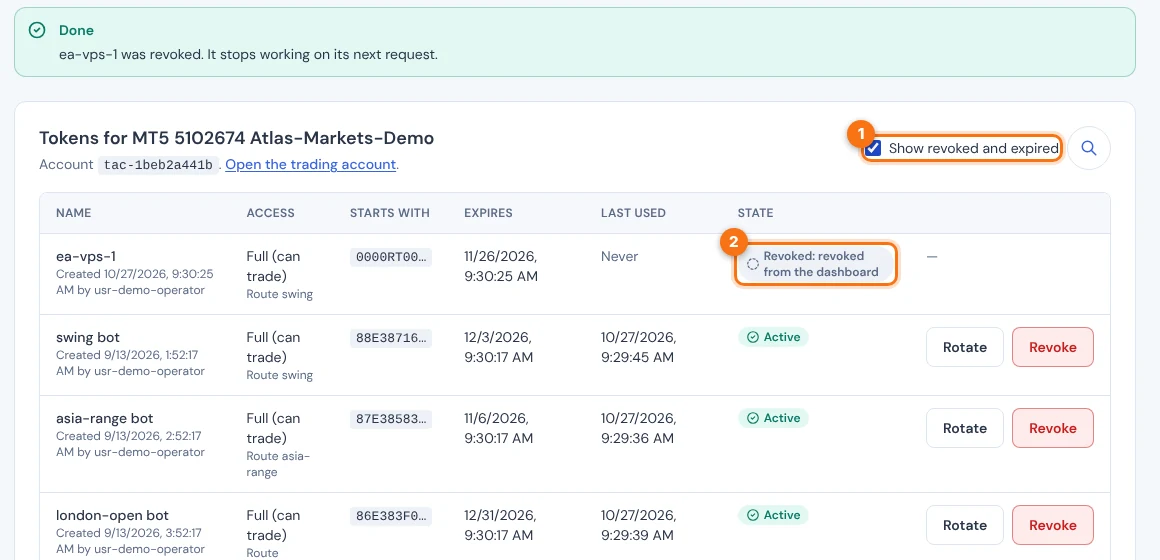
Revoked and expired tokens are hidden. Tick Show revoked and expired (2) to see them.
3. Create a token
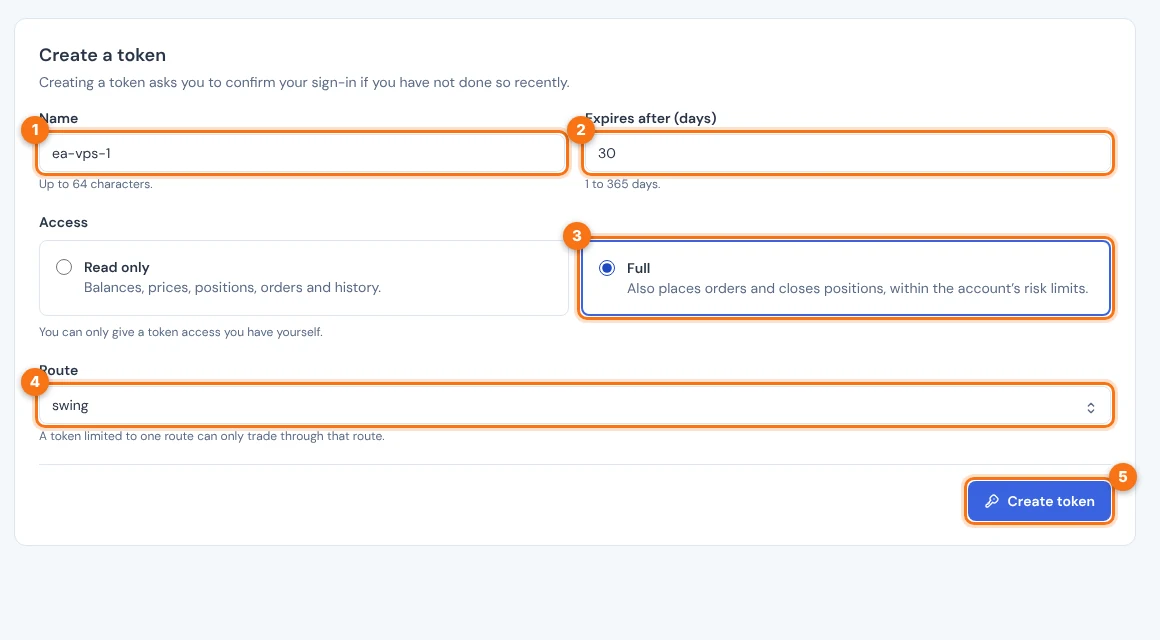
- Scroll to the Create a token card.
- In Name, type a name (1) of up to 64 characters. Use the program and where it runs, for example ema-cross on vps-1.
- In Expires after (days), type a whole number of days from 1 to 365 (2). The default is 90.
- Under Access, choose Read only or Full (3). Choose Read only for dashboards and reports. Choose Full only for a program that must place orders.
- In Route, choose the route (4), or Any route: the whole account. A token limited to one route can only trade through that route. This choice is required. If the account has no routes, only the whole account is offered.
- Choose Create token (5).
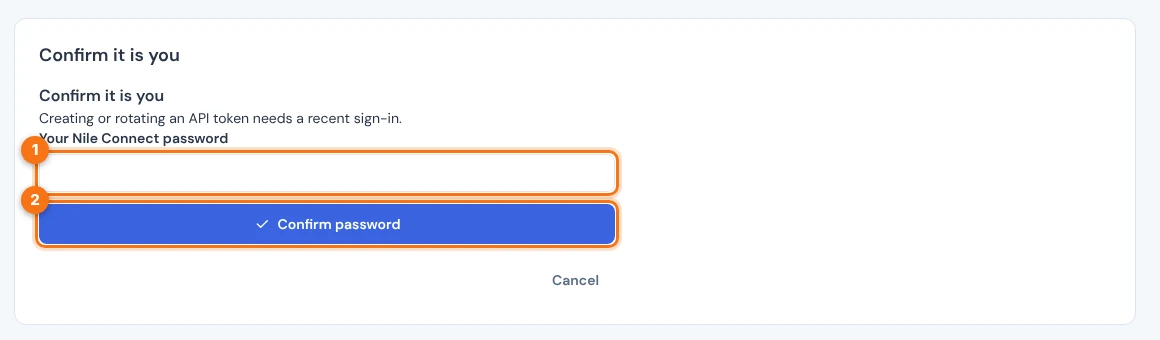
Creating a token asks you to confirm that it is you if you have not signed in recently. A card Confirm it is you appears. Type your PerkBridge password (1) and choose Confirm password (2). With single sign-on you are sent to your identity provider and back. Then choose Create token again.
What you should see: a green card New token created: copy it now (next section). The token also appears in the table.
If the page says “The full token was not created”, your user may not trade on this account. An administrator grants that permission, not the dashboard. A read-only token still works meanwhile.
4. Copy the secret now
The secret is shown once. PerkBridge cannot show it again and does not keep it in your browser. If you lose it, rotate the token (section 5) and use the new secret.
- Find the secret in the green card (1).
- Choose Copy secret (2) and paste it into your program’s settings or a password manager.
- Optional: choose Copy example request (3) to copy a ready-made request that uses it. Replace nothing you do not understand; it shows how the token goes in the Authorization: Bearer header.
- When you have stored it, choose Done (4). The card disappears.
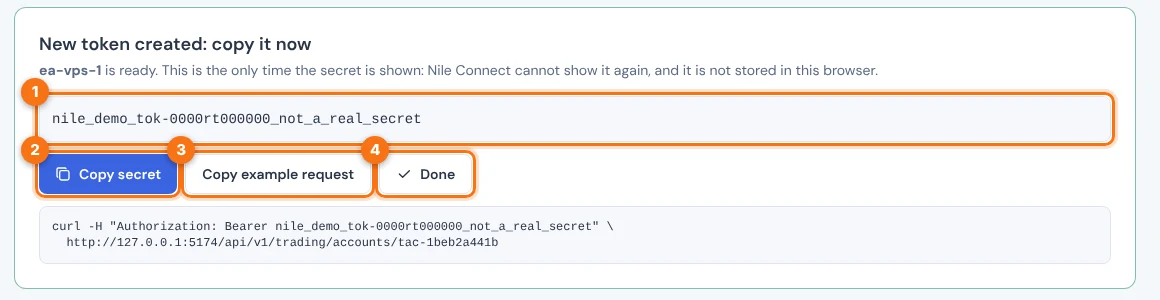
If your browser does not allow copying, the card says so. Select the secret by hand and copy it. Do not put a token in a public place, in screenshots or in code you share.
The secret shown in this guide is a made-up demo value, not a real token.
5. Rotate a token
Rotating replaces the secret and keeps the token’s name, access and route. The old secret stops working at once. Use it when a secret may have leaked, or to replace one you lost.
- In the token’s row, choose Rotate.
- Read the question: “Replace the secret? The current one stops working now; the new one keeps this token’s name, access and route and lasts 90 days.” Choose Rotate (1), or Cancel (2).
- Confirm your sign-in if asked, then copy the new secret from the green card as in section 4. Update your program with it.
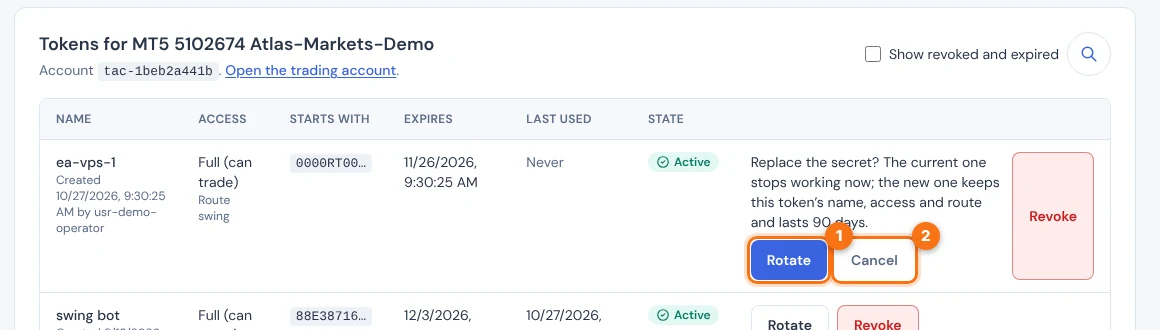
The new secret lasts 90 days.
6. Revoke a token
Revoking ends a token for good. Use it when a program is retired or a secret is exposed.
- In the token’s row, choose Revoke.
- Read “Revoke this token? Programs using it lose access on their next request.” Choose Revoke (1), or Cancel (2).
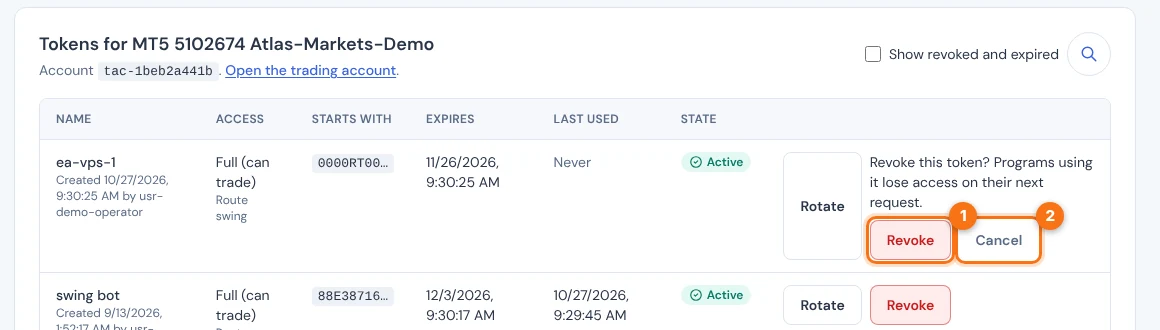
What you should see: a green message “ea-vps-1 was revoked. It stops working on its next request.” The token leaves the list. Tick Show revoked and expired (1) to see it with the state Revoked (2). A revoked token cannot be brought back; create a new one.
Revoking or rotating a token does not close positions or cancel orders at your broker. To stop all new orders on an account at once, turn trading off (see Trading accounts and orders).
7. Use the token with the Trading API
A program sends the token in the header Authorization: Bearer <token>. A Read only token can read. Only a Full token can place, change or cancel orders, and close positions. Orders must still pass the account’s risk limits and, when the token is tied to a route, that route’s limits.
- In the dashboard, choose Trading API docs in the left menu (or the button at the top of the tokens page). It lists every call and lets you try them.
- On this website, see the Trading API reference.
Management calls, such as creating tokens, accept only a dashboard sign-in, never a token.
8. If something looks wrong
- “Changes are paused”. The account, its tokens or its routes did not load. Create, rotate and revoke stay off until they load again. Reload the page.
- “Not available. You cannot see this account’s tokens.” Ask an administrator for the trading:tokens permission.
- The route list did not load. The form needs it. Choose Retry in the note that appears.
- “Choose a route”. The route field is required. Choose a route or Any route: the whole account.
- A program is refused. Check that the token has not expired or been revoked, that it is Full if the program places orders, and that trading is on for the account and for the route.
- Your access changed while you worked. The page says the result is not shown. If you created or rotated a token, revoke it once you can see the list, then make a new one.
Related: Trading accounts and orders, Routes, Trading API reference, Users and single sign-on.