
Monitoring and alerts
This guide explains what PerkBridge measures on your servers, how health is decided, and how to work with alerts, events and the audit trail.
1. Where to look
| PAGE | WHAT IT SHOWS |
|---|---|
| Monitoring | Counts by health level, open alerts by severity, and a table of servers with agent state, CPU, memory, fullest disk and sample time. It refreshes every 15 seconds. |
| A server’s monitoring page | Each health dimension with its reason, host values with units, disks, collection details, deployments, open alerts and history charts. |
| A deployment’s health section | The server layer and the deployment layer side by side: container, terminal, bridge and broker. |
| Alerts | Alerts with filters, evidence and history. |
| Events | Operational events from agents, watchdogs and the control plane, and the Audit trail. |
All times are shown in UTC. Monitoring only reads. It never starts, stops or changes a workload, and never reads a credential.
Read the health overview
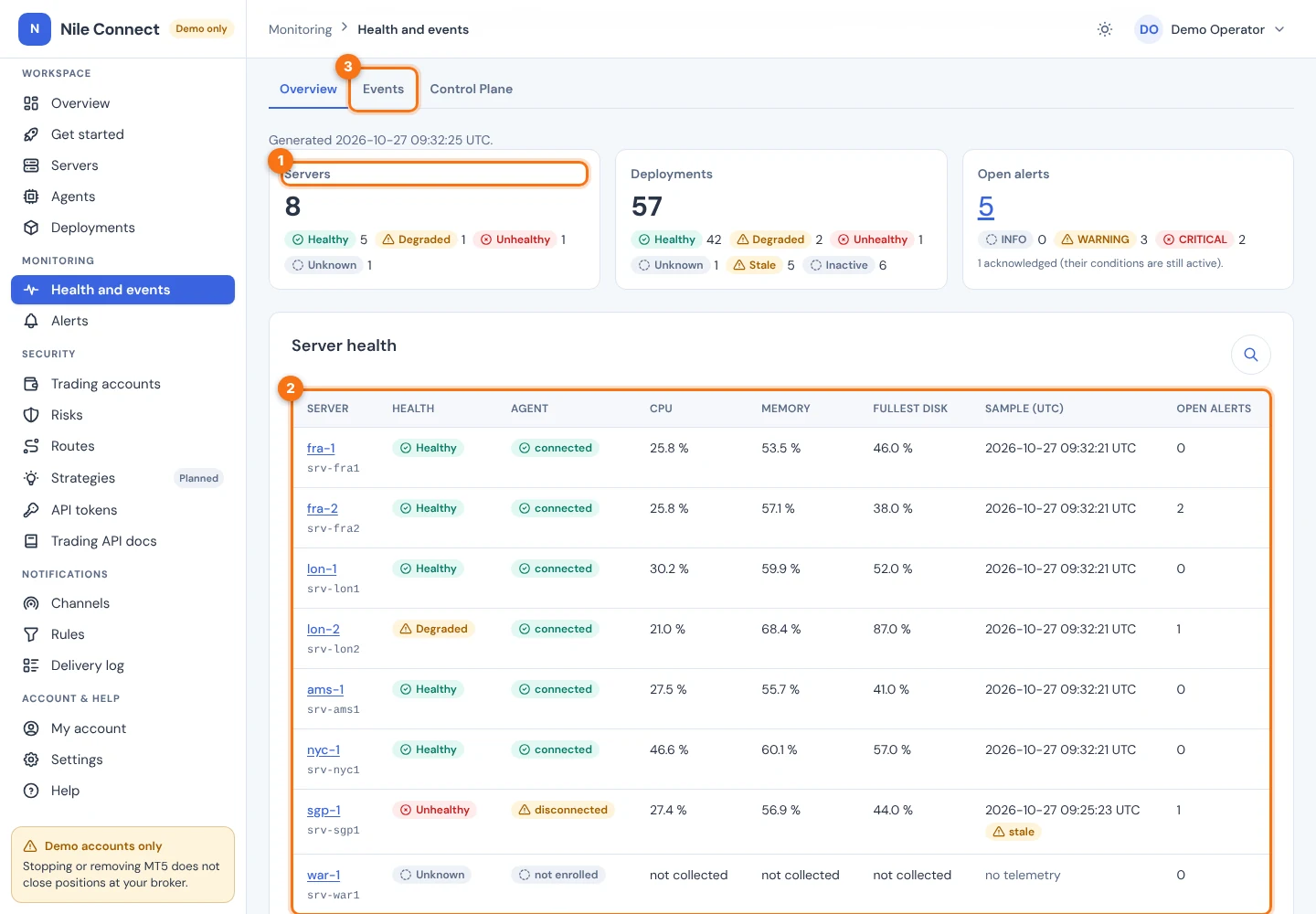
- In the sidebar, under MONITORING, choose Health and events. The Overview tab opens.
- Read the three summary cards (1). Servers and Deployments count how many sit at each health level. Open alerts counts alerts by severity and says how many are acknowledged.
- Read the Server health table (2). A server in trouble shows Degraded or Unhealthy, its agent as disconnected, or a stale marker beside its sample time. A server not yet set up shows “not enrolled” and “not collected”.
- Choose a server name in the table to open its page. Choose Events (3) for the event stream (section 6).
Open one server
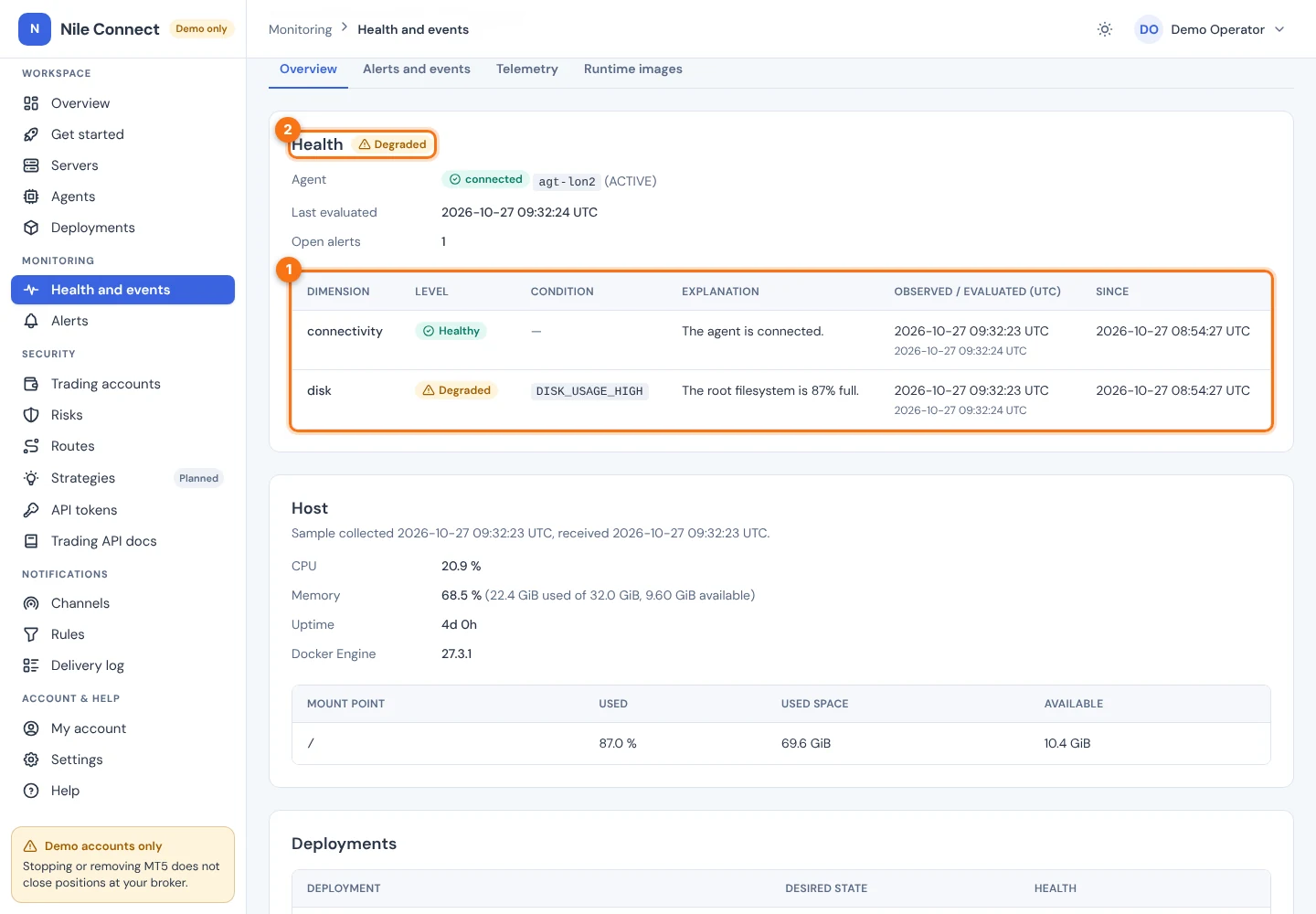
On a server’s page, the Health card (2) shows its level, and the table under it (1) lists each dimension with its level, a condition code, a plain explanation and since when it has held. Below are the host values, disks, its deployments and history charts. In the demo, the server lon-2 is Degraded because its disk is 87 % full.
Check a deployment
- Open Deployments and choose the deployment.
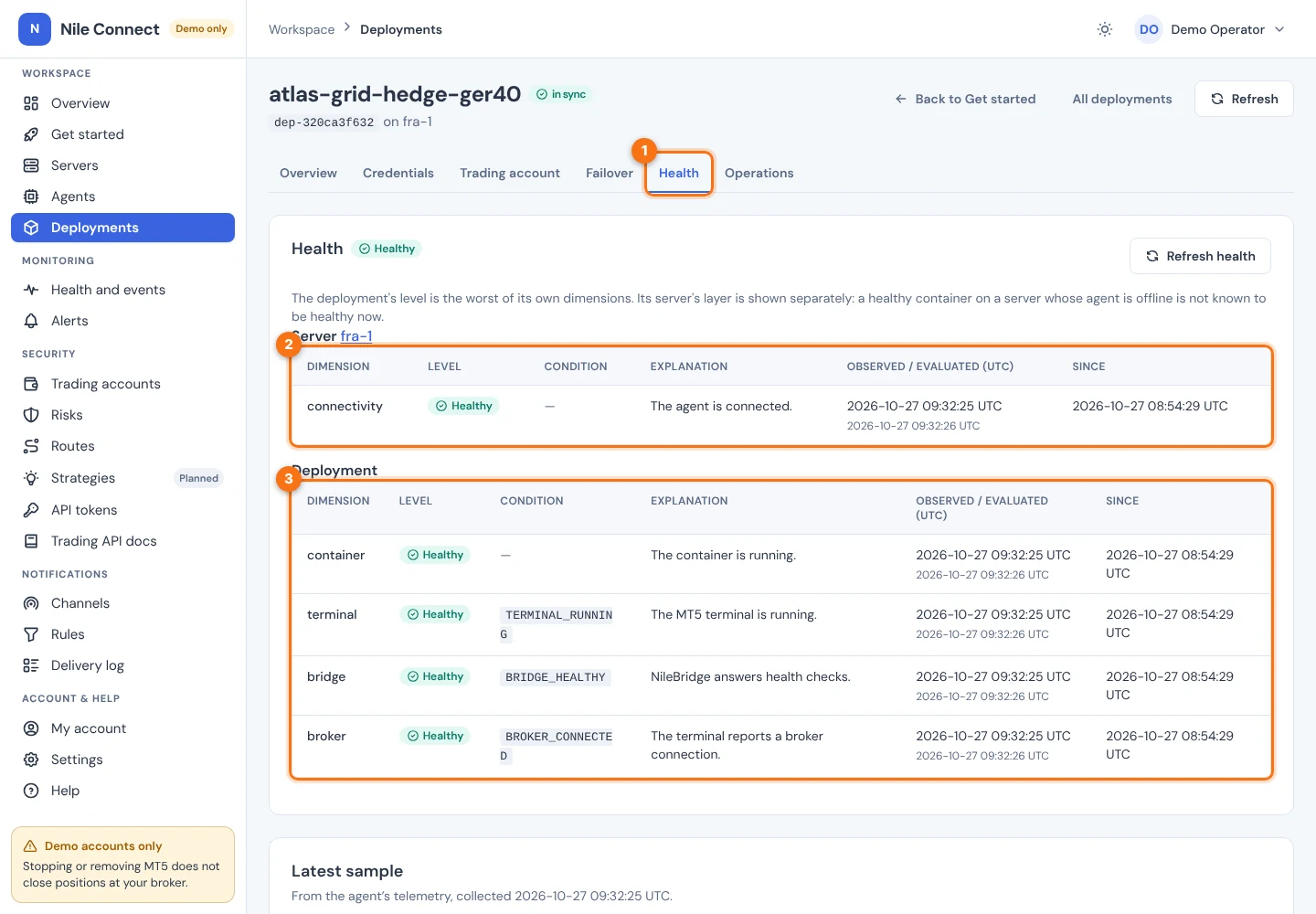
- Choose the Health tab (1). Use Refresh health to reload it.
- Read the Server layer (2) first. If the agent is offline there, the container below is not known to be healthy now.
- Read the Deployment layer (3): container, terminal, bridge and broker, each with a level and a reason.
2. Health levels
There is no single “healthy” flag. Each server has three dimensions (AGENT, TELEMETRY, HOST) and each deployment four (CONTAINER, TERMINAL, BRIDGE, BROKER). Each dimension has one of these levels:
| LEVEL | MEANING |
|---|---|
| HEALTHY | Current evidence says it works. |
| DEGRADED | It works with a problem, for example memory at 90 % or more. |
| UNHEALTHY | It does not work. |
| UNKNOWN | No evidence has arrived. |
| STALE | Evidence exists but is too old. The last values stay visible with a stale marker. |
| INACTIVE | Not expected to work, for example a deployment you stopped. Never a failure. |
Old data is never shown as current. Evidence older than three agent intervals (at least 90 seconds) turns STALE. A level changes only after two observations agree, so a single bad sample does not flip it. Losing evidence applies at once, so a missing agent is never shown as healthy.
Host thresholds: CPU at 95 % or more is DEGRADED; memory at 90 % is DEGRADED and at 97 % UNHEALTHY; free disk below 10 % is DEGRADED and below 3 % UNHEALTHY; Docker unavailable is UNHEALTHY.
3. What is collected
The agent sends a sample every 30 seconds by default, over its existing connection:
- host CPU, memory, disk per mount (/ and /var/lib/docker by default), uptime and Docker availability;
- per container: running or not, CPU, memory against its limit and restart count;
- per terminal: Wine and terminal process state, and the age of the NileBridge heartbeat.
A value that could not be collected is shown as “not collected”, never as 0. Account numbers, logins, balances, positions, environment variables and container logs are never collected.
If the control plane is unreachable, the agent keeps collecting into a bounded buffer (5,000 items or 6 hours by default) and sends the backlog when it reconnects. When the buffer is full the oldest samples go first, and the drops are counted and shown.
4. Work with alerts
27 alert types exist. Each has a severity, WARNING or CRITICAL.
| AREA | ALERTS |
|---|---|
| Servers | SERVER_OFFLINE (no agent connection for 5 minutes), AGENT_DISCONNECTED (1 minute), DOCKER_UNAVAILABLE, HIGH_CPU, HIGH_MEMORY, LOW_DISK, TELEMETRY_UNAVAILABLE |
| Deployments | CONTAINER_STOPPED_UNEXPECTEDLY, TERMINAL_CRASHED, BRIDGE_HEARTBEAT_STALE, BROKER_DISCONNECTED, SESSION_CLEANUP_FAILED, TERMINAL_CLOSED |
| Recovery and failover | STOPPED_BY_REBOOT, SWITCH_FAILED, STANDBY_NOT_READY, AUTOMATIC_RESTART_LIMIT. See Failover. |
| Time rules | TIME_PLAN_MISSED (positions still open at a market-close or news deadline), TIME_RULES_UNAVAILABLE (the calendar or trading sessions cannot be read, so new orders are refused). Only for rules with alerts turned on. |
| Credentials | CREDENTIAL_DECRYPT_FAILED, ENCRYPTION_KEY_CONFIRMATION_FAILED, CREDENTIAL_BINDING_MISMATCH |
| Notifications | NOTIFICATION_CHANNEL_FAILING, NOTIFIER_UNAVAILABLE |
| Licence | LICENSE_EXPIRING, LICENSE_PAYMENT_UNKNOWN, LICENSE_BLOCKED |
A tripped limit or expression risk rule does not raise an alert yet. Its refusals show on the order and in the account’s events.
- There is at most one open alert per type and resource. While the condition holds, it is refreshed, not repeated.
- An alert that comes back soon after it resolved is reopened, not created again.
- Alerts of one server share a correlation ID, so one incident groups together.
- An alert resolves only when current evidence shows the condition has cleared. Missing or stale data never resolves it.
Find an alert
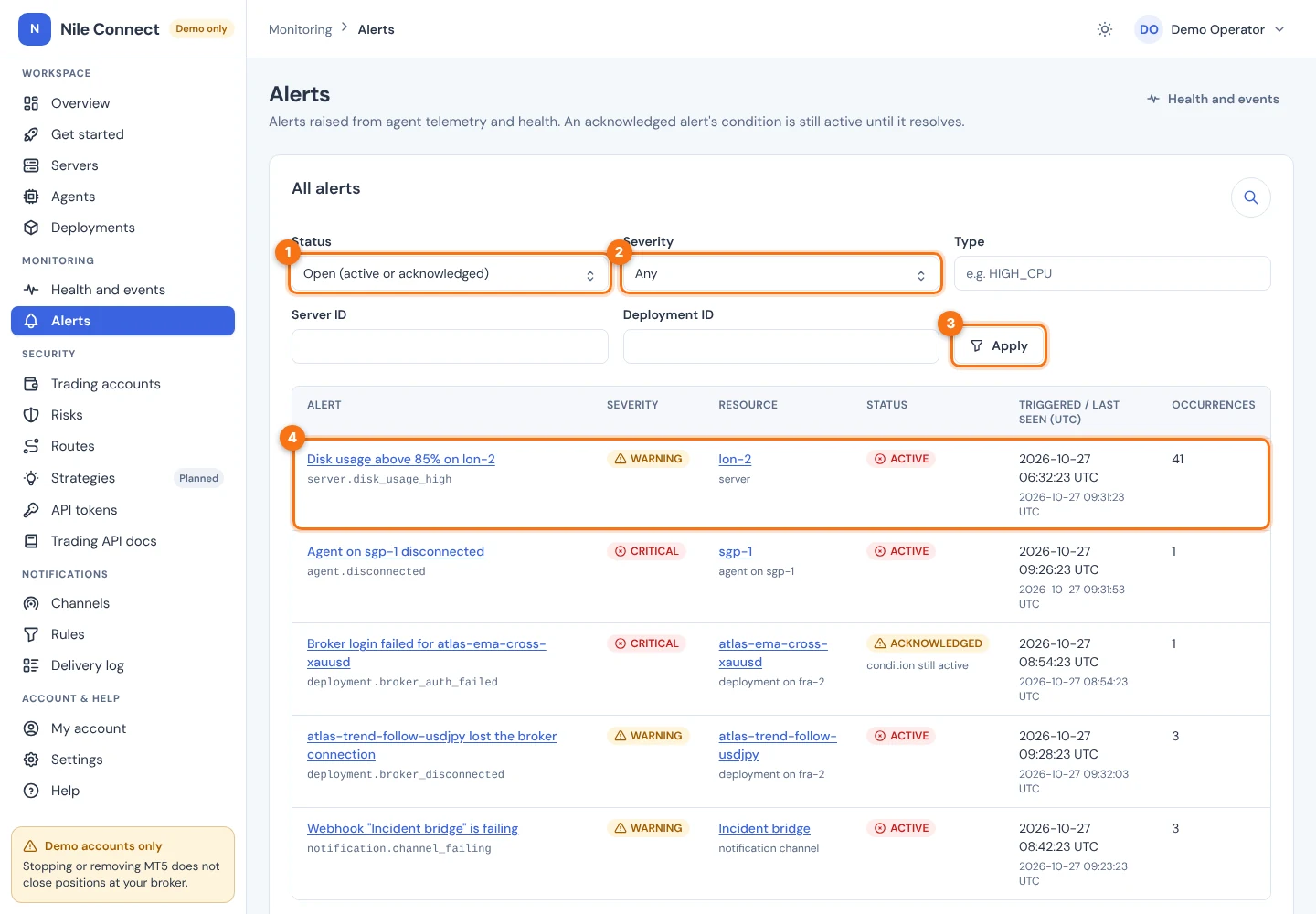
- In the sidebar, choose Alerts. The list opens with Status (1) set to “Open (active or acknowledged)”.
- Narrow it if you need to: change Status to show resolved alerts too, choose a Severity (2), or fill Type (for example HIGH_CPU), Server ID or Deployment ID. Then choose Apply (3).
- Read a row (4): the title, the alert type, severity, the resource it is about, its status, when it was first triggered and last seen, and how many times it occurred. Choose the title to open it.
Read and acknowledge an alert
Acknowledging needs the alert:acknowledge permission.
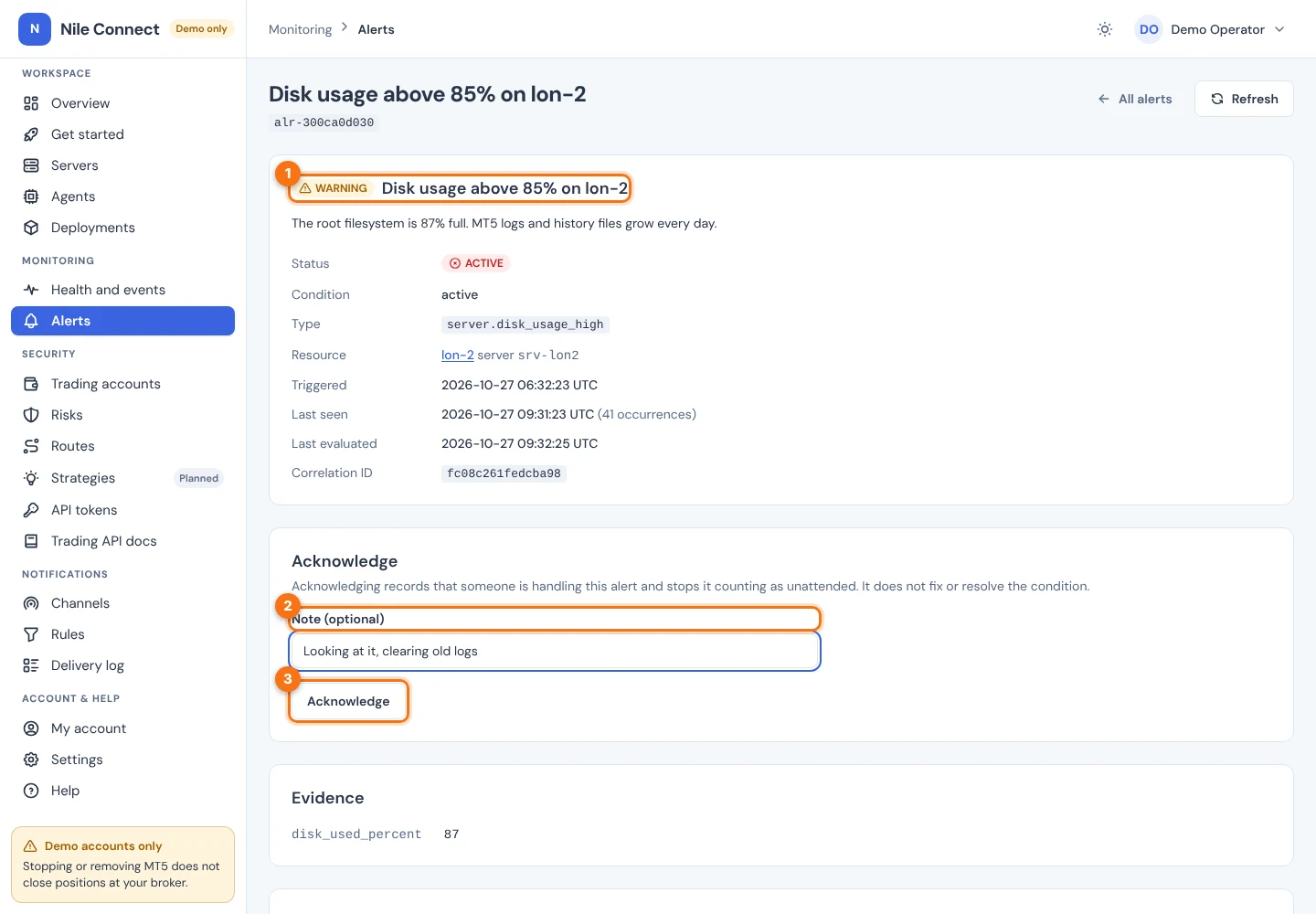
- On the alert’s page, read the top card (1): what happened, its status, type, the resource (a link to the server or deployment), when it started and its correlation ID. Read Evidence lower down for the values that triggered it, such as disk_used_percent.
- Under Acknowledge, type a Note (2), for example who is handling it. It is optional.
- Choose Acknowledge (3). The page asks “Acknowledge this alert? Its condition stays active until it clears.”
- Choose Acknowledge again to confirm, or Cancel.
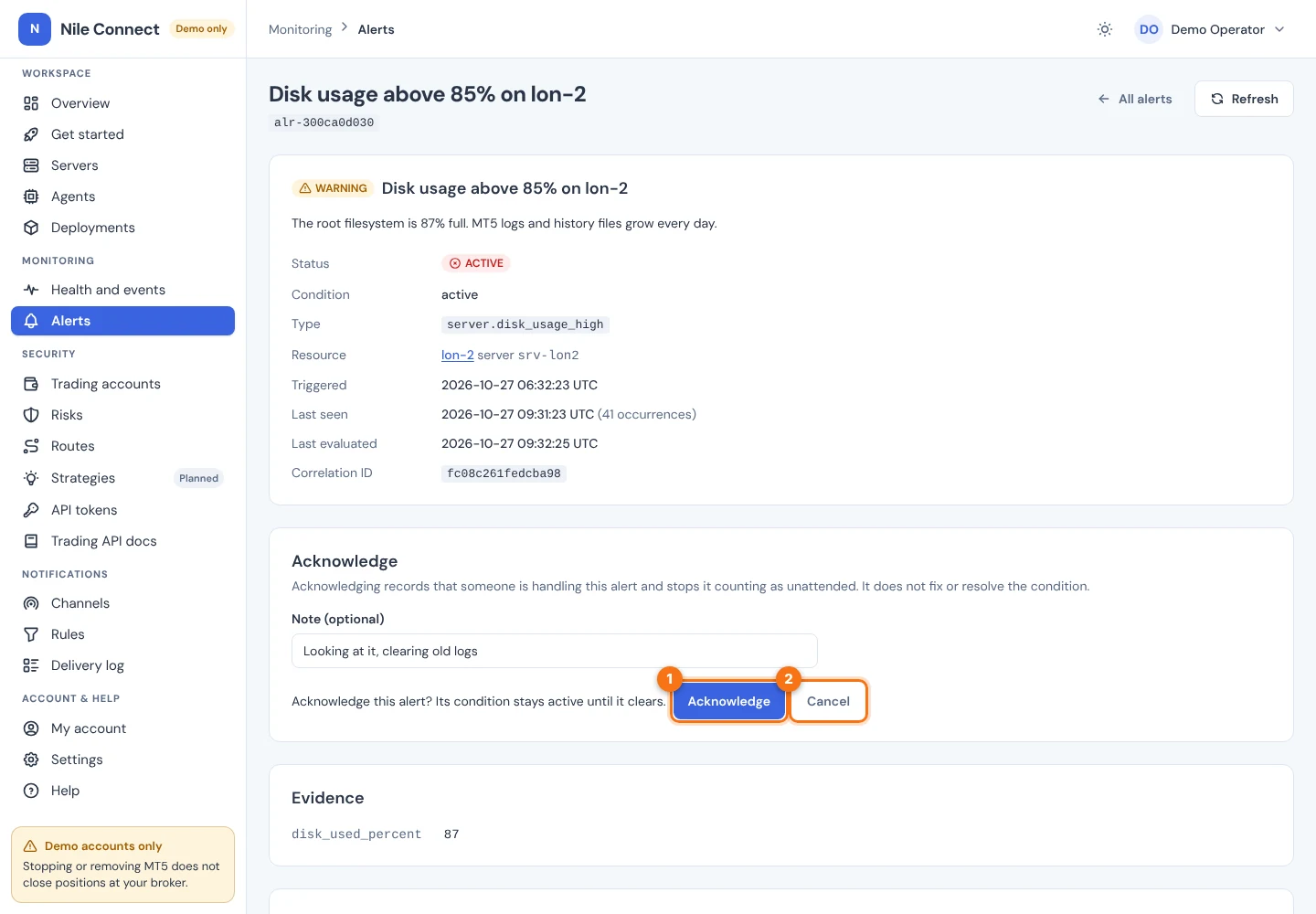
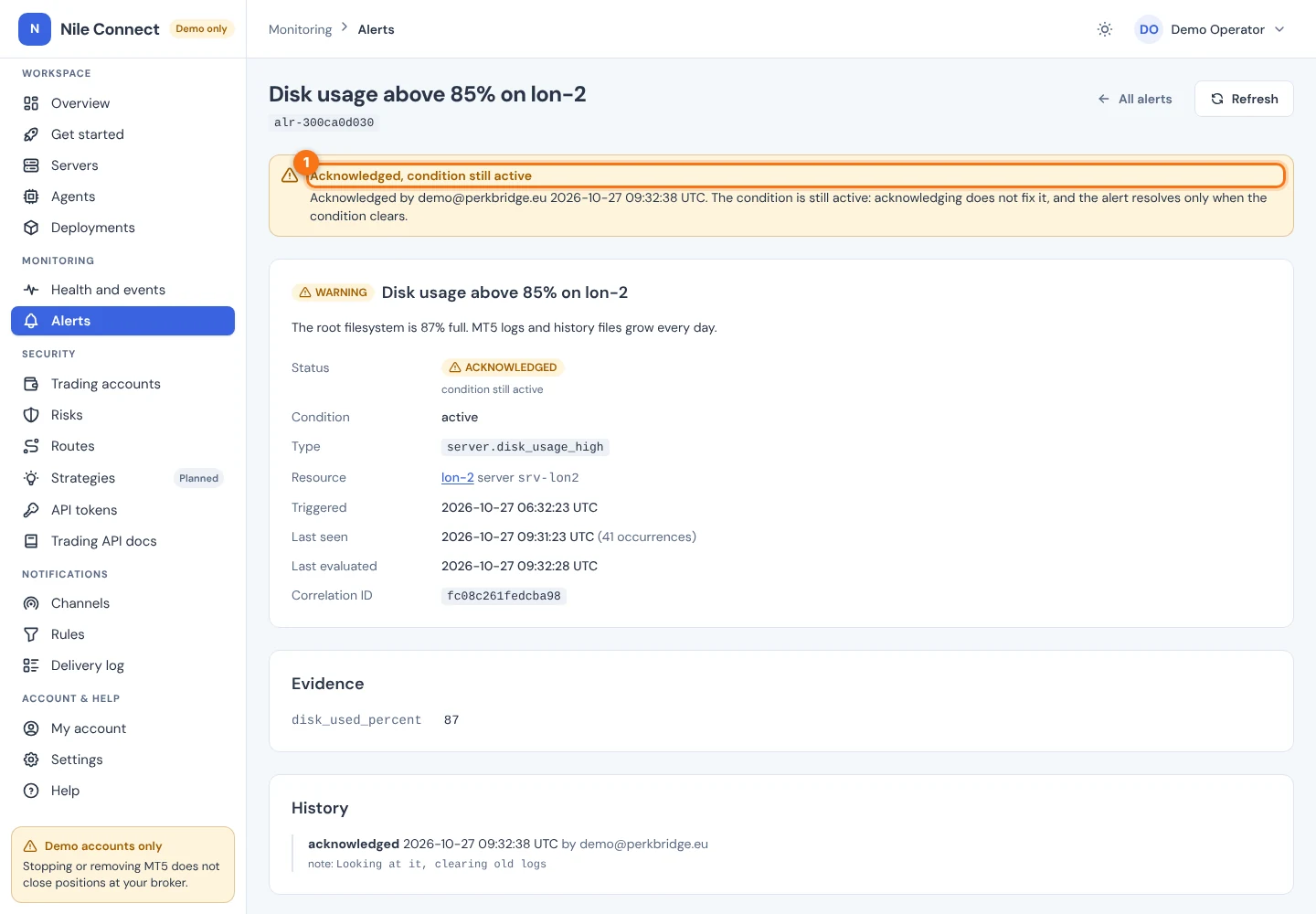
What you should see. A banner “Acknowledged, condition still active” with who and when, the status ACKNOWLEDGED, and your note in History. Acknowledging does not resolve or hide the alert. It stays open until the evidence clears.
The alert appears about one second after the deciding sample is stored. With the defaults, a host problem is noticed within about two agent intervals plus the alert’s hold time.
To get alerts outside the dashboard, add a channel and a rule under Notifications. See Alert notifications.
5. The Watchdog
The Watchdog is an optional service on each server, installed separately from the agent. Server setup does not install it. It checks the host, the agent and each running terminal every 10 seconds, keeps its own health states, writes diagnostic snapshots and raises alerts, which reach the dashboard as operational events.
The Watchdog and the control plane each decide health on their own evidence, and neither overwrites the other. They can differ, for example during a control plane outage.
6. Events, audit trail and retention
On Events (1), use the switch (2) to choose Operational: operational events (deployment actions, health changes, Watchdog reports, low disk or memory) or Audit, the audit trail (sign-ins, grants, starts, stops, credential deliveries, refusals). Use Filters (3) to filter by server, deployment, severity, source and time.
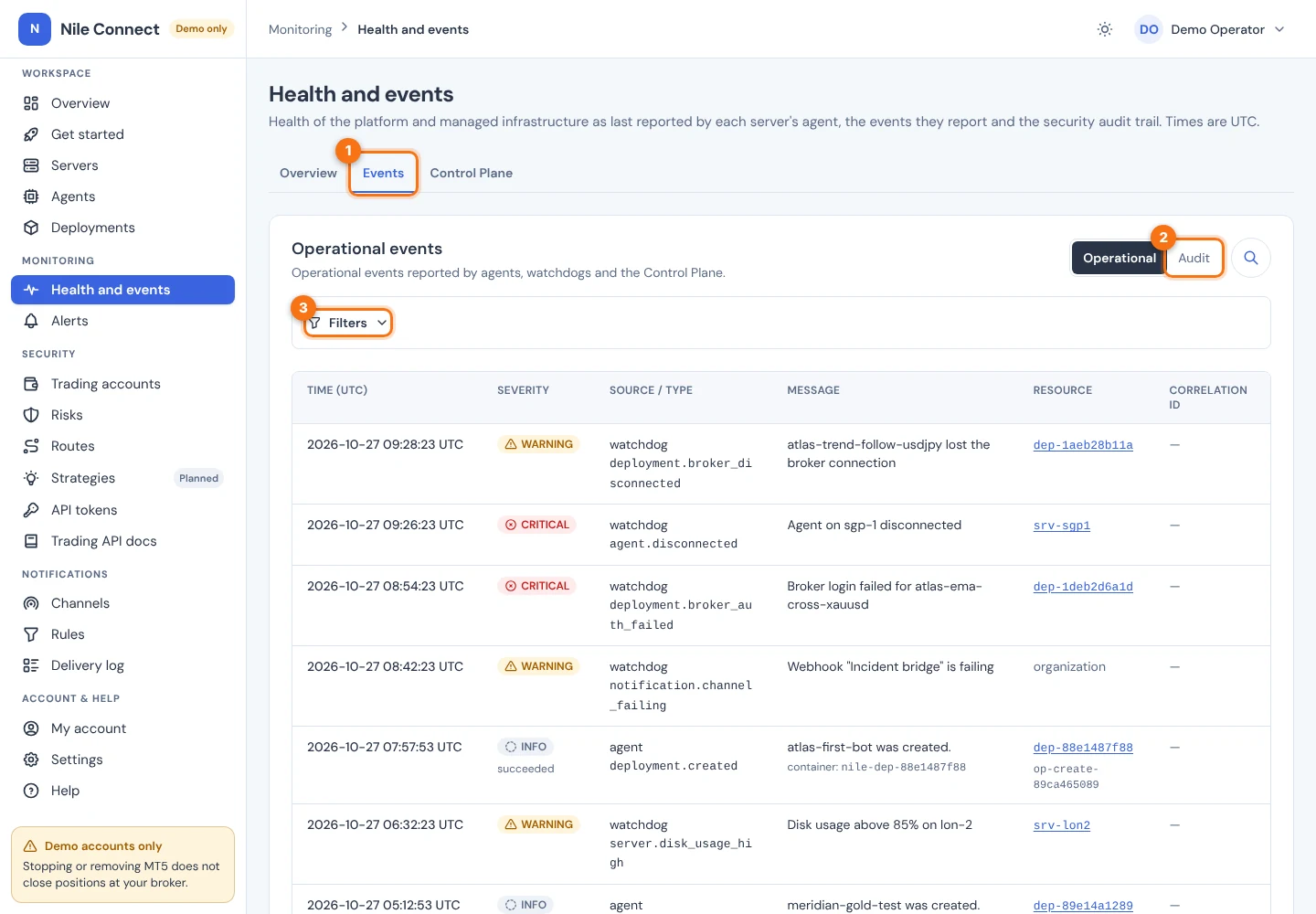
Without the audit:read permission (bundle AUDITOR) you see only the audit events of resources you can read, and source addresses are hidden. Values that look like secrets are redacted.
| DATA | KEPT FOR (DEFAULT) |
|---|---|
| Metric samples | 7 days |
| Health changes and operational events | 30 days |
| Resolved alerts | 90 days. Open alerts never expire. |
With one deployment, one server uses about 13 MiB of database space per day of metrics. See also Outages and Troubleshooting.