
Deploy a trading account
This guide takes you from a connected server to a running MetaTrader 5 demo terminal with a trading account, routes and mapped symbols.
1. Before you start
You need:
- a server with a connected agent (see Add a server);
- a demo account with an MT5 broker, and its broker server name exactly as MetaTrader 5 shows it, for example FTMO-Demo;
- the OPERATOR permissions on that server (see Users and single sign-on).
PerkBridge does not ship or license MetaTrader 5. The terminal is installed on your server from MetaQuotes’ own installer or your broker’s, and you accept the MetaQuotes licence yourself when you create the deployment.
A deployment is one MT5 terminal in its own container on one server. Each session runs once and is never restarted in place. When you stop a deployment, create a new one to run the terminal again. PerkBridge can start a new session for you after a server reboot or a failure, only if you allow it (section 4).
The dashboard’s Get started page walks you through these steps one at a time, from adding a server to your first deployment.
2. Choose the platform
Open Deployments, start a New deployment and choose the Server. Then choose the trading platform. Today that is MetaTrader 5; other platforms appear only when they are in the signed catalog.
The platforms come from PerkBridge’s signed catalog. The control plane and the agent check its signature, and a new deployment always uses the latest version. The card shows that version’s publication date, its download size and anything known about what it was tested with. For MetaTrader 5 the download is about 3.8 GB, so it can take some minutes on a small server.
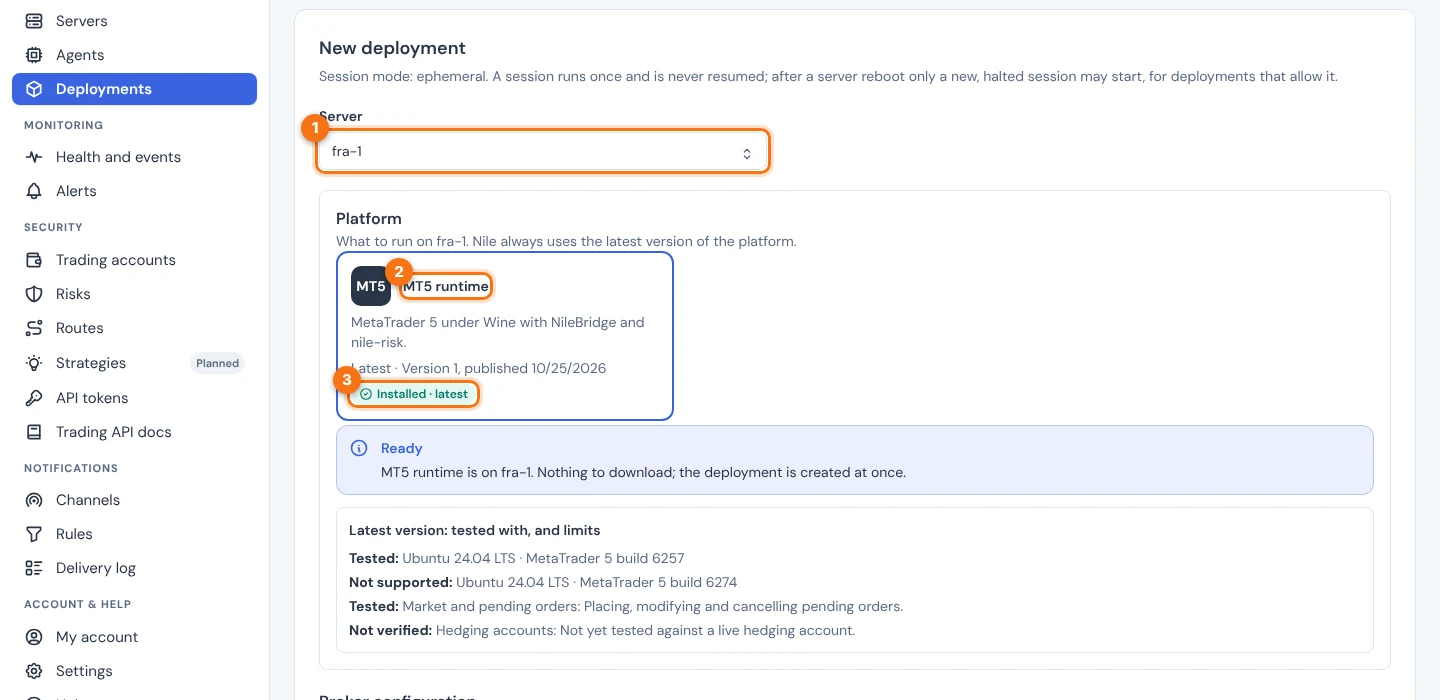
| THE CARD SAYS | THE MAIN BUTTON |
|---|---|
| Installed · latest | Create deployment |
| Older version on the server | Update and create: downloads the latest version, then creates the deployment. |
| Not on the server yet | Install and create: downloads the latest version, then creates the deployment. |
| Downloading now | Disabled, with progress. |
| Not verified | The server’s agent does not report its images, so you pick an approved image as before. |
Installing or updating needs permission to download images on that server (server:image_pull). Without it the button says to ask an administrator, and your form stays filled in. A deployment that already runs an older version is never changed.
You can close the page while the platform downloads. The control plane finishes the job: when the download is verified, it creates the deployment for you, as long as the download finishes within 24 hours. The deployment is created stopped; you start it yourself.
3. Enter the deployment details
After the platform, fill in:
| FIELD | WHAT TO ENTER |
|---|---|
| Name | A name shown in the dashboard. Never put a login or password here. |
| Resource limits | Memory (for example 2g), CPUs (for example 1.5) and Process limit. The server’s policy sets the allowed range. |
| Broker server | The server your demo account belongs to, exactly as MT5 or your broker shows it, for example FTMO-Demo. |
| Runtime configuration | Optional and advanced. Leave it empty unless an administrator placed a configuration file on the server. |
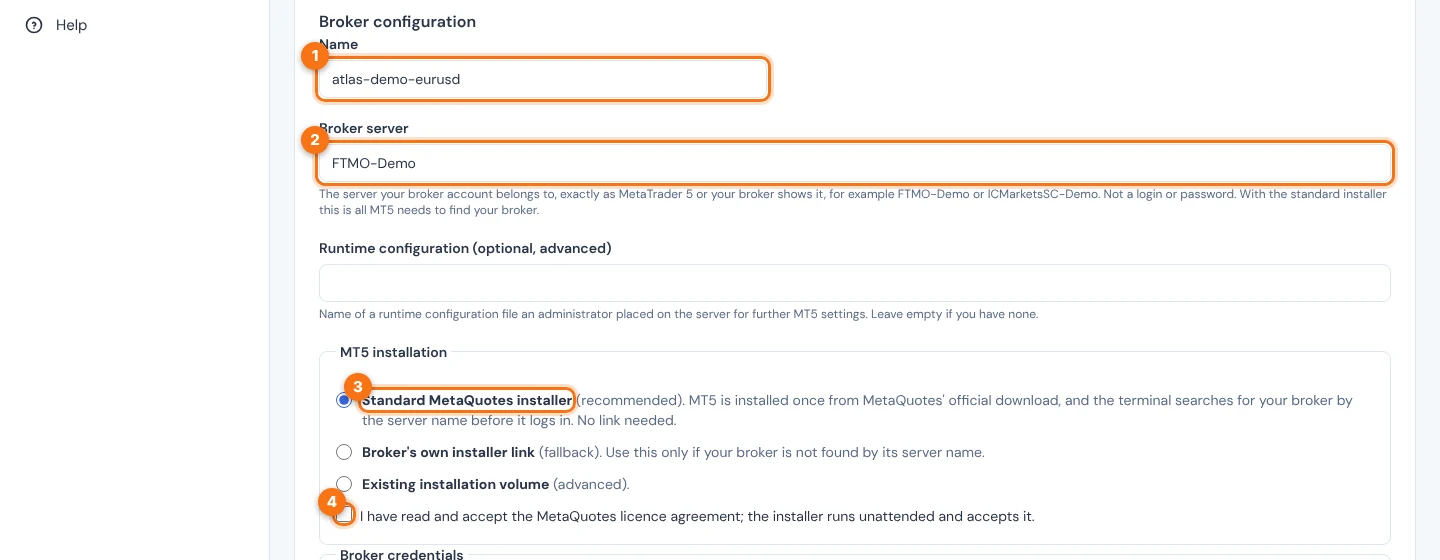
Under MT5 installation, keep Standard MetaQuotes installer (recommended). MT5 is installed once from MetaQuotes’ official download, and before each login the terminal searches for your broker by the server name. You never type a link.
Tick I have read and accept the MetaQuotes licence agreement. The installer runs unattended and accepts it, and your confirmation is recorded in the audit log.
Two fallbacks exist. Use Broker’s own installer link only if the search cannot find your broker; the link must be on MetaQuotes’ download server (https://download.mql5.com/cdn/web/<broker>/mt5/…exe). Existing installation volume is for advanced setups.
Under Broker credentials, choose Deliver once at start if the terminal should log in to your demo account. You do not type the password here. Deliver broker credentials explains how it is sent.
To trade through the API, tick Allow orders from the Trading API (demo accounts only). This selects Deliver once at start for you, and the server’s policy must allow trading (Allow trading when the server was added). Neither choice can be changed later.
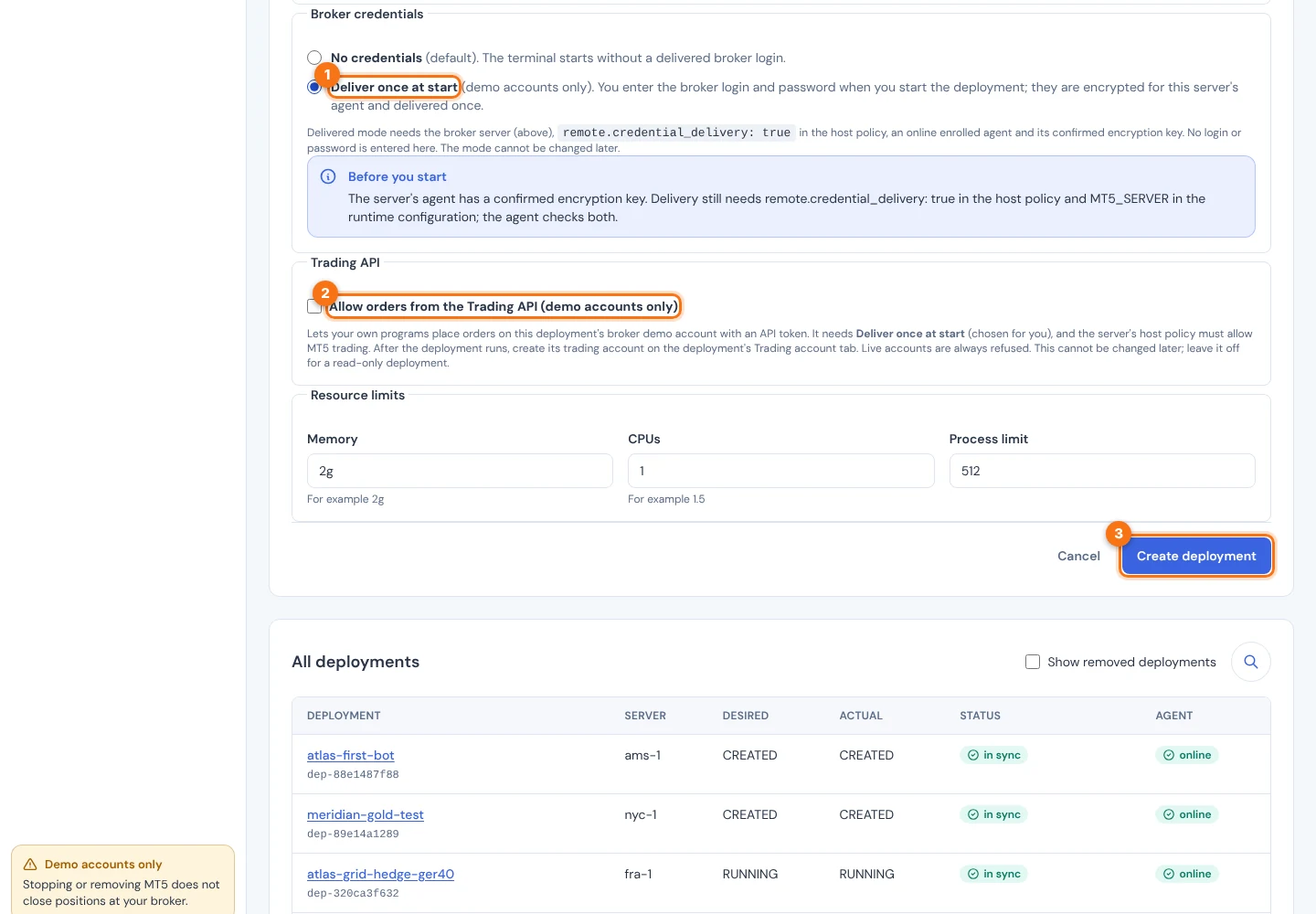
Choose the main button: Create deployment, or Install and create if the platform is not on the server yet. The first create on a server installs MT5 into a shared installation volume, which later deployments reuse.
New deployments are created with Start again after a server reboot turned on. It takes effect only once you remember the deployment’s credentials with automatic use allowed (section 4). See Failover.
4. Start it and check the broker login
A deployment without credentials has a Start button. A deployment with delivered credentials is started from its Credentials tab with Start with credentials, or with Start with the remembered password once you chose to remember it. Remembering the password with automatic use allowed also lets PerkBridge start a new session after a server reboot, or for failover. See Broker credentials.
With the standard installer, each start first runs the broker search, which took about a minute in testing. If no search term finds your broker, the start fails before any login with server_not_found. Check the server name, or create a new deployment with the broker’s own installer link.
Wait until the deployment’s health shows the broker as connected. A running container or terminal is not proof of a broker login: only the terminal’s own login journal counts.
5. Create the trading account
When the broker shows as connected, open the deployment’s Trading account tab and choose Create trading account. PerkBridge reads the login, server and currency from the terminal itself. You never type them, and the account is accepted only while the terminal reports a demo account.
Then open Trading accounts and choose the account:
- Add symbols. Under Add a symbol, search the broker’s symbols in Broker symbol, or type the name exactly as MT5 shows it, for example EURUSD.r. Symbol is the name your programs use in orders, for example EURUSD. Each symbol maps to exactly one broker symbol. There is no fuzzy matching.
- Check the risk limits on the Risk tab and choose Save risk limits. New accounts show demo defaults that are not saved yet.
- Turn trading on on the account’s Overview.
The account’s Orders tab shows open positions, pending orders and recent orders.
6. Add routes (optional)
A route is a lane inside one account, for example one per algorithm. On the Routes tab choose Add a route, give it a name (up to 64 characters), optionally limit it to some Symbols, and set Own limits that can only be tighter than the account’s. An order on one route can never reach another account.
Turning a route or account off stops new positions only. Closing a position always stays possible. Without routes, orders use the account’s limits and a token is for the whole account.
Next, create an API token and place orders: see the Trading API reference. To protect the account, see How risk rules work.