
DirectConnect
Send orders from your own strategy straight to the trading server over one TLS WebSocket, with PerkBridge adding only about 20 to 45 ms, with the same risk checks, and read the account on the same connection.
1. What DirectConnect is
With the classic order path, an order from the Trading API goes through the control plane to the trading server. From request to fill that takes about 0.5 to 0.7 seconds (an estimate; 1.32 s was measured before orders were dispatched at once). With DirectConnect, your strategy keeps one connection open to a DirectConnect proxy, and the proxy hands each order to the account's trading server over a link the server keeps open. PerkBridge's own part takes about 20 to 45 ms (an estimate). The broker's fill comes on top and is the same on every path: 160 to 180 ms measured on one broker's demo server, so about 200 to 230 ms from request to fill with everything in the broker's datacenter.
What stays the same:
- Orders have the same kinds, fields and statuses as the Trading API. See How orders work.
- The account's risk limits and time rules are checked on the trading server before every order.
- The dashboard, the REST API and the emergency stop keep working on a DirectConnect account. Closing positions is always possible, also during a halt.
- Failover to the standby server needs no change in your program.
Every order carries an id that your program makes. The trading server writes each order to disk before it sends it, and never executes the same id twice, so a program that resends an order after a lost connection cannot place it twice (section 5).
2. Set it up in the dashboard
You do this once per server and once per account.
What you need
| YOU NEED | WHY |
|---|---|
| A licence that includes DirectConnect | Turns DirectConnect on and sets the number of proxies. |
| A trading server added with Allow risk mode | Orders are checked by the risk service on the server, which is the only process that may send them to the terminal. |
| A deployment created with Run in risk mode and Prepare for DirectConnect, on the nile-mt5-runtime-direct image | The terminal must take orders from the server's DirectConnect service. |
| An MT5 account, live or demo | DirectConnect, like the rest of PerkBridge, trades live and demo accounts. Real accounts need the runtime image NileTrade 1.4.0 and a current Fleet Agent. |
| At least one proxy, better two, on your servers | Your program connects to a proxy; with two it can switch when one is down. |
The people who set it up need these permissions (capabilities). An administrator has all of them.
| STEP | PERMISSION |
|---|---|
| Install DirectConnect on a server | server:provision on that server, and a recent sign-in |
| Add or remove a proxy | trading:configure on the organization and server:provision on the proxy's server, and a recent sign-in |
| Turn DirectConnect on for an account (Order path tab) | trading:direct on the account |
| Create a DirectConnect token | trading:tokens on the organization or the account, and a recent sign-in |
| Your program | A DirectConnect token with Full access to send orders, or Read only |
Install DirectConnect on the trading server
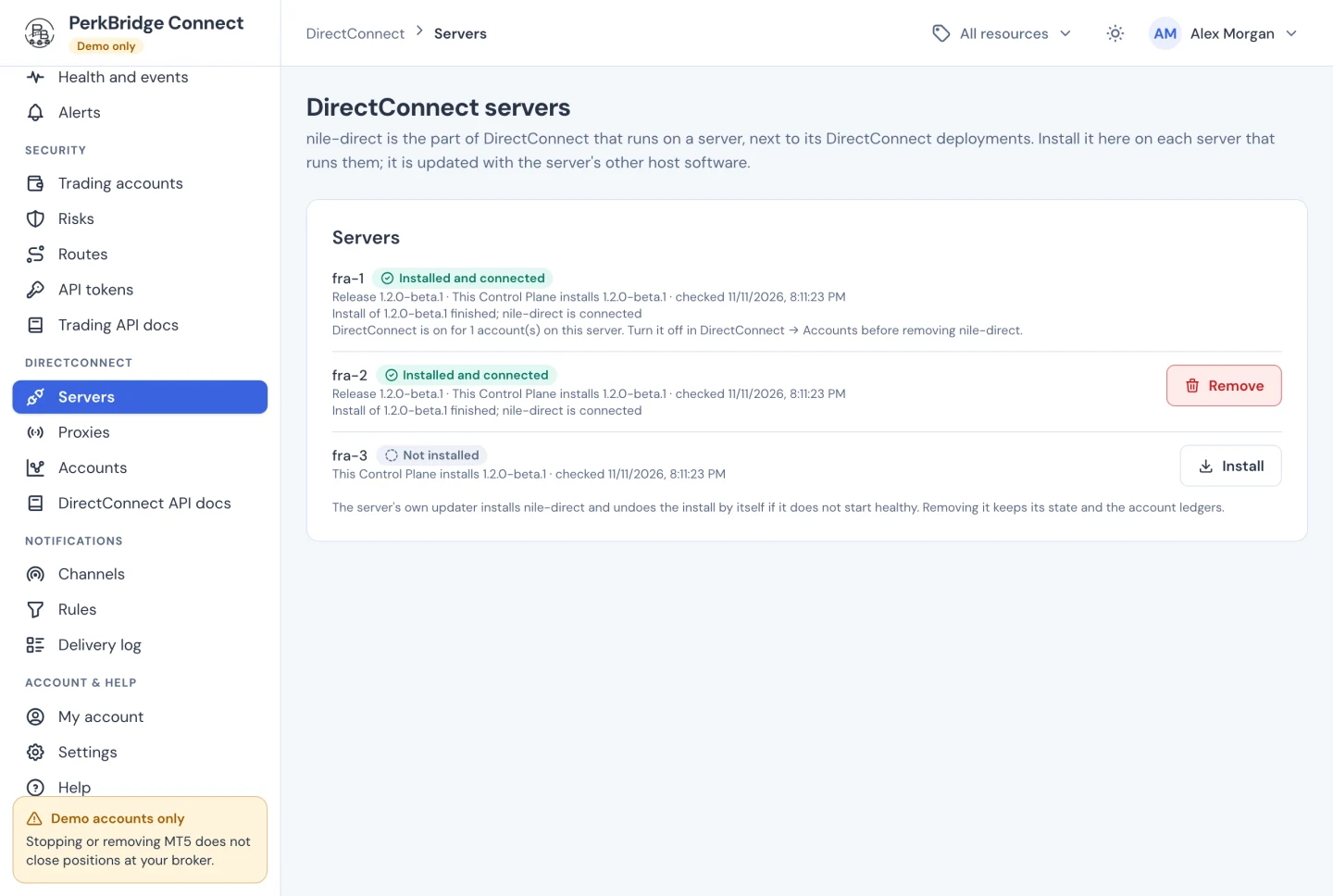
Open DirectConnect → Servers and press Install next to the server. The server's updater installs the DirectConnect service and checks it. Running deployments keep running. The service is then updated with the server's other software. The server opens no new inbound port: it connects out to the proxies.
Add a proxy
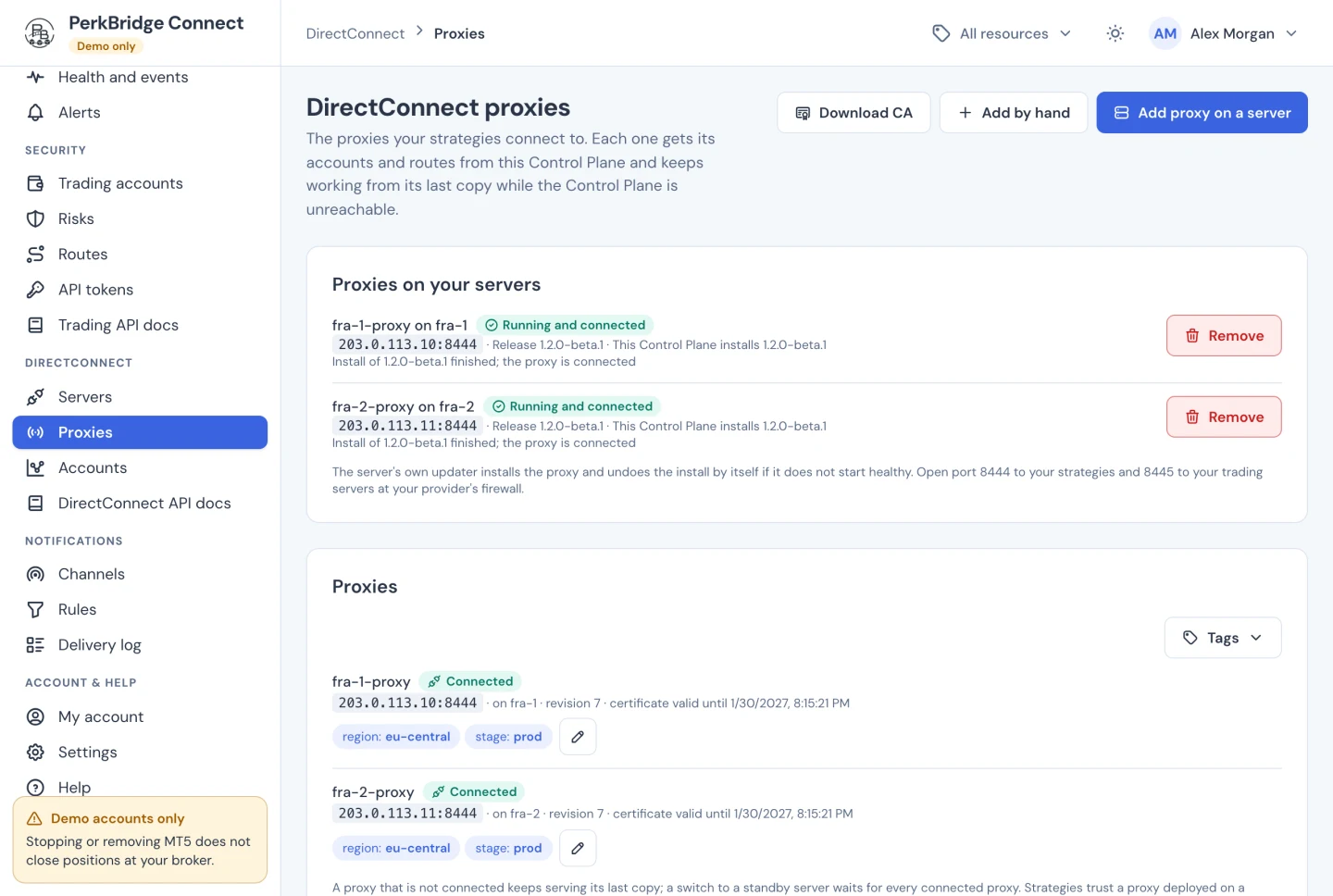
Open DirectConnect → Proxies, choose Add proxy, pick one of your servers and give the proxy a name. Any managed server can run a proxy, also one that trades. The proxy uses the server's own address and is ready when the page shows it as connected. Add at least two proxies on different servers, so your program can switch when one is unreachable. Your licence sets how many proxies you can run.
The proxies use certificates from your installation's own DirectConnect authority. Press Download CA on the same page and give that file to your program, which uses it to check the proxies (section 4). In your provider's firewall, open port 8444 on the proxy's server to your program's address, and port 8445 to your trading servers, which connect to the proxy there.
Create the account's deployment for DirectConnect
DirectConnect is chosen when the deployment is created and cannot be added to a running one. In Deploy a trading account, tick Run in risk mode and Prepare for DirectConnect, and choose the DirectConnect runtime image, nile-mt5-runtime-direct.
Turn DirectConnect on for the account
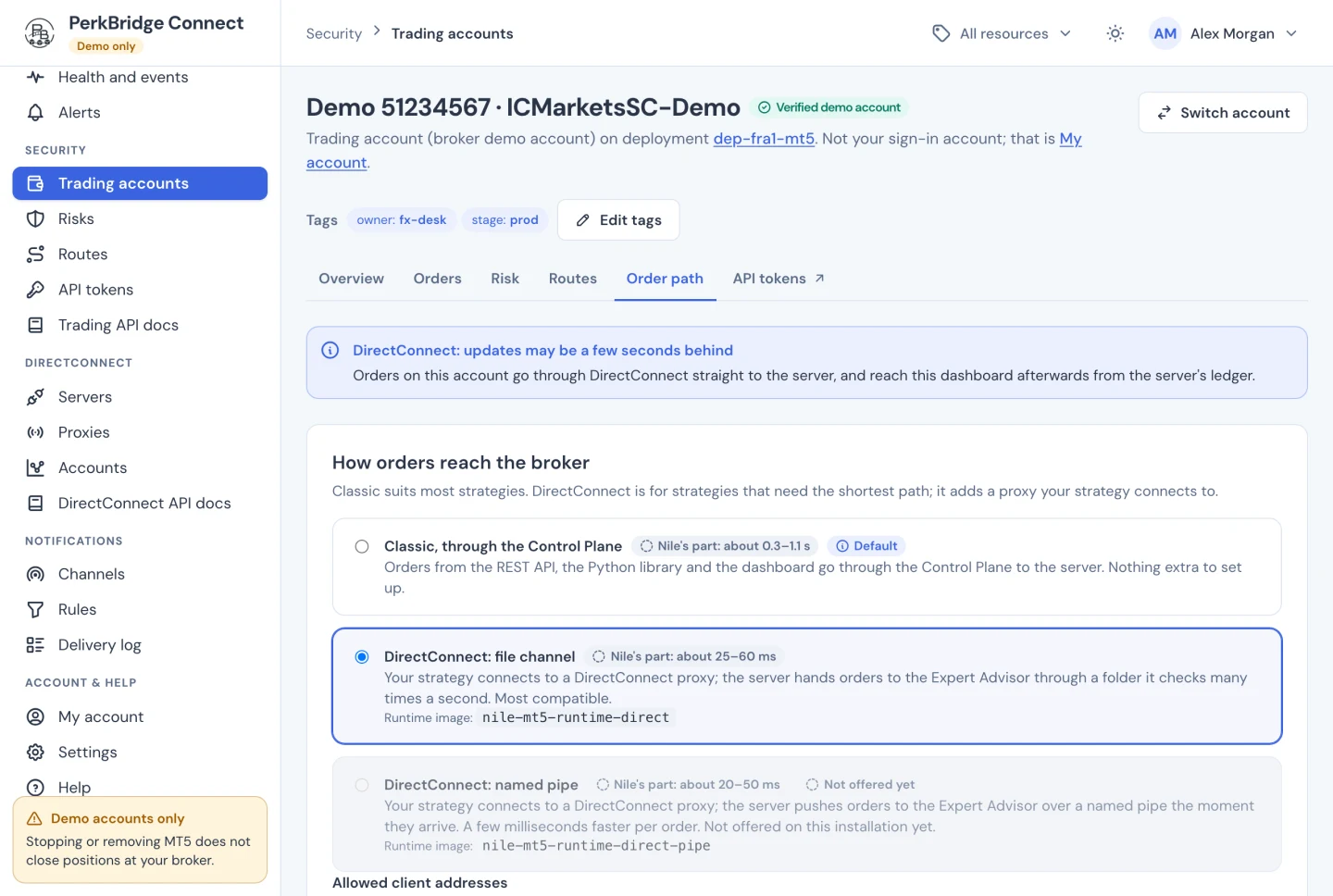
- Open the trading account and its Order path tab.
- Choose DirectConnect: file channel. The tab can also offer DirectConnect: named pipe, when your installation offers it; it is off by default. The options are greyed out, with the reason, until the licence, your trading:direct permission, DirectConnect on the server and a proxy are all in place.
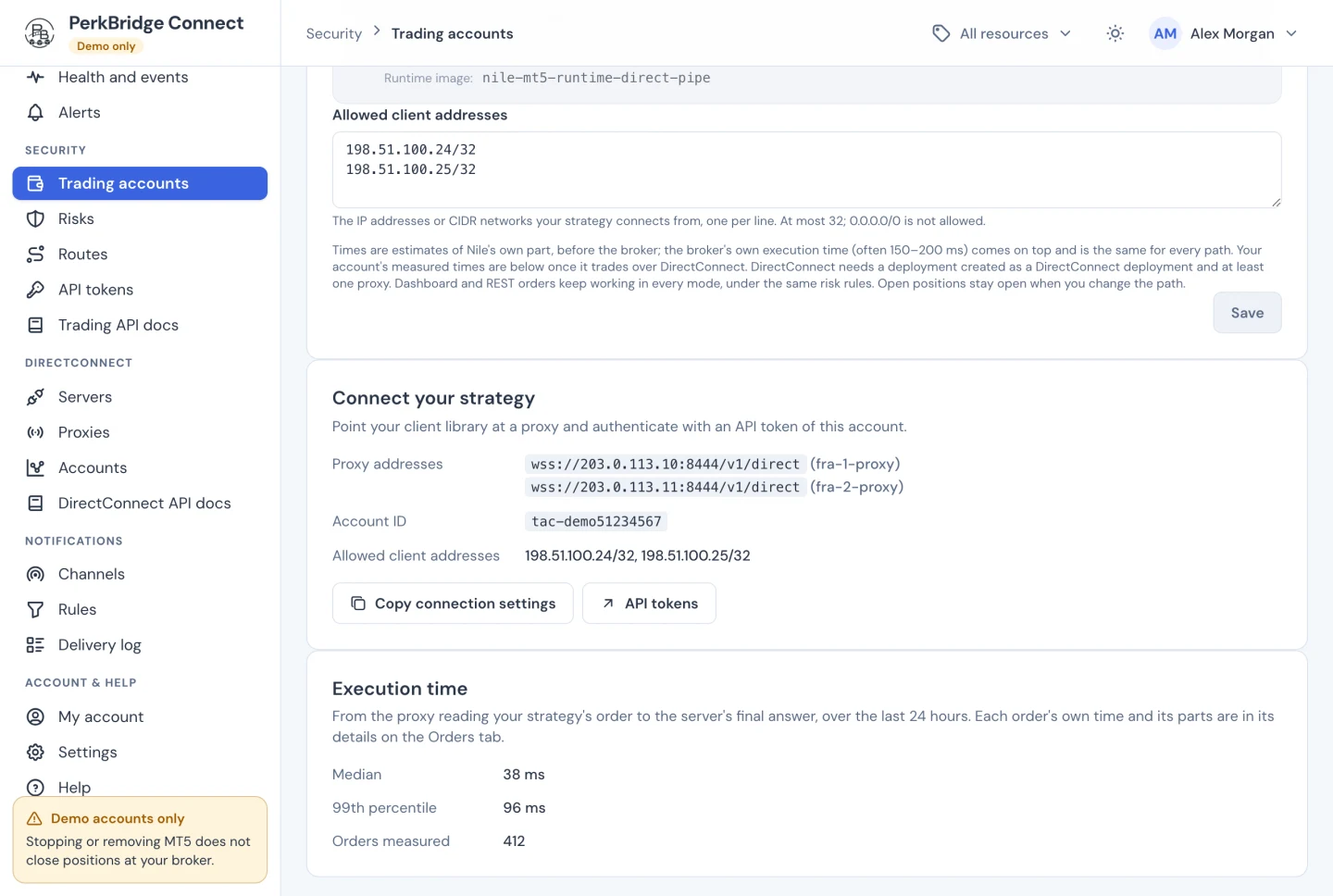
- Under Allowed client addresses, enter the public IP addresses or CIDR ranges your program connects from, one per line. At most 32. 0.0.0.0/0 is not allowed. A proxy drops every other address before it answers.
- Press Save. The server takes the account over within a few seconds. The tab then lists the proxy addresses to use.
DirectConnect → Accounts lists every account and whether DirectConnect is on for it.
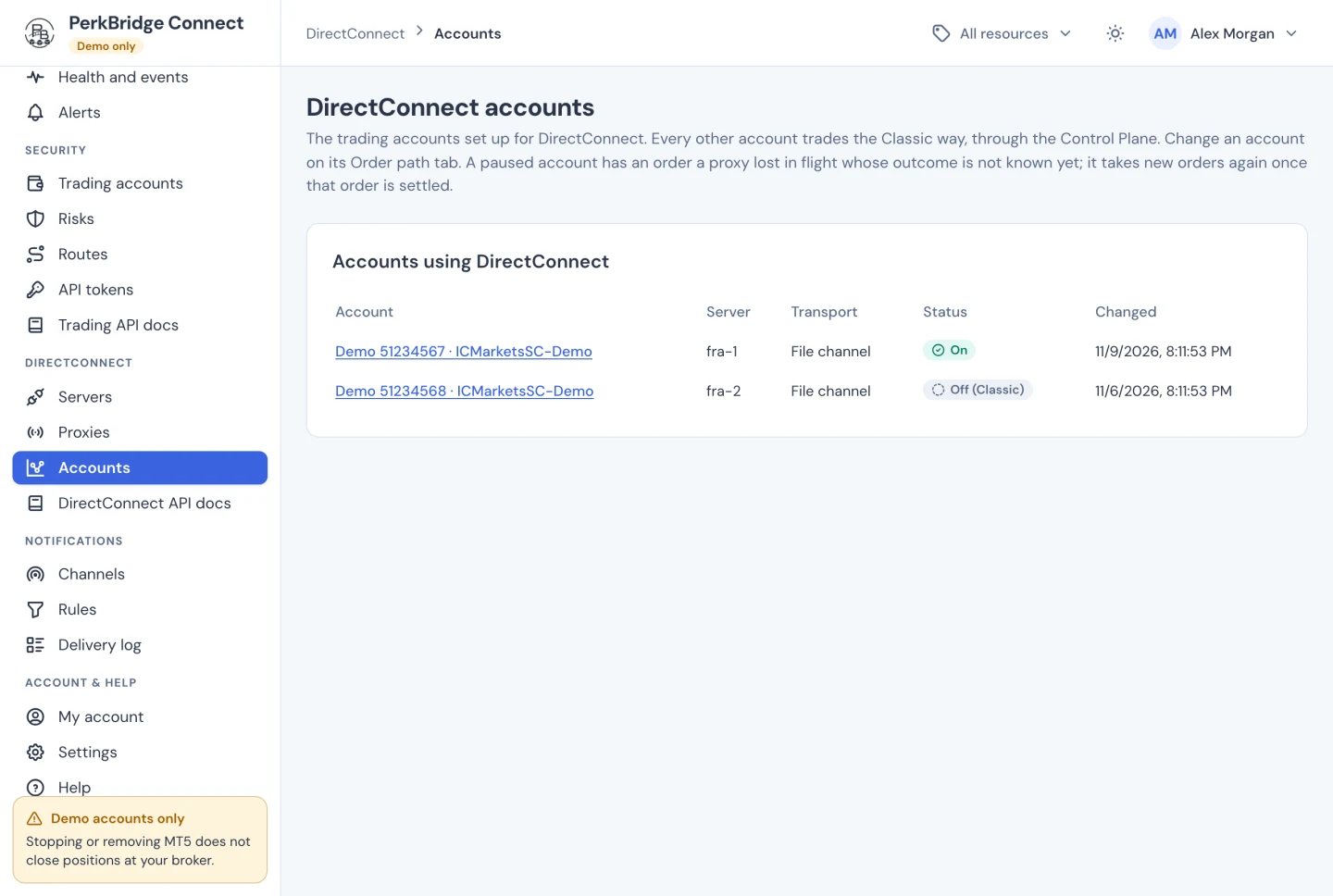
Open positions stay open when you change the order path. You can switch back to Classic at any time.
Create a DirectConnect token
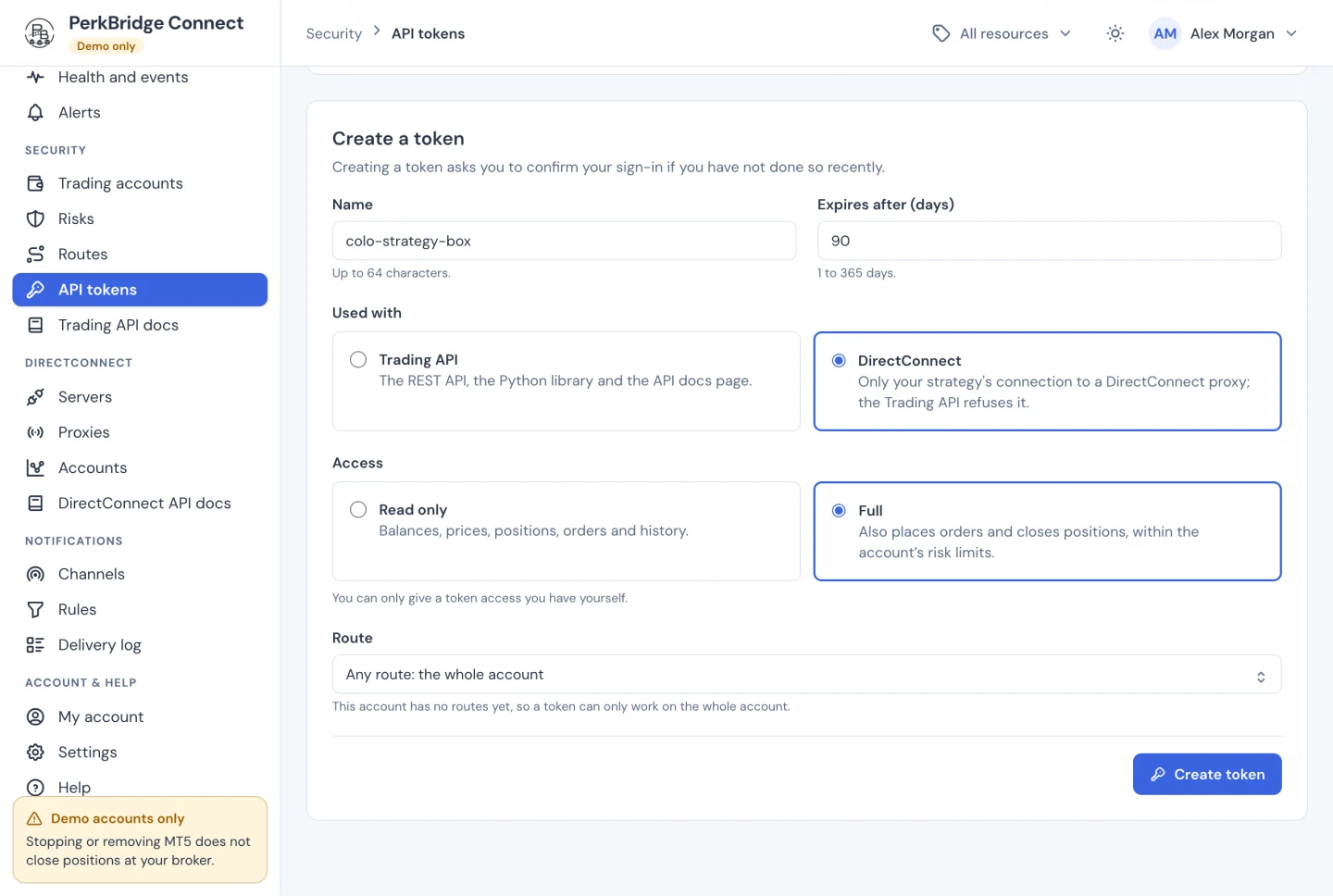
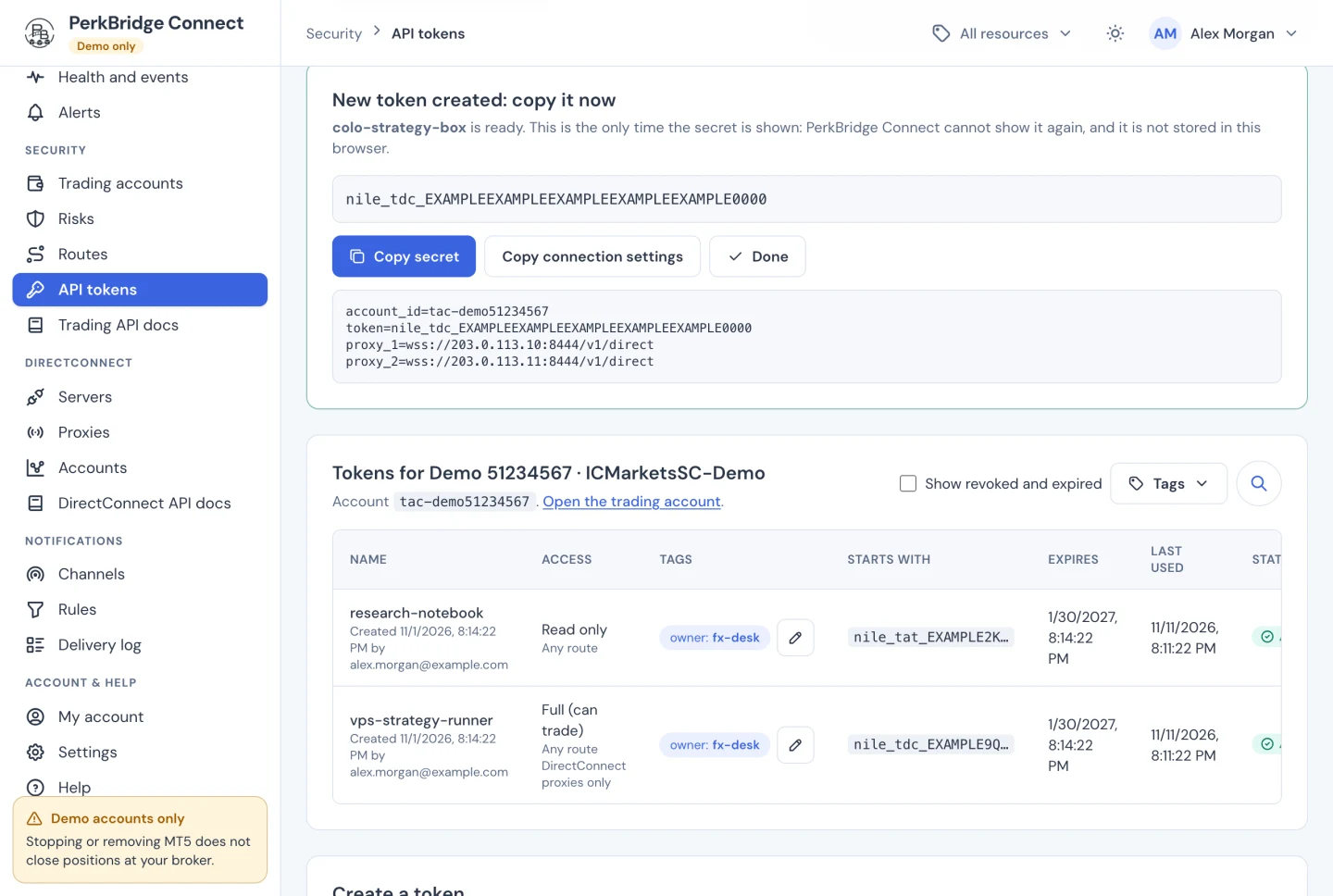
Open API tokens, pick the account, and under Used with choose DirectConnect. Choose Full access to send orders, or Read only, and a lifetime of 1 to 365 days. The token starts with nile_tdc_ and is shown once. Keep it like a password and never put it in source code. A REST token (nile_tat_) does not open a DirectConnect connection, and a DirectConnect token does not work on the REST API. See API tokens.
A new or revoked token reaches the proxies within seconds. Until then the token list shows Pending delivery.
After an upgrade
- Bring each trading server up to date after you upgrade the control plane: Servers → your server → Setup → Run setup again (1.2.0-beta) updates the agent, watchdog, vault, updater and the installed DirectConnect component, even from several releases back, and leaves running terminals running.
- The DirectConnect menu and the Prepare for DirectConnect option appear only when your licence includes DirectConnect (since 1.1.6-beta). After you upload such a licence they appear without a new sign-in. Without the feature, turning DirectConnect on for an account through the API is refused with 409 feature_not_licensed and audited (since 1.2.7-beta; before, it answered an error 500).
- Bars reads without an end time read up to now (since 1.1.10-beta; before, they answered status_unavailable). When a read fails, the trading server's log says why.
- Stop loss and take profit on market orders are accepted since 1.2.0-beta, and so are the units and protections of Position protections, on the runtime image main-213a8d4 or later (DirectConnect File-channel image).
- After a failover that promotes the standby in place, DirectConnect stays closed for the account until its deployment is re-created. Try failover on a demo account first.
3. Orders, with examples
Every message is one JSON object, sent as one WebSocket text message; the examples are spread over several lines only to be read. Each order carries a client_order_id: a UUIDv7 your program makes for each new order. It names the order for its whole life. Its time may not be more than a minute ahead of the server's clock, so keep your clock in sync. expires_in_ms, at most 60000, is how long the order may wait for the terminal; after that it is not sent.
A market order
The answers, in order. First the ack: the order is on the trading server's disk. Then the result with its final status. elapsed_ms is the time on the proxy from reading your order to the answer.
The values above are an example. Since 1.2.0-beta a market order can also carry stop_loss and take_profit; on an older release, set them on the position afterwards (below), or use a pending order.
A limit order with stop loss and take profit
Its result has the status placed: the order waits at the broker for its price. order_type can also be stop or stop_limit (with stop_limit_price). time_in_force is gtc, day, gtd (with good_until) or gtd_day (with good_until_date).
Change, cancel and close
Change a pending order's price or stops. target_order_id is the order_id from its answer:
Set or change the stop loss and take profit of an open position. position_id is the position's broker ticket:
Cancel a pending order:
Close a position, or part of it with volume:
Each of these is a new order with its own new client_order_id. route_id, strategy and comment (up to 64 characters) work as in the Trading API.
The answers
| TYPE | MEANING |
|---|---|
| ack | The order is stored on the trading server, with its order_id. It is still in flight: the result follows. |
| result | The order's status in order.state: final (filled, placed, rejected, refused, expired, not_executed, …) or unknown. A result that answers a resend has stored: true and shows the order as it is now. |
| refused | Refused before anything was sent, for example by a risk rule. The id is used up. |
| error | About the connection or the moment, not the order: nothing was recorded for this message. code says what to do (section 5). |
Every answer carries the request_id of the message it answers and the order's client_order_id. The exception is rate_limited: the proxy answers it before it reads your message, so it has no client_order_id. Treat it as an answer to the message you just sent, and resend that message with the same id after a short wait.
One order may be in flight per account. Send the next order only after the previous one has a final result or a refused. For a pending order, its placed result is enough. An ack is not: the order is stored, but it is still in flight, and a new order sent then gets in_flight_limit.
4. Connecting
- Address: the proxy addresses listed on the account's Order path tab, for example wss://direct-1.example.com:8444/v1/direct. TLS 1.3 only.
- WebSocket subprotocol nile.direct.v1 and the header Authorization: Bearer nile_tdc_….
- Trust the CA file from Download CA, and connect to the proxy exactly by the address listed: its certificate names that address.
- A wrong, expired or revoked token gets a plain HTTP 401. An address that is not allowed gets no answer at all.
- Keep one long-lived connection. Send {"type":"ping"} at least every 60 seconds; WebSocket pings also keep it open.
- When a proxy cannot be reached, connect to the next one. Every proxy serves every account of your organization.
- Limits: 50 messages per second (bursts of 100), 4 connections per token, 16 per account, one order in flight per account.
5. When to resend
The one rule: if you do not know an order's fate, send it again with the same client_order_id. That is always safe, because the trading server answers a known id from its records and never executes it twice. Make a new id only after a final status, when you still want the order.
| WHAT YOU GOT | WHAT TO DO |
|---|---|
| The connection dropped, no answer, a timeout | Reconnect, to any proxy, and resend the same id. |
| error server_unavailable, account_paused, in_flight_limit, failover_in_progress, rate_limited and the other temporary codes | Wait briefly and resend the same id. Back off up to a few seconds. |
| error target_not_yet_imported | Resend the same id after retry_after_ms. |
| error server_lost_in_flight | The order may be at the broker. Do not make a new id: resend the same one until it is final. |
| A stored result that is not final, or unknown | Resend the same id after a second. An unknown order is settled from the broker's history within about a minute. |
| error stale_client_order_id or id_used_order_not_held | Never resend this id. Check the account's orders in the dashboard, then make a new id if you still want the order. |
| error invalid_client_order_id or client_order_id_in_future | Fix the id, or your machine's clock. |
| refused, or a final result | Done. Resending gets the same answer. |
While an order is unknown, the account is paused for new orders and the dashboard shows Paused: order unknown. Closing positions from the dashboard still works. A dropped connection never cancels an order the server already has: it runs to its end, and your resend after reconnecting returns it.
6. Order status, reads and events
Ask about an order without sending it
The answer holds the order as the server has it, or the error order_not_known when the server never received this id, in which case sending the order with it is safe. Use it after your program restarts, before you resend an order whose fate you did not record.
Read the account
what is account, positions, orders, symbols, bars or history (the last 7 days), with the Trading API's parameters. The answer is read_result with data, or an error. Reads come from the trading server's terminal. When it cannot answer you get status_unavailable, never old data. Positions and orders may be a few seconds behind the broker; an order's own result is not.
The same reads work over plain HTTPS on the proxy, for example from a shell:
Follow the account
Send {"type":"subscribe"}. The proxy answers subscribed and then streams the account's events:
| EVENT | DATA |
|---|---|
| snapshot | The account, its positions and its open orders. Always the first event of a stream. |
| order | An order that was accepted or changed, also one placed from the dashboard. Sent at once. |
| position | A position was opened, changed (volume, prices or stops) or closed. Up to a second late. |
| account | Balance, equity or margin changed. Up to a second late. |
| interrupted | The stream stopped, for example while the account switches server. |
Within a stream, seq goes up by one. A gap, a new stream or interrupted means: throw away what you built and wait for the next snapshot. Prices are not sent as events. A program that does not read its events loses the connection.
7. A complete Python example
This program connects to the first proxy that answers, places one market order and follows the rules of section 5: it resends the same id after a lost connection or a temporary error, also a rate_limited answer without an id, and stops only at a final status.
Before it sends the order for the first time, it writes the order's id and exact body to a file, NILE_DIRECT_STATE (by default directconnect-order.json), and removes the file once the order is final. When the program is killed, crashes or gives up waiting (exit code 2), run it again from the same directory: it finds the file, asks the order's status, and resends that order with the same id and body when it is not final. It never makes a new id for an order whose fate it does not know, so a restart cannot open a second position. With NILE_DIRECT_EVENTS_SECONDS=10 it also prints the account's events after the order.
directconnect_client.py:
In your own program, read the connection in one task and hand answers and events to whoever waits for them. The example reads events only while it sends nothing, to stay short.
8. Where to run your program
- Run your program close to a proxy, in the same datacenter or region, and the proxies close to the trading server. Each network hop between continents adds tens of milliseconds per order.
- Use at least two proxies on different servers, and list all of them in your program. On a connection error, connect to the next one and resend. A load balancer in front of them may pass TLS through but must not end it.
- Keep the allowed addresses tight: your program's fixed public addresses only. A program behind a changing address should use a fixed exit, such as a NAT gateway or a VPN.
- Keep the clock in sync with NTP on the machine that makes the ids.
- The account's Order path tab shows the measured execution time, median and 99th percentile of the last 24 hours, once the account trades over DirectConnect.
9. What PerkBridge guarantees
Every change to DirectConnect runs a fault-injection test suite. It runs the real proxy and trading-server services against a simulated terminal and broker. It kills the proxy and the server's services at each step of an order's way, crashes the simulated terminal before and after sending, cuts the network and drops the client. In those tests, a program that follows section 5 gets no duplicate order and no lost order: every order ends in a final status that agrees with the simulated broker. The switch to a standby server is tested the same way, with two servers and two proxies and a simulated control plane. During a switch, a new order gets failover_in_progress and is not sent; after it, only the new server sends orders.
What these tests do not cover yet:
- A real MetaTrader 5 terminal and a real broker. A soak test that runs the same checks for an hour or more on a broker's demo server, with faults made by hand, is written but has not been run on a real server yet. Until it has, treat the results above as tested on the simulated broker only.
- Two limits of the standby switch. An order that the old server answered but never reported before it stopped is not seen by the new server. A change or cancel of an order the new server was never told about is refused there. Check the account's orders in the dashboard after a switch.
Turning DirectConnect off for an account in its Order path tab takes it off the proxies at once. Orders still pending on the server finish first, and the account then goes back to the classic path.