
Tags
Label servers, deployments, accounts, strategies and other resources with key and value tags such as stage=prod or desk=fx, then filter every list by them, or limit the whole dashboard to one tag with the scope control in the top bar.
1. What tags are
A tag is a key and a value, written key=value or key:value: stage=prod, desk=fx, owner=anna, broker=icmarkets. Each resource can carry up to five tags, with different keys. You can tag:
- servers and their agents, deployments, trading accounts, routes;
- strategies, events and strategy deploy tokens;
- DirectConnect proxies, API tokens, notification channels and notification rules.
A few ways people use them:
| TAG | WHAT FOR |
|---|---|
| stage=dev, stage=acc, stage=prod | Keep test servers and accounts apart from the ones that matter. Linked resources, such as an account and its server and strategies, are kept in the same stage. Set the scope to stage:prod and the dashboard shows only those. |
| account=demo, account=real | Mark whether an account trades practice money or real money, next to its trade mode badge. |
| desk=fx, desk=metals | One team's servers, accounts and strategies at a glance. |
| client=atlas | A service provider sees everything of one client. |
| region=fra | Servers and proxies by datacenter, for latency or maintenance. |
| owner=anna | Who to ask about a strategy or an account. Alerts and notifications carry the tags, so the message says it too. |
2. Tag a resource
Open the resource (a server, a deployment, an account, a strategy, …). Its page has a Tags field: press Edit tags, type a key and a value, add up to five, and press Save tags. The key list suggests keys that are already in use or defined in Settings, and their values.
The rules:
- Key: starts with a lower-case letter; then lower-case letters, digits, _ and -; at most 32 characters. Keys starting with nile. are reserved.
- Value: 1 to 64 characters, no leading or trailing space. Values are compared without regard to case when filtering.
- No secrets. A value that looks like a token or a key is refused (value_looks_like_secret): everyone who can see the resource sees its tags.
- Changing tags needs the same permission as changing the resource itself; anyone who can see the resource sees its tags.
3. Filter lists by tag
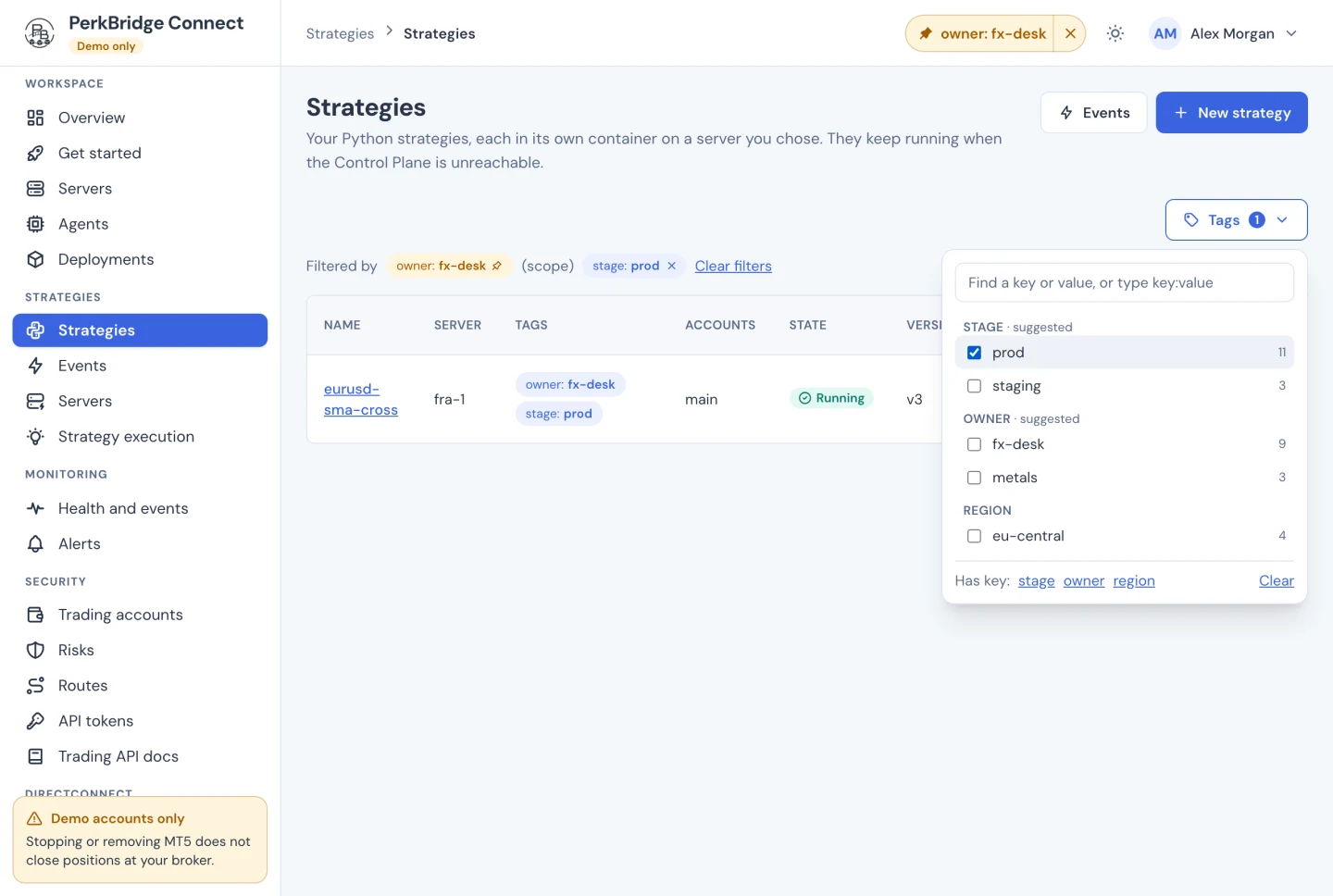
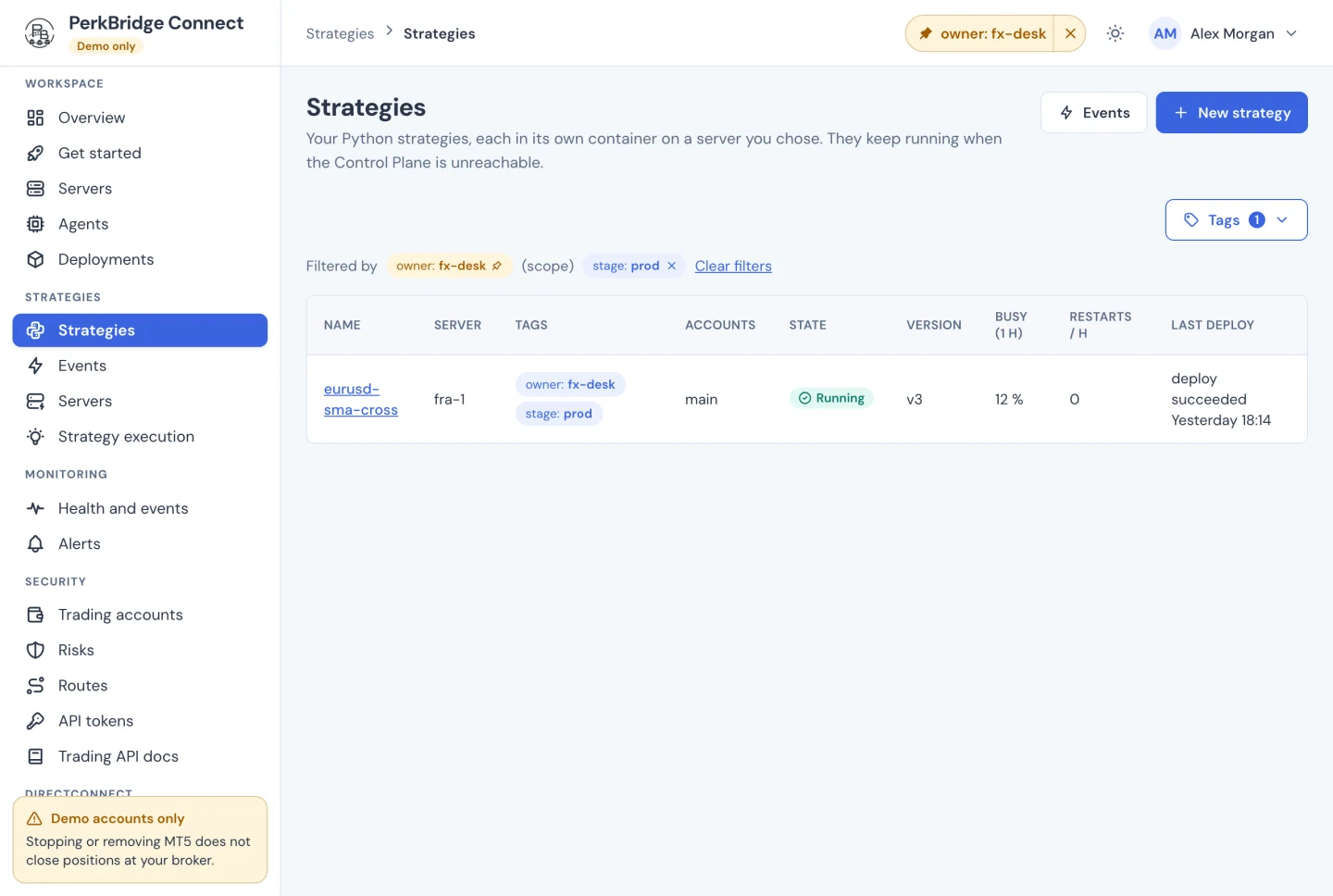
Every list (servers, deployments, accounts, strategies, events, proxies, tokens, alerts, events in Monitoring, notification channels and rules) has a Tags button above it. It opens a list of the keys and values in use, with counts: tick a value, type key:value in the search, or pick a key under Has key to show everything that has it. The chosen filters show as Filtered by above the list. Several filters must all match. Clear filters removes them. A filtered list is a link you can bookmark or share.
4. The scope control: one tag for the whole dashboard
The scope control in the top bar (it reads All resources when nothing is pinned) pins one or more tags for every page; the pinned tag then shows there as an orange pill. With the scope stage:prod, every list shows only resources tagged stage=prod, until you clear it with Clear scope. Without a scope (No scope) lists show everything you may see. The scope is remembered in your browser. The scope and a page's own filters together hold at most ten conditions.
5. Suggested keys: Settings → Tags
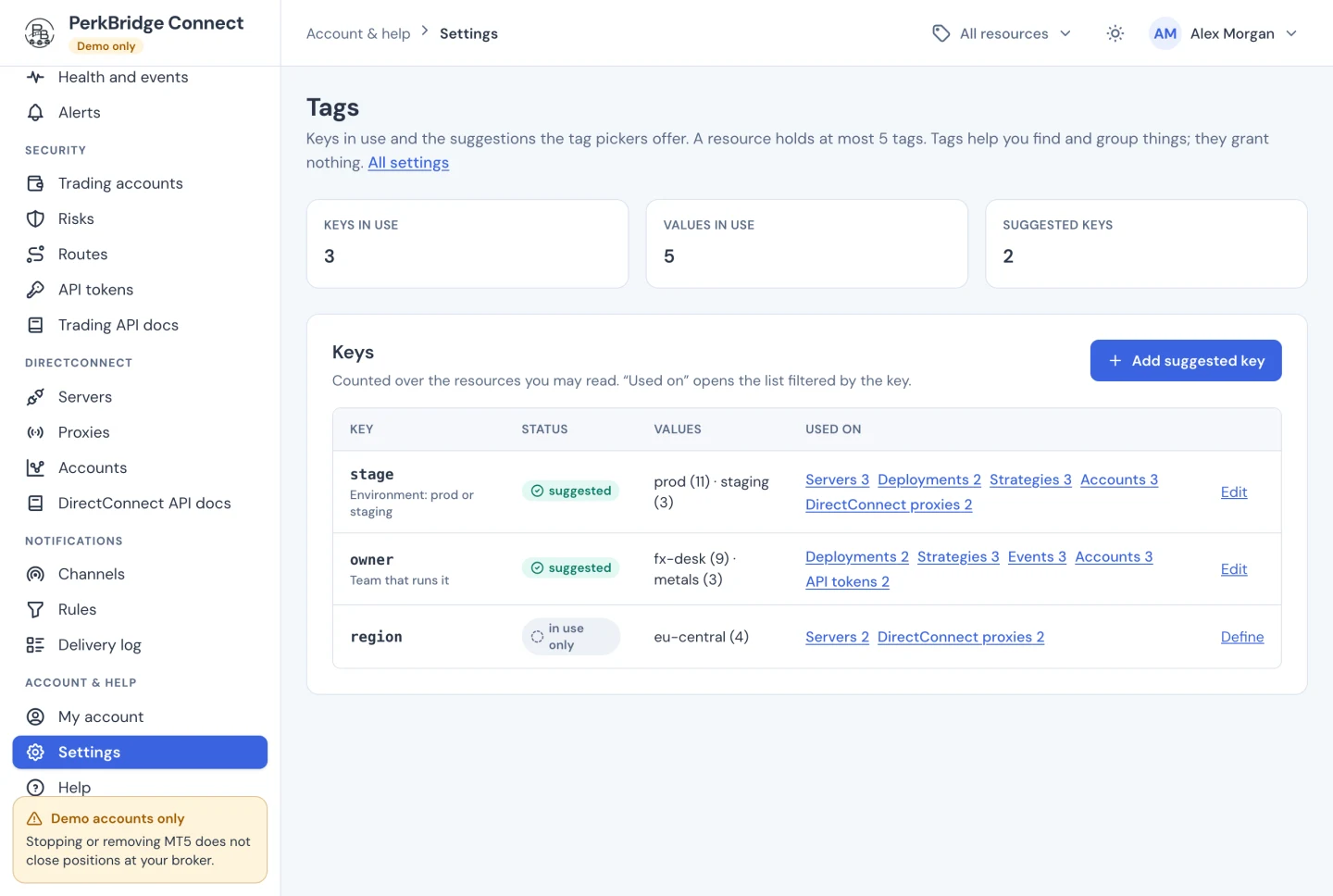
Settings → Tags lists every key in use, with its values and how many resources use them. An administrator (permission tag:define) can also define suggested keys with a description and up to 50 suggested values, so everyone uses stage and not env, environment and Stage. Suggestions only help pickers: any key and value that follows the rules is still accepted, and deleting a suggestion never changes the tags on resources.
6. Tags in the API and in alerts
Every object of a tagged kind carries tags as a JSON object, for example "tags": {"desk": "fx", "stage": "prod"}, also in trading events. Lists take ?tag=key:value (repeat it; all must match) or ?tag=key:
Tags are set from the dashboard (or the management API with a signed-in session, PUT …/tags with the whole set); an API token can read them but not change them. Alert notifications show the tags of the server or deployment on a line of their own, Tags: stage=prod, desk=fx, and the signed webhook carries them as JSON, so you can route alerts by tag in your own tools.